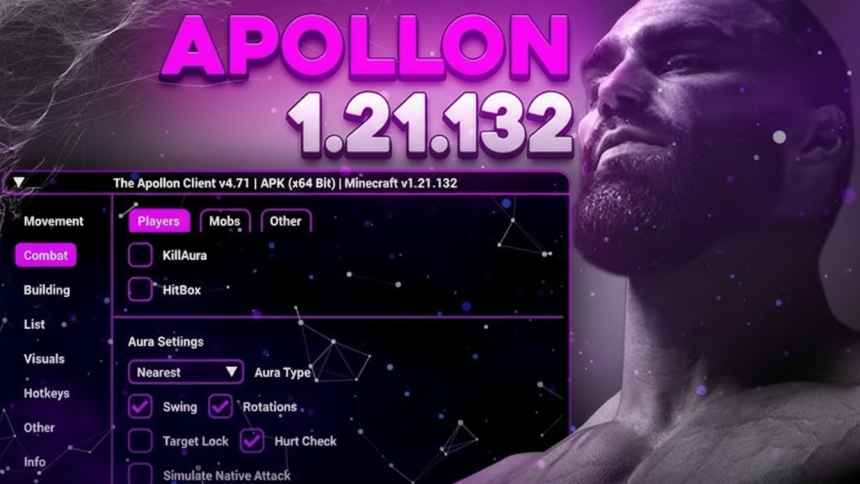
Apollon Client 1.21.132 is a feature-rich hack client for Minecraft Pocket Edition (MCPE) that enhances gameplay with advanced utilities, combat tools, and performance optimization features. This latest version supports both 32-bit and 64-bit devices, making it accessible across a wide range of Android smartphones and tablets.
What Is Apollon Client?
Apollon Client is a modified Minecraft PE launcher that injects additional functionality into the standard game. Unlike vanilla Minecraft, it provides players with utility mods, visual enhancements, and gameplay tools that aren’t available in the official version. The client automatically loads when you launch Minecraft after installation, requiring no additional configuration.
- Combat Tools: Kill Aura and auto-targeting systems for PvP
- Visual Enhancements: X-Ray and Fullbright modes for improved visibility
- Utility Functions: Auto Clicker, Fly mode, and Ladder Fly
- Performance Boost: FPS optimization and lag reduction
- Information Display: Show Position and Death Position tracking
- Custom Textures: Support for texture pack customization
System Compatibility
Apollon Client 1.21.132 is designed for Minecraft PE/Bedrock Edition and maintains compatibility with both 32-bit and 64-bit Android operating systems. The client works seamlessly on modern devices while offering fallback support for older hardware, though performance varies depending on device specifications.
Installation Guide
Step 1: Backup Your Data
Before installing, back up any existing Minecraft worlds, resource packs, and behavior packs to prevent data loss.
Step 2: Uninstall Current Minecraft
If you encounter package conflict errors during installation, uninstall your current Minecraft PE version completely. This resolves most installation issues.
Step 3: Download the APK
Download the Apollon Client APK file from the official distribution link. Ensure you’re downloading version 1.21.132 specifically to match your MCPE version.
Step 4: Install the Client
Locate the downloaded APK file and tap “Install.” The installation process is straightforward and typically completes within seconds.
Step 5: Launch Minecraft
Once installed, search for and open Minecraft from your device’s app menu. Apollon Client will automatically inject into the game on startup.
Using Apollon Client Features
After launching Minecraft with Apollon Client installed, you’ll see the client menu interface overlay. The menu is expandable and collapsible, allowing you to toggle visibility without disrupting gameplay. Navigate through tabs to access:
- Combat Tab: Kill Aura, targeting options, and PvP utilities
- Visuals Tab: X-Ray, Fullbright, and rendering enhancements
- Utility Tab: Auto Clicker, Fly modes, and position tracking
- Performance Tab: FPS optimization and lag reduction settings
Performance Optimization
Apollon Client 1.21.132 includes built-in FPS boosters that improve frame rates on lower-end devices. The client optimizes rendering and reduces lag through intelligent resource management. Users experiencing performance issues should verify their device meets minimum specifications and consider disabling resource-intensive features like X-Ray on older hardware.
Troubleshooting Common Issues
Installation Errors: If you receive a package conflict message, completely uninstall Minecraft before reinstalling Apollon Client.
32-Bit Compatibility: While Apollon supports 32-bit systems, some users report limited functionality on older 32-bit devices. Ensure your device is fully updated before installation.
Version Mismatches: Download the correct version matching your MCPE build (1.21.132 in this case). Installing mismatched versions causes crashes.
Safety Considerations
Download Apollon Client exclusively from trusted distribution sources to avoid malware and compromised versions. Always back up your game data before installation, as modifying the Minecraft client carries inherent risks. The client may trigger anti-cheat systems on multiplayer servers—use it primarily for single-player worlds.
YouTube Reference:
– ChatGPT Becomes Patients’ “Ally” for Decoding Bills, Spotting Overcharges, and Appealing Denials
– Stanford Researchers Warn: AI in Health Insurance Decisions Risks Wrongful Denials Without Oversight
– Allianz Partners with Anthropic to Deploy AI Globally Across Insurance Operations
See more in our Sitemap.