How to Download Files for Free From Legitimate Websites Without Malware
If you want to know how to download file for free without infecting your phone or computer, use the publisher’s official website or a recognised app store first. Confirm the correct domain, download only the file type you expect, keep security protections enabled, and scan unfamiliar files before opening them.
“Free” does not automatically mean safe. Fake download buttons, modified APKs, cracked software, deceptive advertisements and copycat websites can install malware or steal passwords. The steps below work for documents, drivers, software, apps, games and other legal files.
Key Takeaways
- Prefer an official developer website, Google Play Store, Apple App Store or a trusted open-source repository.
- Check the domain name, HTTPS connection, publisher details and file extension before downloading.
- Never disable Play Protect, Microsoft Defender or macOS Gatekeeper just to force an installation.
- Scan downloaded files and compare checksums when the publisher provides them.
- Avoid pirated games, cracks, keygens and “premium unlocked” APKs.
- If a download behaves unexpectedly, stop, delete it and run a full security scan.
What “legitimate free download” means
A legitimate download is provided by the copyright owner, developer, government organisation or an authorised distributor. It may be:
- Freeware, which is free to use but usually closed-source
- Open-source software, whose source code is publicly available under a licence
- A free trial or limited edition
- A public-domain or openly licensed document, image, music file or video
- A file shared by its owner through a reputable cloud-storage service
A third-party mirror is different from an official download. A mirror may host an unchanged copy, but you must trust the operator and verify the file’s integrity. A random “download portal” that wraps installers in its own downloader is a higher-risk option.
Copyright still matters in India. Downloading a file at no cost is lawful only when the owner permits free distribution or you have permission to use it. A site offering a newly released commercial film, paid application or game for free may be distributing it illegally.
The safest method: download from the official source
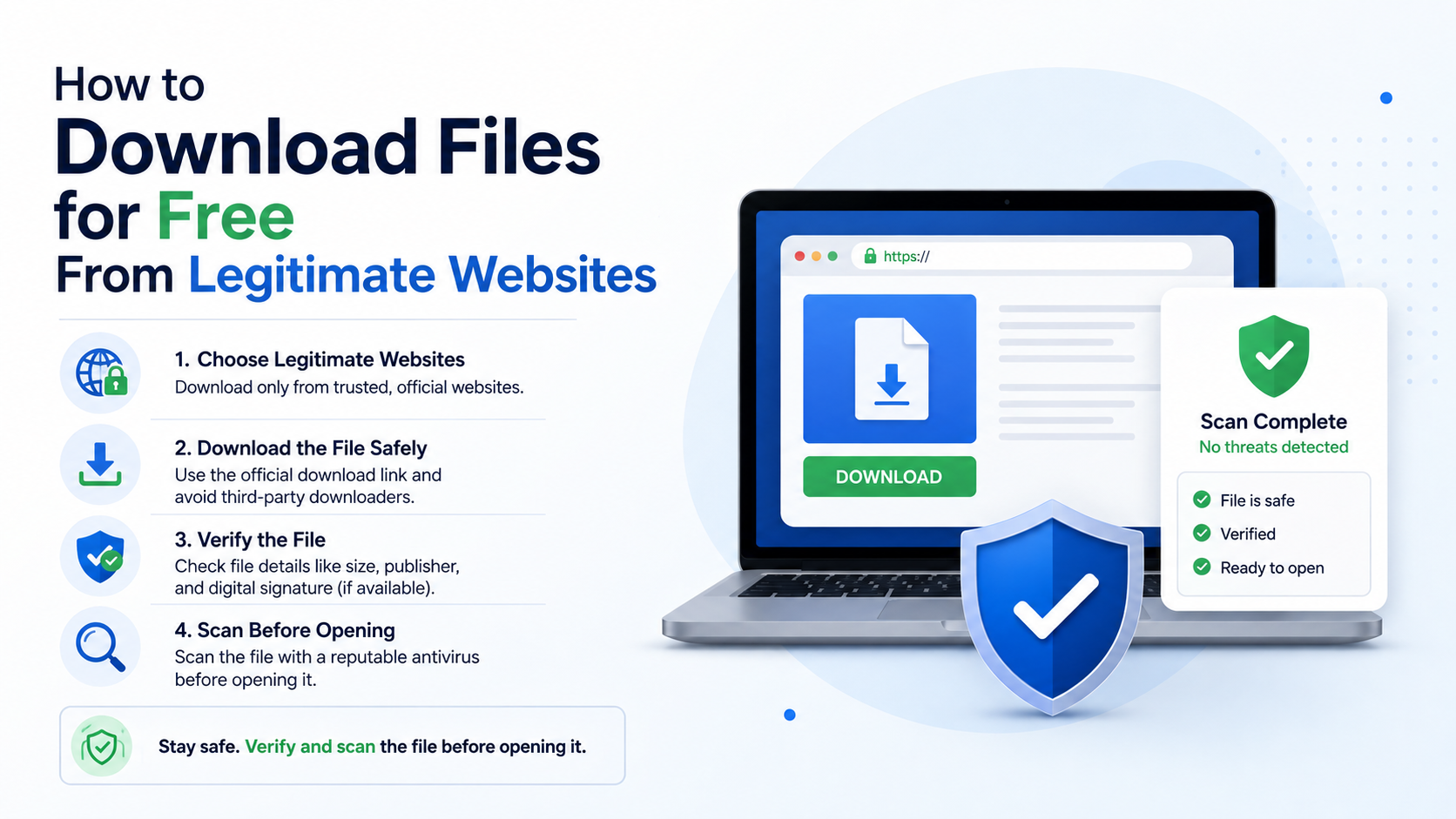
Use this short process for almost any file:
- Search for the publisher’s name plus the product or file name. Look for the organisation’s verified website, documentation page or official store listing.
- Check the domain letter by letter. Watch for extra hyphens, misspellings, unusual country domains and domains that imitate a brand.
- Open the product’s download page and read the platform, version and system requirements.
- Select the download that matches your device—for example, Windows, macOS, Linux, Android or iOS.
- Confirm the file name and extension. A PDF should normally end in
.pdf; an Android package ends in.apk; a Windows installer may end in.exeor.msi. - Save it to a known folder such as Downloads. Do not open a file that arrived through an unexpected pop-up, email or message.
- Let your browser and operating system security warnings run. Stop if they report malware or an untrusted publisher.
A padlock (HTTPS) protects the connection, but it does not prove that the website itself is honest. Domain ownership and publisher verification are still essential.
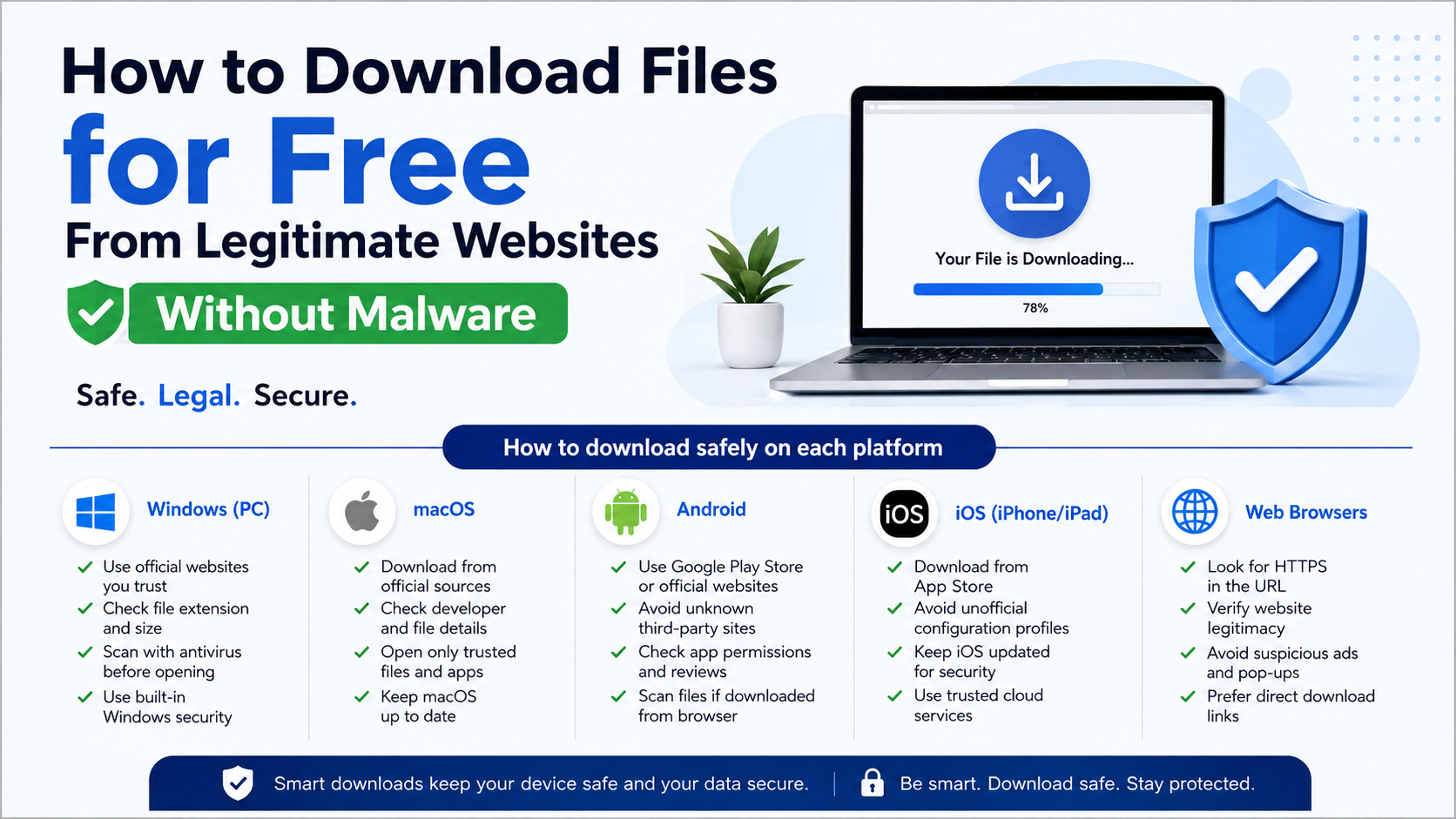
How to download safely on each platform
Android phones and tablets
Google recommends keeping Play Protect enabled. It checks apps in Google Play before download, scans apps from other sources, warns about potentially harmful applications and may disable or remove them. You can review the setting in Play Store → profile picture → Play Protect → Settings. Google’s Play Protect guidance also explains scanning unknown apps.
For an app:
- Open Google Play Store and search for the exact app name.
- Confirm the developer, ratings, review count, update information and requested permissions.
- Tap Install and allow the store to complete the download.
- Keep Android and Google Play system updates current.
If the app is not in Play Store, use the developer’s own site only when you have a clear reason. Download the APK directly, scan it with Play Protect and check whether the developer publishes a SHA-256 checksum or signed release. Avoid APKs labelled “mod”, “hack”, “cracked” or “premium unlocked”. Do not leave Install unknown apps enabled for browsers or file managers after a legitimate sideload.
Devices without Play Protect certification may lack normal compatibility and security assurances. Google explains how to check certification under Play Store → profile picture → Settings → About. Check Android certification.
iPhone and iPad
Use the Apple App Store whenever an app is available there:
- Open the App Store and search for the app.
- Check the developer name, privacy information, ratings and compatibility details.
- Tap Get or the price, then authenticate with Face ID, Touch ID or your Apple Account.
- Install updates through App Store → profile picture → App Updates.
Do not install configuration profiles or enterprise apps from an unknown website. If an app is unavailable in your region, look for the developer’s explanation rather than downloading an altered copy.
Windows PCs
For software, start with the developer’s official download page or Microsoft Store. Before running an installer, confirm the publisher and extension. Microsoft Defender SmartScreen evaluates the reputation of downloaded files and can warn about suspicious or uncommon applications. Microsoft’s App & browser control documentation describes these protections.
- Download the correct 32-bit, 64-bit or ARM build if the publisher lists separate options.
- Right-click the file, choose Properties and review the Digital Signatures tab when available.
- Scan it with Microsoft Defender: right-click the file and choose Scan with Microsoft Defender.
- Run the installer only if the publisher, source and requested permissions make sense.
- Choose Custom installation when offered and decline unrelated browser extensions or bundled programs.
A SmartScreen warning is not proof that a file is malicious, but it is a reason to verify the source. Never bypass the warning simply because a website says to do so.
macOS
The Mac App Store is the simplest option. For software downloaded from a developer, macOS Gatekeeper checks whether it comes from an identified developer, is notarised by Apple and has not been altered. Apple’s Gatekeeper guidance explains how these checks work.
Download the .dmg or installer package from the developer’s real domain, then open it normally. If macOS says the app cannot be verified, recheck the source and signature instead of changing security settings. If the developer publishes a checksum, compare it before installation.
Linux
Use your distribution’s official repositories and package manager whenever possible—for example, APT on Debian or Ubuntu, DNF on Fedora, or Flatpak from a trusted remote. For an application downloaded directly from a project, use the project’s official site or repository, verify the signing key or checksum and avoid running copied shell commands you do not understand.
How to recognise a fake download page
Be cautious when a page:
- Displays several large “Download” buttons, especially in advertisements
- Opens new tabs or redirects you repeatedly
- Claims your device is infected and asks you to install a cleaner
- Requires a browser extension to obtain a normal file
- Offers a “cracked”, “activated” or “no-password” version of paid software
- Uses a file name that does not match the product
- Requests payment-card details for a supposedly free file
- Provides an installer instead of the document, archive or media file you requested
Close the tab if a pop-up appears. Do not call phone numbers shown in security alerts. Use your browser’s built-in download list to identify the actual file and remove unwanted downloads.
Verify and scan the file before opening it
Security tools reduce risk but cannot guarantee that every new threat is detected. Use several practical checks:
- Compare the file’s SHA-256 hash with the value on the publisher’s official page. A hash mismatch means the file changed or is not the same release.
- Scan archives before extracting them. Malware can be hidden inside ZIP, RAR or 7z files.
- Treat double extensions such as
invoice.pdf.exeas executable files, not documents. - Do not enable macros in Office files unless you trust the source and need them.
- Uploading a confidential document to a public online scanner can expose its contents; use local antivirus for private files.
- Open suspicious files in a disposable virtual machine only if you understand the risks.
CERT-In advises Indian users to download mobile applications only from trusted sources or authorised app stores and to use Play Protect. Its malicious mobile applications booklet notes that infected apps can steal data and credentials or subscribe users to premium services.
Troubleshooting common download problems
The download button does nothing: Disable an over-aggressive pop-up blocker for the verified site, try another browser or use the publisher’s alternate download link. Do not click unrelated advertising buttons.
The browser says “dangerous download”: Stop and verify the URL, publisher and checksum. If the warning remains, do not run the file unless the publisher provides a clear, independently verifiable explanation.
The APK will not install: Check Android version, available storage, CPU architecture and whether the APK is intended for your device. Keep Play Protect on. An APK that asks for unrelated permissions should be rejected.
Windows blocks the installer: Check the digital signature and redownload from the official site. Do not turn off SmartScreen or Defender as a first step.
The file is corrupted: Delete it, confirm adequate storage and download again over a stable connection. For large files, use the publisher’s official download manager or torrent only when the project itself provides that method and publishes verification data.
A file asks for a password: Find the password on the same official release page. Do not search random forums for “unzip passwords”, which often lead to malware.
Frequently Asked Questions
Can I download a file for free without registering?
Often yes. Public documents, open-source software and many drivers do not require an account. If a site demands unnecessary personal information, look for the publisher’s direct download or an authorised store.
Is a Google search result automatically safe?
No. Search ranking does not prove ownership or security. Check the domain, publisher and download destination before opening anything.
Are APK download websites safe?
Some reputable projects distribute APKs directly, but third-party APK sites may repackage apps or add malware. Prefer Google Play or the developer’s official website, and scan any sideloaded APK with Play Protect.
Should I disable antivirus to install free software?
No. A blocked file should be investigated, not forced through. Redownload from the official source and confirm its signature or checksum.
How can I check whether a file is malware?
Scan it with your updated operating-system security tool, compare its published checksum and inspect the extension. No single scan can guarantee safety, so avoid opening files from untrusted sources.
Is downloading from a mirror legal?
A mirror is legal only if the copyright owner permits redistribution. For commercial software, games, films and books, use the authorised store or publisher.
What should I do after opening a suspicious download?
Disconnect from the internet if you suspect active infection, run a full security scan, uninstall unknown software, change important passwords from a clean device and contact your bank immediately if financial details may be exposed. In India, report cybercrime through the official National Cyber Crime Reporting Portal.