How Do I Download an App to My Phone? Android and iPhone Guide
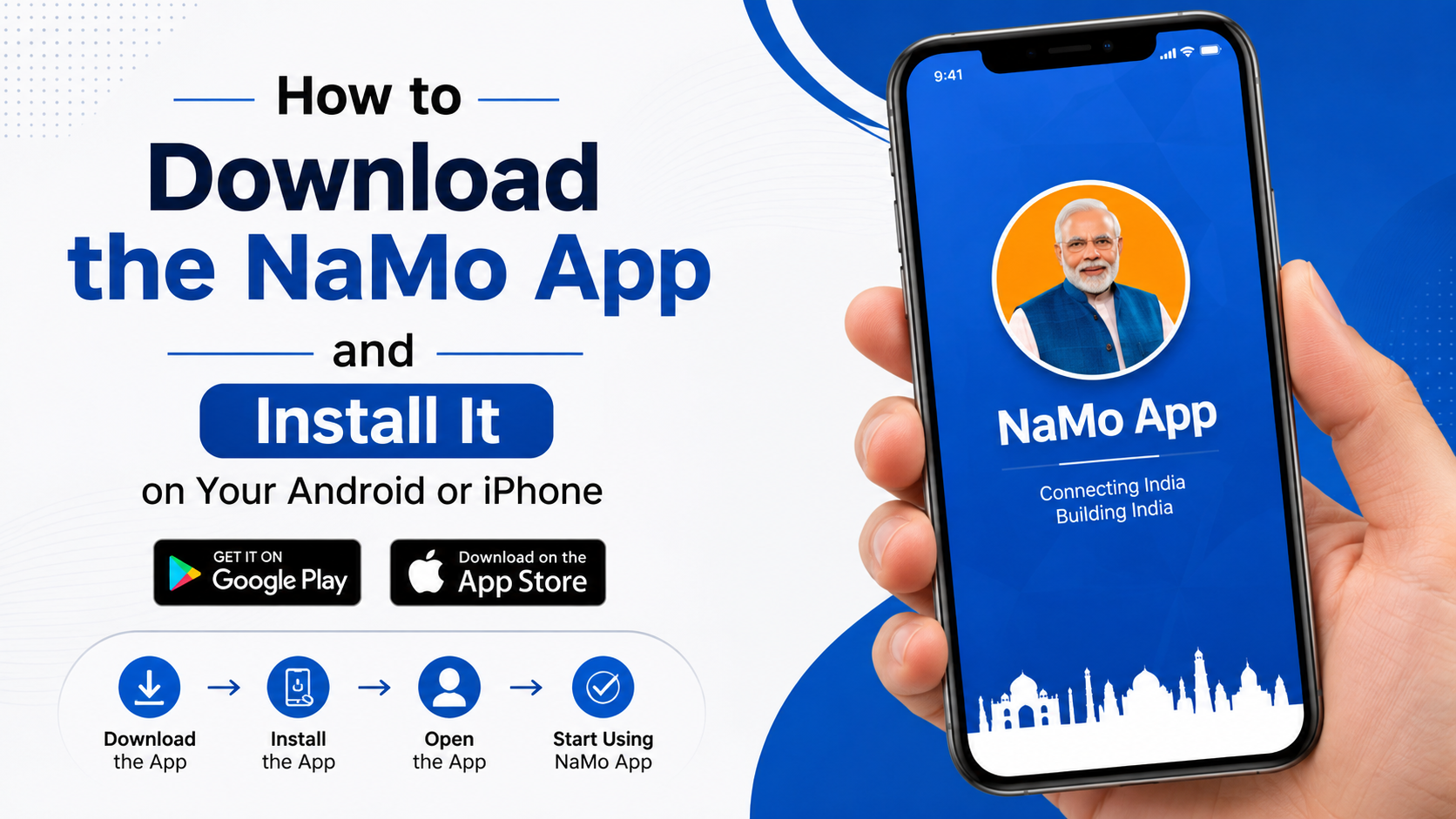
If you are asking, “how do I download an app to my phone?”, the safest answer is to use your phone’s official app store. Android phones use the Google Play Store, while iPhones use Apple’s App Store. Search for the app, confirm that it is published by the correct developer, tap Install or Get, and complete any sign-in or payment step.
This guide explains the process for Android and iPhone users in India, including app safety, permissions, mobile data, APK files, and common download problems.
Key Takeaways
- Use Google Play Store on Android and the App Store on iPhone.
- Check the developer name, ratings, reviews, screenshots, and requested permissions before installing.
- A free app may still offer paid subscriptions or in-app purchases.
- Android APK files should only come from the app developer or another source you can independently trust.
- If an app will not download, check storage, internet access, account settings, and device compatibility.
- After installation, find the app in your home screen, app drawer, or phone search.
Before You Download an App

Have these basics ready:
- A working Wi-Fi or mobile-data connection.
- Enough free storage space for the app and future updates.
- A Google Account on Android or an Apple Account on iPhone.
- Your screen lock, fingerprint, Face ID, or account password if authentication is requested.
- A phone that meets the app’s requirements.
The app store listing normally shows compatibility information. If an app is unavailable for your device, it may require a newer operating-system version, a different processor, a larger screen, or a country-specific release.
For mobile data users in India, large games and video apps can consume significant data. Use Wi-Fi where practical, or review your phone’s app-download settings before starting.
How to Download an App on Android
Google’s official procedure is to open Google Play, search or browse for an app, select it, and tap Install or the listed price. citeturn0search0
Step-by-step Android instructions

- Open Google Play Store.
Look for the multicolour triangle icon. On some phones it is inside a Google folder.
- Search for the app.
Tap the search box and enter the app’s name, such as “BHIM”, “Google Maps”, or the exact name of a game.
- Choose the correct listing.
Check the app icon, developer name, rating, number of reviews, screenshots, and description. Several apps can have similar names.
- Review permissions and details.
Scroll through the listing and check the app’s data-safety information, age rating, size, and required Android version when shown.
- Tap
Install.
For a paid app, tap the price instead. Google Play will display the payment method and total amount before charging you.
- Authenticate if requested.
Enter your Google Account password, PIN, fingerprint, or other requested verification.
- Wait for the download and installation.
Keep the connection active. The button changes to Open when the app is ready.
- Open and configure the app.
Sign in only through the app’s normal login screen. Grant permissions only when they are needed for a feature.
You can also visit play.google.com in a browser and select a compatible Android device associated with your Google Account. The app may then install remotely if Google offers that option for the listing. citeturn0search0
Where is the app after installation?
- Check the home screen.
- Swipe up to open the app drawer.
- Use the phone’s search function and type the app name.
- On some Android launchers, a newly installed app appears on the last home-screen page rather than the first one.
How to Download an App on iPhone
Apple’s official steps are to open the App Store, browse or search, tap Get or the price, and authenticate the download. citeturn0search3
Step-by-step iPhone instructions
- Open the App Store.
Its icon is a white “A” on a blue background.
- Tap
Search.
Enter the app name, service name, or a descriptive term such as “UPI payments” or “train booking”.
- Select the official app.
Confirm the developer, icon, ratings, reviews, privacy details, screenshots, and compatibility information.
- Tap
Getor the price.
If you see Open, the app is already installed or was previously downloaded with that Apple Account.
- Authenticate the download.
Double-click the iPhone side button and use Face ID, or use Touch ID, your Apple Account password, or the method shown on screen. citeturn0search3
- Wait for the icon to finish loading.
The app icon may first appear dimmed with a progress circle.
- Tap the icon to open it.
Complete sign-in and review each permission request.
If you cannot find the App Store, search for it using Spotlight or check whether restrictions in Settings > Screen Time are preventing app installation.
Choosing the Right and Safest App
An official store reduces risk, but it does not remove the need for judgment. Before tapping install, check:
| What to check | Why it matters |
|---|---|
| Developer name | Helps distinguish the genuine app from an impersonator |
| Store URL and listing | Avoids downloading from a copied or misleading page |
| Recent reviews | Reveals current bugs, scams, or login problems |
| Update history | Shows whether the developer maintains the app |
| Permissions | An app should not request access unrelated to its purpose |
| Privacy information | Explains what data may be collected or shared |
| In-app purchases | Prevents surprises after a free download |
For banking, payments, government, education, and shopping apps, begin at the organisation’s official website and follow its app-store link. This is safer than trusting a random advertisement or message.
Google Play Protect checks Android apps and can scan apps installed from outside Google Play as well. Google says it is designed to detect potentially harmful applications and help prevent harmful installation. citeturn0search2turn0search11 Apple also provides information about an app’s marketplace origin where alternative app distribution is available; availability depends on country or region, and Apple notes that alternative marketplaces are not fully supported by Apple. citeturn0search5
Can You Install an APK on Android?
An APK is an Android application package. It is the file format used to install an Android app outside Google Play.
Use an APK only when there is a clear reason, such as an official developer distribution channel or an app unavailable in your region. Download it from the developer’s genuine website, verify the developer and file details, scan it with Play Protect, and avoid modified or “premium unlocked” versions.
To install an APK, Android may ask you to allow the browser or file manager to install unknown apps. This setting is controlled per source on many recent Android phones. Enable it only for the source you trust, install the file, then turn the permission off again.
Do not install an APK sent through an unexpected WhatsApp message, SMS, email, or social-media link. Modified APKs can contain malware, steal login details, display intrusive ads, or access sensitive information. Never disable Play Protect simply to force an installation; investigate the warning first.
iPhone apps generally cannot be installed from ordinary downloaded IPA files. Use the App Store or an Apple-supported distribution method available in your region.
What to Do If an App Will Not Download
“Download pending” or stuck installation on Android
- Check Wi-Fi or mobile data by opening another website.
- Pause other downloads and updates.
- Restart the phone.
- Confirm that storage is available.
- Open Play Store > profile picture > Manage apps & device and review pending updates.
- Check that automatic date and time are enabled.
- Install available Android system and Google Play system updates.
App Store download is stuck on iPhone
- Check the connection and try another Wi-Fi network.
- Tap the app icon to pause and resume the download.
- Restart the iPhone.
- Check free space in Settings > General > iPhone Storage.
- Confirm that your Apple Account is signed in.
- Review payment or billing alerts; Apple may require a valid payment method even for some free downloads.
- Check Settings > Screen Time > Content & Privacy Restrictions if installation is blocked.
“This app is not compatible”
Read the listing’s requirements. Update the phone if an official update is available, or look for a supported version from the same developer. Do not download a suspicious copy merely because it claims to work on an older device.
The app installed but will not open
Restart the phone, update the app, and check whether the developer’s service is experiencing an outage. If the problem continues, uninstall and reinstall the app only after confirming that important data is synchronised or backed up.
Managing, Updating, and Removing Apps
App stores can update apps automatically, but settings vary by device and account. Keeping apps and the phone’s operating system updated usually provides bug fixes and security improvements.
To remove an app:
- Android: Press and hold the app icon, tap Uninstall, and confirm. You can also use Settings > Apps.
- iPhone: Touch and hold the icon, choose Remove App, then select Delete App.
Removing an app may not cancel a subscription. Check Google Play subscriptions or Apple Account subscriptions separately before assuming future charges have stopped.
Frequently Asked Questions
How do I download an app to my phone without Google Play?
On Android, use the developer’s official website or a reputable manufacturer store only when necessary. Downloading from random APK sites increases the risk of modified or malicious files. iPhone users should use the App Store or an officially supported alternative marketplace where available.
Are apps from Google Play and the App Store free?
Some are free, some require payment, and many free apps include advertising, subscriptions, or in-app purchases. Read the price and purchase information before confirming.
Why can’t I find an app in my country?
The developer may not have released it in India, it may be restricted by local rules, or your device may not meet its requirements. Check the developer’s official website for availability information rather than downloading an unverified copy.
Do I need a Google Account or Apple Account?
Usually, yes. Google Play uses a Google Account, and the App Store uses an Apple Account. The account links downloads, updates, purchases, and—where supported—your previous app history.
How much data does downloading an app use?
It depends on the app’s download size and later updates. The store may show an approximate size, but additional files can download after installation. Large games often require much more storage than the initial store download suggests.
Can I move an Android app to an iPhone?
No. Android and iOS use different app formats. Install the iPhone version from the App Store if the developer provides one. Your account data may transfer only if the app supports cross-platform sign-in or synchronisation.
Is it safe to give an app every permission it requests?
No. Allow only permissions necessary for the app’s features. You can review or change permissions later in Android settings or iPhone privacy settings. If a simple app requests unrelated access, choose Don’t allow and reconsider installing it.
Where can I get help with a faulty app?
Use the developer’s support link on the Google Play or App Store listing. For payment, account, or store errors, contact Google Play or Apple Support through their official support channels.