How Do I Go to Downloads on iPhone? Find Downloaded Files on iPhone and iPad
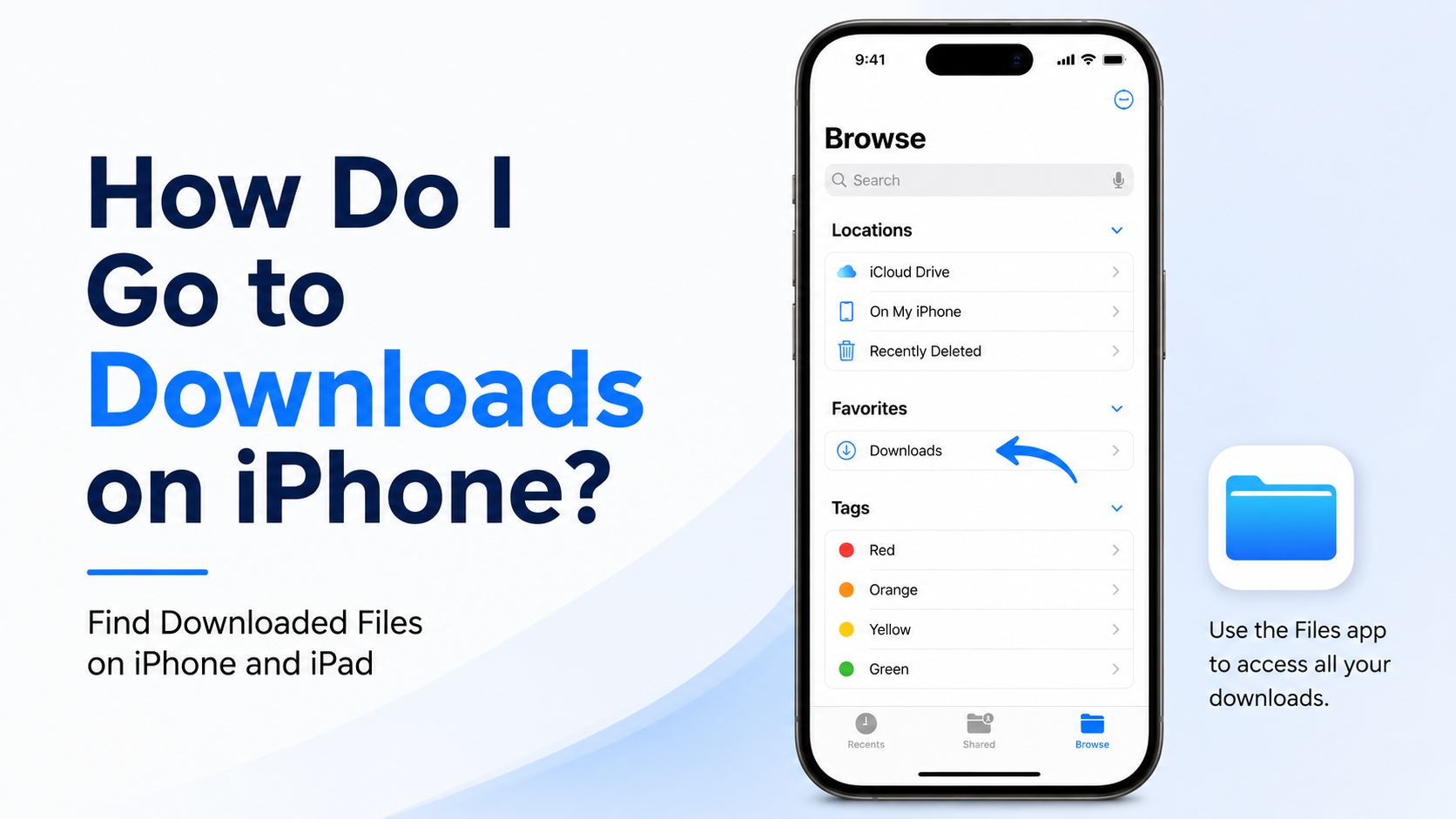
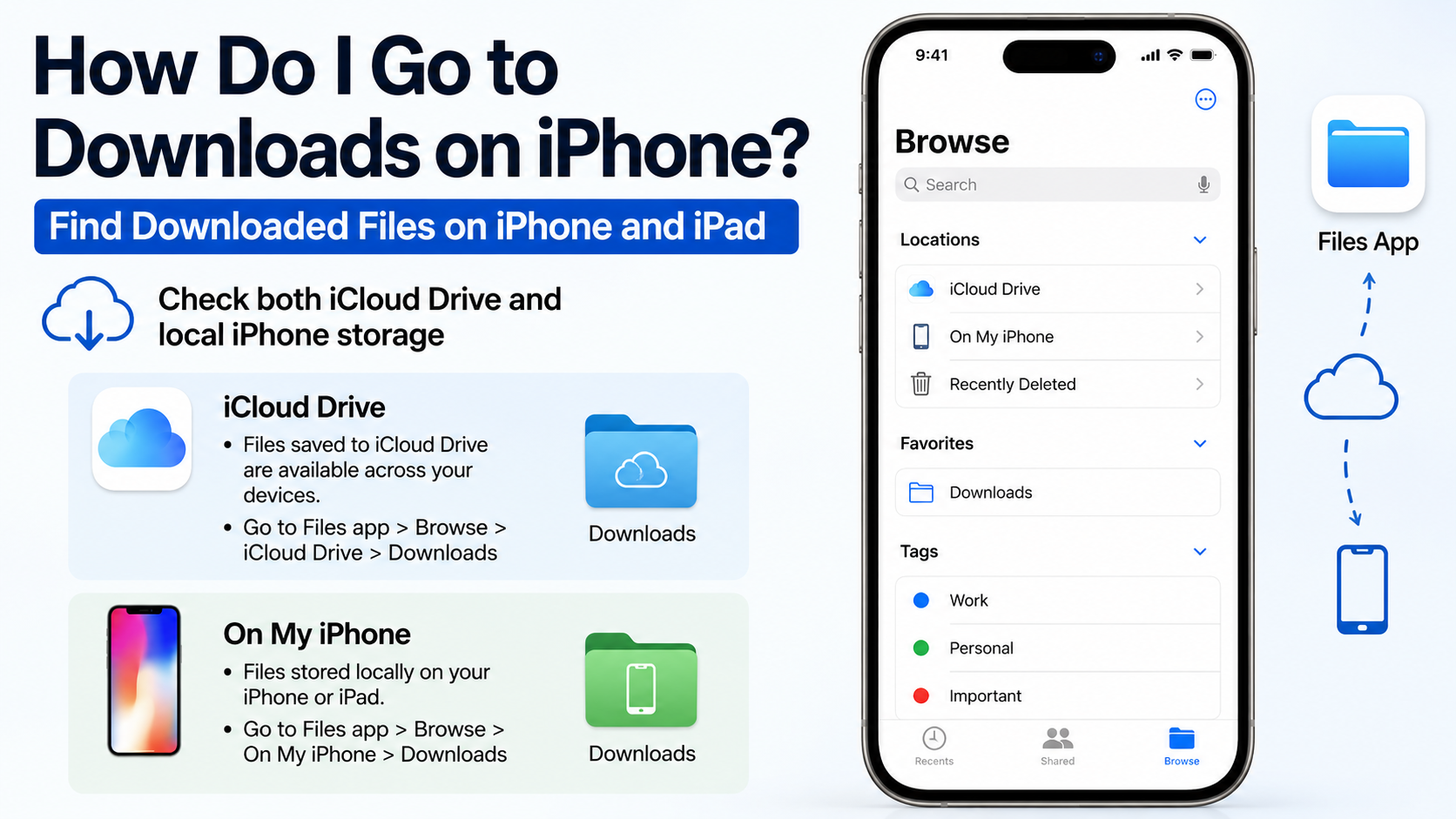
If you are asking, “how do I go to downloads on iPhone?”, open the Files app, tap Browse, choose iCloud Drive (or On My iPhone), then open the Downloads folder. Files downloaded through Safari normally appear there. You can also tap Safari’s Downloads button beside the address/search field to view a file you have just downloaded. (Apple Support)
These steps work on current iPhone and iPad software, although the exact position of buttons can vary slightly with the device layout and iOS or iPadOS version.
Key Takeaways
- Safari downloads are usually in Files > Browse > iCloud Drive > Downloads.
- If Safari is set to local storage, check Files > Browse > On My iPhone/iPad > Downloads.
- Tap Safari’s download arrow for quick access to recent downloads and download status.
- Photos saved to the Photos library are in the Photos app, not necessarily in Files.
- Use Files search, Recents, and Recently Deleted when a download seems missing.
- You can change Safari’s download location under Settings > Apps > Safari > Downloads.
The quickest way to open Downloads on an iPhone
Use this method for PDFs, ZIP files, Word documents, spreadsheets and other files downloaded from a website or email.
- Open the Files app. Its icon is a blue folder. If you cannot see it, swipe down on the Home Screen and search for Files.
- Tap Browse at the bottom of the screen.
- Under Locations, tap iCloud Drive.
- Tap Downloads.
Tap a file to open it in a compatible app. For example, a PDF may open in the built-in preview, while a spreadsheet may open in Numbers or another installed office app.
On an iPad, open Files and select Downloads from the sidebar. If the sidebar is hidden, tap the Sidebar button first. Apple also identifies Downloads as the standard location for documents and other internet downloads. (Apple iPad User Guide)
See a download immediately in Safari
If you have just downloaded something in Safari, you do not need to leave the browser.
- Open Safari.
- Look beside the address or search field for the Downloads button (a downward arrow).
- Tap it.
- Tap the file to open it, or use the option that shows the file in its folder.
The button may disappear after some time. That does not mean the file was deleted; open the Files app and browse to the Downloads folder instead.
If a website displays a PDF rather than downloading it automatically, tap the Share button and select Save to Files. Choose iCloud Drive or On My iPhone, select a folder, and tap Save. (Apple Support: Save a PDF from Safari)
Check both iCloud Drive and local iPhone storage
The Downloads folder can be in more than one location. Which one Safari uses depends on your settings.

| Location in Files | What it means | When to check it |
|---|---|---|
| iCloud Drive > Downloads | Files stored in iCloud Drive and available to devices using the same Apple Account | The usual default location |
| On My iPhone > Downloads | Files stored locally on the iPhone | When Safari is set to save on the device |
| On My iPad > Downloads | Files stored locally on an iPad | When downloading directly to iPad storage |
| Other locations | A folder selected manually, an external drive or a connected cloud service | When you chose “Other” or used a file-management app |
To see all available locations, open Files > Browse. Apple says Files can also display compatible services such as Dropbox, Google Drive, OneDrive and Box after you add those services’ apps. (Apple: Find files on iPhone or iPad)
Change where Safari saves downloaded files
You can choose iCloud Drive, local storage or another folder for Safari downloads.
- Open Settings.
- Tap Apps.
- Tap Safari.
- Tap Downloads.
- Select iCloud Drive, On My iPhone, or Other.
- If you choose Other, select the folder where you want future downloads saved.
With iCloud Drive selected, the Downloads folder can sync to your iPhone, iPad or Mac signed in to the same Apple Account. With On My iPhone, the files remain on that device. Selecting a custom folder is useful if you regularly download invoices, study notes or work documents and want them separated from other files. (Apple Safari User Guide)
Changing this setting affects new downloads. It does not automatically move files that are already in an old Downloads folder, so check both locations if you are looking for older documents.
Where downloaded photos, videos and music are stored
Not every download appears in Files. The destination depends on the action you chose and the app that handled it.
Photos and videos saved to Photos
If you tap Save Image or Save Video, the item normally goes to the Photos app. Open Photos and check Library, Recently Saved or the relevant album. Apple notes that a photo library is stored in Photos even though images can also be saved manually in Files. (Apple Support)
Files saved from WhatsApp, Gmail or another app
An attachment may stay inside the original app until you choose Share > Save to Files. If you used that option, remember the location you selected. Gmail, Microsoft Outlook and messaging apps can also keep their own offline copies that are not visible as ordinary Files downloads.
Offline music and video
Downloads from services such as Netflix, YouTube, Spotify or Apple Music are managed inside those apps. They are usually protected or stored in an app-specific format, so you cannot browse them as normal MP4 or MP3 files in Files. Open the service and look for its Downloads or Offline section.
Chrome, Firefox and Edge downloads
Third-party browsers can use their own download managers or folders. First check the browser’s menu for Downloads. Then open Files and search under On My iPhone/iPad or a folder named after the browser. The exact behaviour can change after an app update, so the browser’s current help page is the safest reference.
Find a downloaded file when Downloads is empty
Try these checks in order:
- Search by file name: Open Files and use the search field. Search part of the name or the extension, such as
pdf,zipordocx. - Check Recents: The Recents view shows recently opened or added files, regardless of their folder.
- Check both storage locations: Look in iCloud Drive and On My iPhone/iPad.
- Check Safari’s download list: Open Safari and tap the Downloads arrow. An incomplete download may still be listed there.
- Review the original app: Look in Mail, WhatsApp, Gmail, Drive or the browser that started the download.
- Check Photos: If the item was an image or video saved to the photo library, it will not be in Downloads.
- Check Recently Deleted: Deleted Files items are recoverable for up to 30 days unless they were removed permanently. (Apple Support: Recover deleted files)
A file may also have a different name from the webpage title. For example, an invoice could be saved as a number or an automatically generated string rather than “invoice.pdf”.
Open, move, rename or share a download
In Files, touch and hold a file to see actions such as Open, Get Info, Rename, Move, Copy, Share and Delete.
To organise files:
- Open the Downloads folder.
- Tap the More button (three dots).
- Tap Select.
- Choose one or more files.
- Tap Move and select a destination folder.
Moving a file from Downloads to folders such as “College,” “Tax,” or “Travel” makes future searches easier. You can also sort a folder by Name, Kind, Date or Size using the folder’s view options.
Be careful when deleting from iCloud Drive: removing a file on one Apple device can remove it from iCloud Drive on other devices using the same Apple Account. Deleted files generally remain in Recently Deleted for 30 days. (Apple Support)
Download security tips for iPhone users in India
Use Safari, the App Store, or the official website of the organisation that supplied the file whenever possible. Avoid download buttons that open several pop-ups or ask you to install an unknown configuration profile.
Keep these precautions in mind:
- Do not install an iPhone app from a random “IPA” or “mod” download page. Use the App Store or an official distribution method.
- Treat unexpected APK, EXE or DMG files as irrelevant to iOS; they cannot be installed as native iPhone apps.
- Verify that an invoice, exam document or government form came from the correct domain before entering personal information.
- Do not provide your Apple Account password to a download website.
- If a file asks you to install a profile, certificate or device-management setting, stop and verify the source with the organisation concerned.
- Use Wi-Fi for large files if your mobile plan has limited data, a practical consideration for many Indian prepaid connections.
Finding a file in Files does not prove that its contents are trustworthy. Scan or verify files through the sender and use reputable apps to open unfamiliar formats.
Frequently Asked Questions
How do I go to Downloads on iPhone?
Open Files, tap Browse, choose iCloud Drive, and tap Downloads. If you changed Safari’s storage setting, also check On My iPhone > Downloads.
Where are PDF downloads on an iPhone?
PDFs downloaded in Safari are usually in Files > Browse > iCloud Drive > Downloads. A PDF opened in Safari can be saved manually with Share > Save to Files.
Why can’t I see the Downloads folder on my iPhone?
You may be viewing the wrong location. Check both iCloud Drive and On My iPhone, search for the file name in Files, and confirm the download finished in Safari’s Downloads list.
Where do images downloaded from Safari go?
If you selected Save Image, look in the Photos app. If you selected Save to Files, look in the folder you chose, usually Downloads.
Can I change the iPhone download location?
Yes. Go to Settings > Apps > Safari > Downloads, then choose iCloud Drive, On My iPhone, or Other and select a folder.
How do I find a downloaded WhatsApp or Gmail file?
Return to the message and use its download or share option. If you chose Save to Files, search Files and check the location selected at the time. Otherwise, the attachment may remain inside the original app.
Can I recover a deleted download?
Open Files > Browse > Recently Deleted, select the file and tap Recover. Apple says deleted files are normally recoverable for 30 days; files removed from Recently Deleted cannot be recovered.
Do iPhone app downloads appear in the Downloads folder?
No. Apps downloaded from the App Store are managed by iOS and appear on the Home Screen or App Library. The Downloads folder is for files such as documents, PDFs, archives and media saved as files.