How to Download an Admit Card Online and Print It From Your Phone or Computer
If you need to know how to download an admit card, use the examination authority’s official website—not a random result, messaging link, or third-party download page. Open the exam notification or “Admit Card” section, sign in with your application number, registration ID, roll number, date of birth, password, or another required detail, then download the PDF and print it.
The exact buttons differ between exams such as JEE, NEET, UPSC, SSC, banking, railway, university and state recruitment tests, but the overall process is similar.
Key Takeaways
- Download the hall ticket only from the exam conducting body’s official website.
- Keep your application number, registration ID, password, date of birth and registered mobile number available.
- Save the PDF and verify your name, photograph, signature, exam date, reporting time and centre.
- A clear A4 printout is normally required; a phone copy may not be accepted at the venue.
- Do not confuse an exam-city intimation slip with the final admit card.
- If the portal fails, use password recovery, another browser or an official regional helpdesk.
What Is an Admit Card?
An admit card, also called an e-admit card, hall ticket or call letter, is the document that authorises an eligible candidate to appear for an examination. It usually contains:
- Candidate name and photograph
- Roll number or registration number
- Exam name, paper and shift
- Date and reporting time
- Test centre name and address
- Candidate signature or uploaded signature
- Instructions about identity proof, prohibited items and reporting
- Space for invigilator signatures or attendance, where applicable
For example, UPSC publishes e-admit-card links on individual examination pages and its central E-Admit Cards page. NTA exam portals generally provide a candidate login using an application number, password and security pin, as shown on its official login service. SSC may direct candidates to the relevant regional website for admission certificates.
How to Download an Admit Card Online
Follow these steps for most government, entrance, school, college and recruitment examinations.
1. Find the official examination website

Use the website named in your application confirmation, notification or official SMS/email. You can also search for the exam authority’s verified domain, but check the domain carefully before entering personal information.
Examples include:
- NTA examination portals: official
nta.ac.inor the relevantexams.nta.nic.insite - UPSC:
upsc.gov.in - SSC: the current
ssc.gov.inportal and its authorised regional websites - State commissions, universities and boards: the domain listed in their notification
Avoid websites that ask you to install an APK, pay an “unlock” fee, share an OTP, or provide your full login details through WhatsApp or Telegram.
2. Open the Admit Card, Hall Ticket or Call Letter link
On the homepage, look for labels such as:
- Admit Card
- E-Admit Card
- Download Admission Certificate
- Hall Ticket
- Call Letter
- Candidate Activity
- Registered Candidate Login
Some authorities first publish a notice stating that the admit card is available. Read that notice because it may specify the download period, regional website or additional documents.
3. Enter your login details
The portal may request one or more of the following:
- Application number
- Registration ID or OTR number
- Roll number
- Date of birth
- Password
- Registered mobile number
- Email ID
- CAPTCHA or security pin
Enter your date of birth in the format shown on the page. Some systems use DD-MM-YYYY, while others use a different format. Use the same spelling and details submitted in the application.
4. Complete verification and open the document
After signing in, select the relevant examination, paper, shift or post. Click Download, View Admit Card, Admission Certificate, or a similar button.
If several papers or sessions are listed, download each required document. Do not assume that a city slip, application form or confirmation page is the final admission certificate.
5. Download and save the PDF
Choose the download icon in the PDF viewer. Save the file in an easy-to-find folder and rename it with useful information, such as:
NEET_Admit_Card_Application12345.pdf
Keep at least two copies:
- One in your phone’s Downloads or Documents folder
- One in cloud storage or an email account
- An optional copy on a computer or pen drive
Do not edit the PDF, crop the photograph or alter any text. If the file has a digital signature or QR code, modification may make verification difficult.
How to Download an Admit Card on an Android Phone
- Open Chrome or another trusted browser.
- Type the official exam website manually or open the link from the authority’s verified notification.
- Tap Admit Card or Candidate Login.
- Enter your application details and CAPTCHA.
- Tap Download or the PDF icon.
- Open the file from the notification panel or the Files app.
- Check that all pages are present and readable.
- Tap Share to send the PDF to a printer, print shop, email or cloud drive.
If the PDF opens in a new tab, tap the three-dot menu and select Download. On some phones, the file is stored under Internal storage > Download.
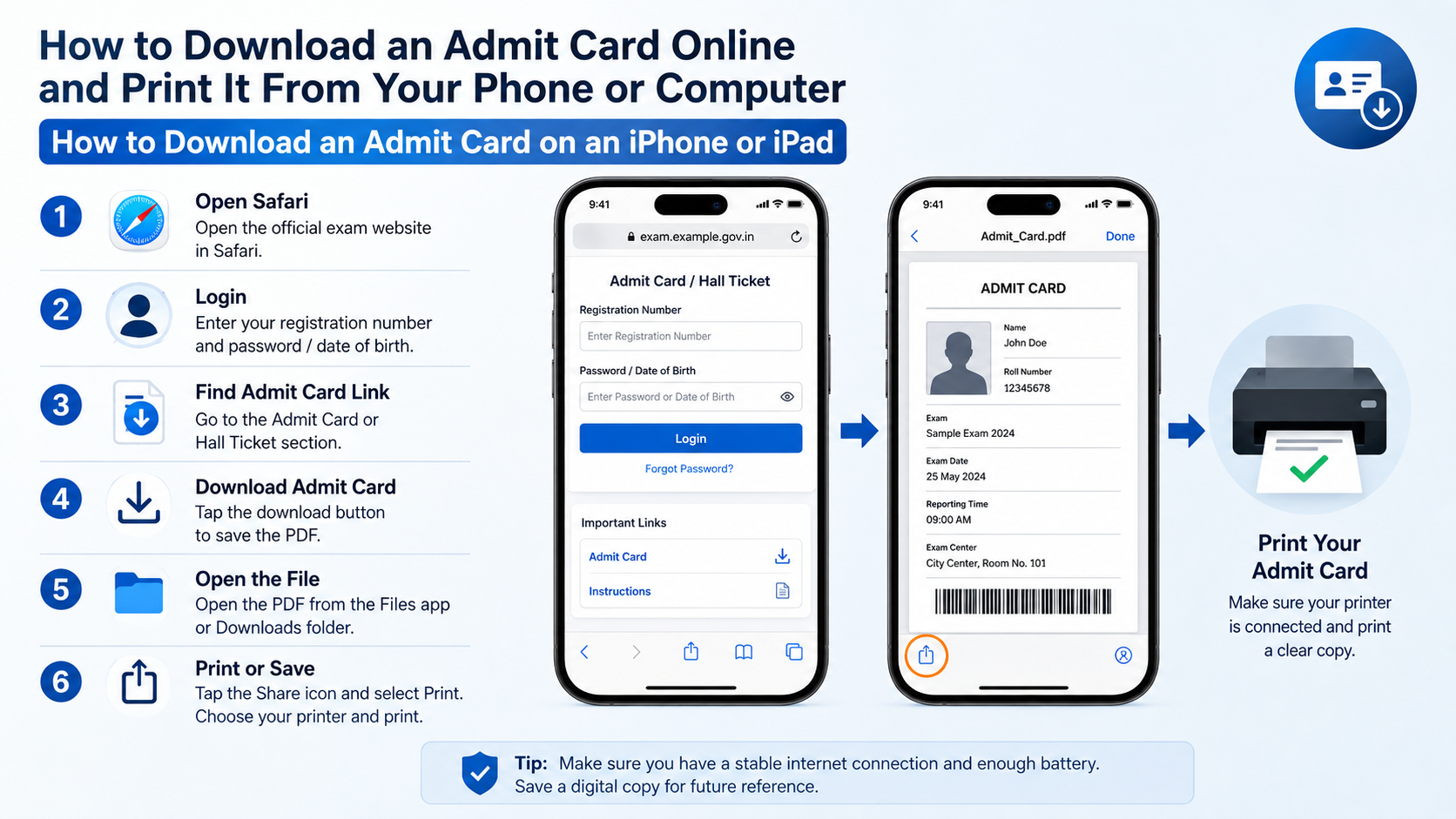
How to Download an Admit Card on an iPhone or iPad
- Open Safari and visit the authority’s official website.
- Sign in through the admit-card link.
- Complete the CAPTCHA and download the PDF.
- Tap the download arrow in Safari, then open Downloads in the Files app.
- Select the PDF and use Share to save it to iCloud Drive, send it to a computer or print it.
If the website does not display correctly, use Safari’s Request Desktop Website option. Do not install an unknown configuration profile or mobile application just to access a PDF.
How to Download an Admit Card on a Windows or Mac Computer
- Open Chrome, Edge, Firefox or Safari.
- Visit the official examination authority’s website.
- Select the admit-card link and enter your credentials.
- Open the PDF and click the download icon.
- Save it to the Downloads folder.
- Open the saved file in a PDF reader such as Adobe Acrobat Reader or the browser.
- Print using
Ctrl + Pon Windows orCommand + Pon Mac.
A computer is useful when the document has several pages, a large file size or a complex print layout. If you downloaded it on your phone, transfer it using email, cloud storage, a USB cable or a messaging app that preserves the original PDF file.
How to Print an Admit Card Correctly
Before printing, read the examination instructions. Unless the authority specifies otherwise:
- Use white A4 paper.
- Select Actual Size, 100% scale or Fit to Printable Area according to the PDF layout.
- Print every page, including instructions, declarations or barcode pages.
- Use a clear black-and-white or colour print; the photograph, QR code and text must be readable.
- Do not print double-sided if pages contain separate instructions or spaces for signatures.
- Check that no text is cut off at the edges.
- Sign only where the instructions tell you to sign, and use the specified pen if one is mentioned.
You can print at home, through a USB printer, or at a local print shop. If using a shop computer, open the PDF from your own storage and delete the file and browsing history afterwards where practical.
Admit Card, City Intimation Slip and Confirmation Page
These documents are different:
| Document | Main purpose |
|---|---|
| Application confirmation page | Proof that your application was submitted |
| Exam-city intimation slip | Tells you the city or approximate location in advance |
| Admit card or hall ticket | Gives exam details and is used for entry |
| Call letter | Common term for recruitment and banking examinations |
A city intimation slip may not show the final centre address, reporting time or complete instructions. Always download the document specifically labelled Admit Card, Hall Ticket, Admission Certificate or Call Letter.
What to Check After Downloading
Compare the PDF with your application details immediately. Check:
- Spelling of your name
- Photograph and signature
- Roll or application number
- Exam date, shift and reporting time
- Test-centre address
- Subject, paper or post
- Category, disability or scribe details, if applicable
- Instructions about identity proof and permitted items
UPSC instructions tell candidates to report discrepancies promptly and bring a hard copy of the e-admit card where required. Some exams also require an original photo ID, passport photograph, undertaking or other form. The admit card’s own instructions take priority over general advice.
Common Problems and Solutions
“Admit card is not available”
The authority may release hall tickets in phases, by region, paper or exam shift. Check the latest official notice and release schedule. Do not rely on a third-party date.
Login details are rejected
- Re-enter the application number without spaces.
- Check the date-of-birth format.
- Use the password-reset or “Forgot Password” link.
- Try the registered mobile number if the portal offers it.
- Make sure you are using the correct examination session.
Banking recruitment portals commonly advise candidates to use the roll number and date of birth or registered mobile number exactly as provided in the application.
The page is slow or shows an error
High traffic can overload an exam portal near the release time. Retry after a few minutes, use an off-peak period, clear the browser cache, or switch between Wi-Fi and mobile data. Avoid repeatedly refreshing a payment or login page.
The PDF is blank or will not open
Allow pop-ups for the official site, update your browser, disable an interfering extension, or download the file on a computer. If the PDF is password-protected, use the password format stated by the authority—never guess from unofficial instructions.
Photograph, QR code or text is unclear
Download the file again from the official portal and open it with a current PDF reader. Do not enlarge a screenshot and print it. If the official file itself is defective, contact the authority’s helpdesk or regional office before the examination.
Safety Checklist
- Confirm the domain spelling and HTTPS connection.
- Never share your OTP, password or CAPTCHA with another person.
- Download only PDFs or files provided by the authority.
- Do not install “admit-card APK” files.
- Ignore callers asking for money to release or correct a hall ticket.
- Save the official helpdesk email and phone number from the notification.
- Keep the downloaded PDF private because it contains personal information.
Frequently Asked Questions
Can I show the admit card on my phone at the exam centre?
Usually, no. Many Indian examinations require a printed admit card or admission certificate, often together with original photo ID. Follow the instructions printed on your specific hall ticket.
What if I forgot my application number?
Look in your application confirmation email, SMS, fee receipt or saved application form. If the portal provides recovery, use the registered mobile number or email. Otherwise contact the official helpdesk with proof of application.
Is an exam-city slip the same as an admit card?
No. The city slip generally provides advance location information. It may not be valid for entry. Download the final admit card separately.
Can I print an admit card in black and white?
Often yes, provided the photograph, signature, text and barcode are clear. Use colour printing if the exam instructions specifically require it.
How many copies should I print?
Print at least two clear copies and keep the PDF saved securely. Carry the number of copies and supporting documents specified by the examination authority.
Can I download the admit card after the exam date?
Not always. Portals may close after a stated deadline. Download it as soon as it is released and retain the file for counselling, document verification or future records.
What should I do if there is an error in my name or exam centre?
Do not alter the PDF yourself. Contact the authority through the official correction window, helpdesk or regional office and keep evidence of your application and communication.
Is a downloaded PDF valid?
An official PDF downloaded from the examination authority is generally the valid electronic document, but the examination rules may require a printed copy. Check the instructions on that particular admit card.