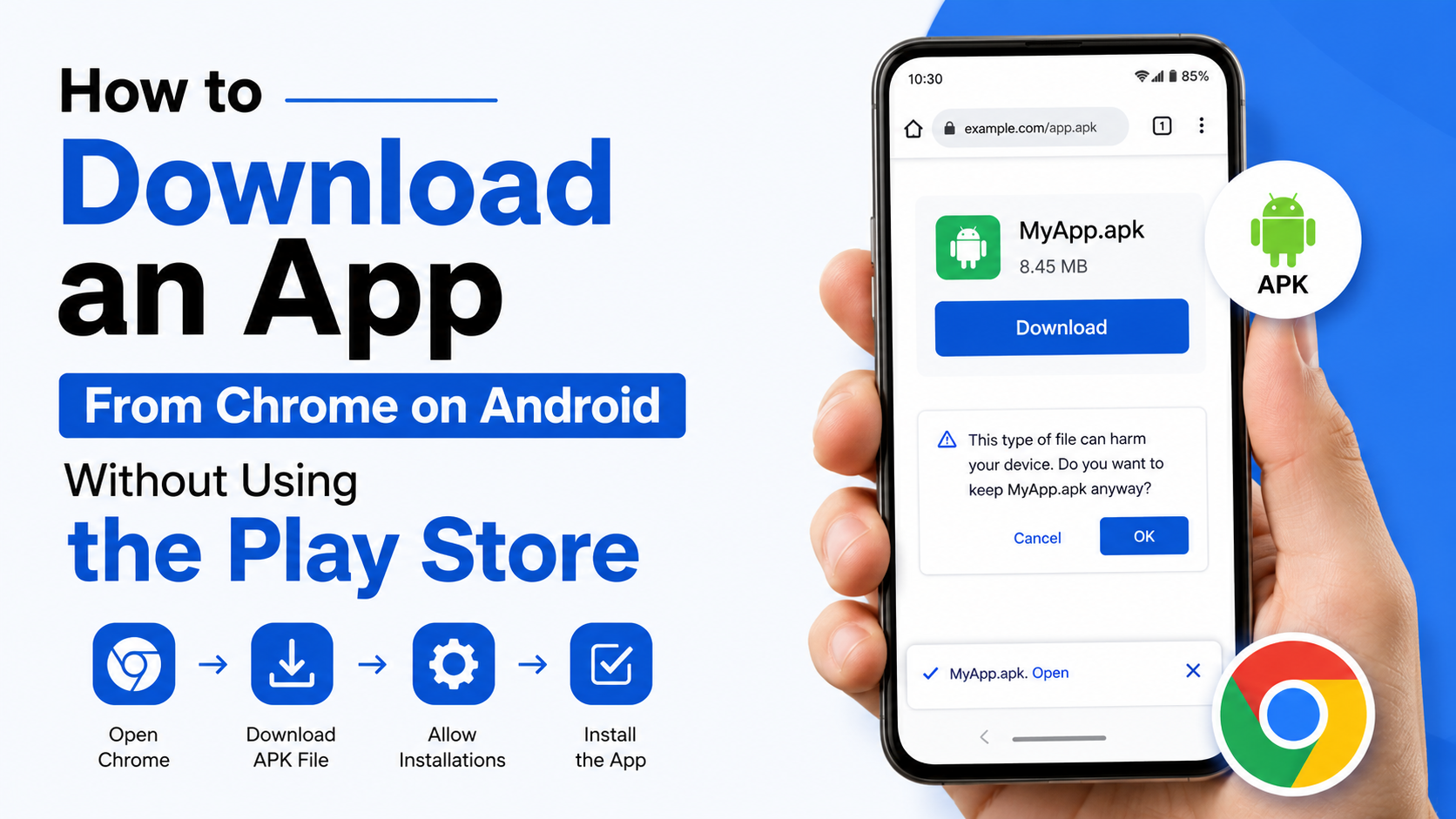
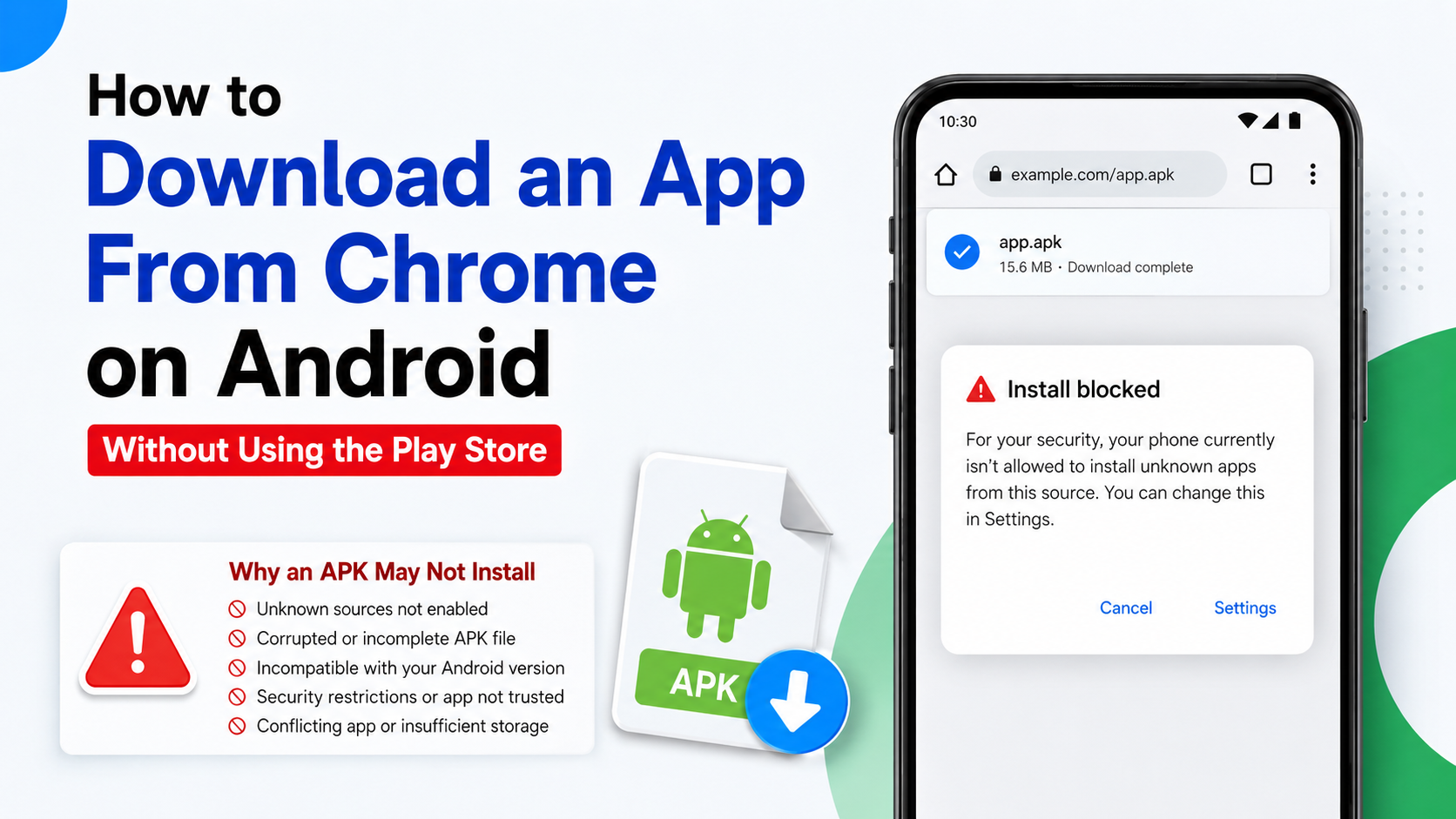
How to Download an App From Chrome on Android Without Using the Play Store
You can download an Android app from Chrome without opening the Play Store by downloading its APK file from the app developer’s official website and installing it manually. Android calls this sideloading. You must allow the specific app—usually Chrome or your file manager—to install unknown apps, then review the APK before installing it.
This method is useful when an app is unavailable in your region, your device does not include Google Play, or the developer distributes the app directly. It also carries more security responsibility than installing through Google Play.
Key Takeaways
- Download the APK from the developer’s official website or a reputable, clearly identified alternative store.
- On Android 8.0 and later, allow installation permission for the particular source, such as Chrome.
- Open the downloaded APK from Chrome’s Downloads page or your Files app.
- Keep Google Play Protect enabled; it also scans many apps installed outside Google Play.
- Do not install modified, cracked or “premium unlocked” APKs from unknown websites.
- If the file ends in
.apks,.xapkor.apkm, it may require a compatible installer rather than a normal APK tap.
What You Need Before Downloading an App From Chrome
Before starting, check these points:
- Your phone or tablet runs Android and has enough free storage.
- You have a stable Wi-Fi or mobile-data connection. APK files can be large, so users on limited Indian data plans should check the download size first.
- You know the app’s genuine developer and official website.
- The APK supports your Android version and device architecture.
- You are not using a work, school or parental-control device that blocks installations outside approved stores.
An APK (Android Package Kit) is the installable file format used by Android apps. Downloading an APK is different from downloading an app through Google Play: Chrome only saves the file; Android’s package installer performs the installation.
The Safest Way to Download an APK in Chrome
The safest source is the app developer’s own website. Look for a “Download for Android”, “Android APK” or similar button on the verified domain. Some open-source projects publish releases through their official project page or a recognised distribution service.
Avoid search-result advertisements and websites that use several fake download buttons. Confirm the domain name carefully—for example, a look-alike spelling or an unfamiliar country domain may indicate a scam.
Google’s Chrome help explains that files downloaded on Android are saved to the device’s default download location, and can be found through Chrome’s Downloads menu or the Files app. Google Chrome Help: Download a file on Android
Download steps
- Open Chrome on your Android phone.
- Enter the app developer’s official website.
- Find the Android download page and confirm that the file is an APK.
- Tap the download button. If Chrome displays a warning, read it carefully before choosing to continue.
- Wait for the download to finish. Do not close Chrome while a large file is still downloading on an unstable connection.
- Tap the Download complete notification, or open Chrome, tap ⋮ > Downloads.
- Select the APK file to begin installation.
If you cannot find the file, open Files, Files by Google, or your phone manufacturer’s file manager and check the Downloads folder.
Allow Chrome to Install Unknown Apps
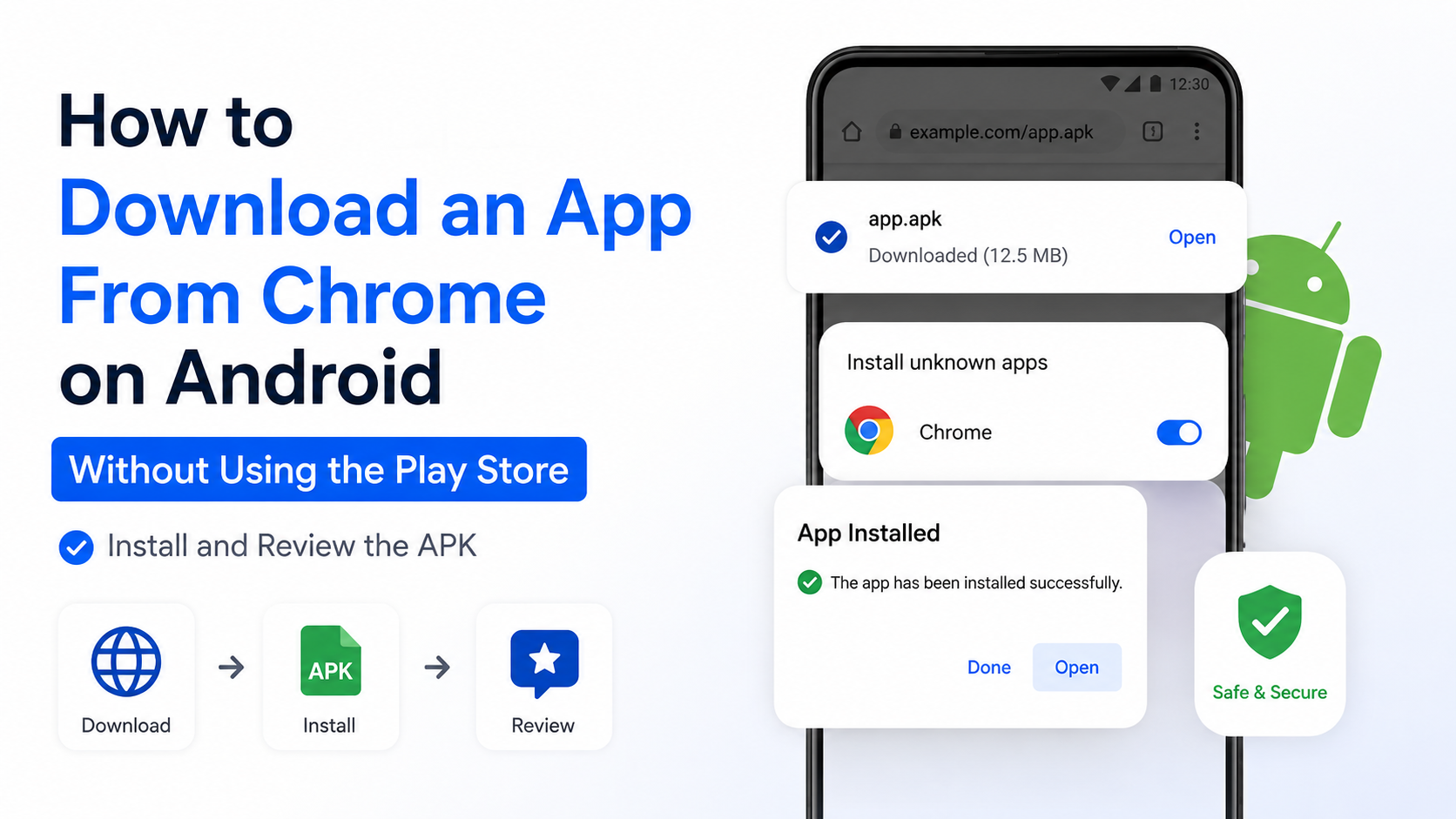
Android blocks installations from websites by default. On Android 8.0 (API level 26) and newer, permission is granted to an individual source app rather than through one universal “unknown sources” switch. Android’s developer documentation describes this as the Install unknown apps setting. Android Developers: Alternative distribution options
Most Android phones
The wording differs between Samsung, Xiaomi, OnePlus, Motorola, Vivo, Oppo and other phones, but the process is usually:
- Open Settings.
- Tap Apps or Apps & notifications.
- Choose Special app access. You may need to tap the three-dot menu first.
- Tap Install unknown apps.
- Select Chrome.
- Turn on Allow from this source.
- Return to Chrome’s Downloads list and tap the APK again.
If you open the file through a file manager instead, Android may ask for permission for that file manager. In that case, allow the source you are actually using—such as Files by Google—rather than enabling every app.
On Android 7.1.1 and older, the setting is generally called Unknown sources under Settings > Security. These older menu paths vary considerably by manufacturer and may not match newer instructions.
After installation, return to the same menu and switch off Allow from this source for Chrome or the file manager. This reduces the chance of accidentally installing a downloaded file later.
Install and Review the APK
Once permission is enabled:
- Tap the APK in Chrome’s Downloads page or your Files app.
- Review the app name and requested permissions shown by Android.
- Tap Install.
- Wait for the installation to complete, then tap Open or Done.
If Android shows a Play Protect warning, do not dismiss it automatically. Google says Play Protect checks apps installed from outside Google Play and can warn about or block potentially harmful applications. Google Play Protect on-device protections
Be especially cautious if an ordinary app requests sensitive access such as SMS, accessibility, device administration, contacts or notification access. A flashlight or wallpaper app normally should not need those permissions.
APK, APK Bundle and XAPK: What Is the Difference?
Not every Android download can be installed by tapping one file.
| File type | What it usually contains | How it behaves |
|---|---|---|
.apk | One complete Android package | Usually installs directly |
.apks | A bundle of split APK files | Needs a compatible split-APK installer |
.xapk | APK plus additional data or splits | Usually needs the distributor’s installer |
.apkm | A split package format used by some repositories | Needs a compatible installer |
If the developer provides a plain .apk, the normal Chrome method works. If the download is an .apks, .xapk or .apkm file, do not rename it to .apk; that does not convert the package. Use installation instructions from the developer or the clearly identified distribution service. If no trustworthy instructions exist, do not proceed.
Some games also download large data files after installation. Use Wi-Fi where practical and install only from the game publisher’s official channel.
How to Check an APK Before Installing
Downloading directly does not prove that a file is genuine. Use these checks:
- Verify the domain: It should belong to the developer or a recognised app store.
- Check the developer name: Compare it with the app’s official website, documentation or verified social account.
- Look for HTTPS: Chrome’s lock icon indicates an encrypted connection, but HTTPS alone does not make a website trustworthy.
- Avoid repacks: “Mod”, “cracked”, “unlocked”, “cheat” and “premium free” versions are commonly altered and may violate copyright or contain malware.
- Check the Android requirement: An APK built for a newer Android release may not install on an older phone.
- Keep Play Protect on: It provides an additional warning layer, not a guarantee that every app is safe.
- Review permissions after installation: Go to Settings > Apps > [app name] > Permissions and remove permissions the app does not reasonably need.
Do not disable Play Protect merely to force an installation. If Android blocks a file, first confirm that you downloaded the correct package from the correct source.
Why an APK May Not Install
“App not installed”
Common causes include:
- The APK is incomplete or corrupted.
- The package does not support your Android version.
- You downloaded the wrong CPU architecture.
- An older version of the same app conflicts with the new signing key.
- Your phone has insufficient storage.
- The file is a split package, not a standalone APK.
Delete the damaged file, download it again from the official source and make sure you have free space. If an existing version is installed, back up its data before considering removal; uninstalling can delete local app data.
Chrome says the file is dangerous
Chrome or Play Protect may flag an APK because it is unfamiliar, has suspicious behaviour or matches known harmful software. Do not override the warning unless you can independently confirm the developer, file and reason for the alert. For an app that is available through Google Play, using Play Store is generally the lower-risk option.
“For your security, your phone currently isn’t allowed to install unknown apps”
This means the source permission is off. Open Settings, search for Install unknown apps, select the app that opened the APK, and enable Allow from this source temporarily.
The download does not start
Try the following:
- Check the mobile network or Wi-Fi connection.
- Confirm that Chrome has storage access where your phone requires it.
- Clear enough device storage.
- Return to the official website and start a fresh download.
- Check Chrome’s ⋮ > Downloads page for a paused or failed transfer.
- Avoid downloading from pages that repeatedly redirect or open pop-up tabs.
When Downloading Outside the Play Store Is Not Possible
Some devices have restrictions that prevent sideloading. A company-managed phone, school device, parental-control profile or security program may block unknown apps. Google accounts enrolled in stronger security protections may also have tighter rules for non-Play installations.
In these cases, use an approved store such as the device manufacturer’s app store, contact the administrator, or ask the developer whether an official alternative is available. Do not attempt to bypass organisational controls.
If the app is not available in India, changing region settings or downloading an unofficial copy may create account, payment, update and legal problems. Check the developer’s India availability information first.
Should You Install Apps From Third-Party APK Websites?
A third-party site is not automatically malicious, but it adds uncertainty. It may host an outdated version, alter the package, bundle advertising software or provide a file that violates the developer’s licence. A mirror is simply a copy hosted somewhere other than the original source; it is not automatically official.
Use a third-party source only when:
- The developer explicitly links to it.
- The site clearly identifies the original publisher.
- The file’s signature or checksum can be independently verified.
- You understand how updates and permissions will work.
For most users, the official website or Google Play is preferable. Never enter your Google password, UPI PIN, card details or one-time password into an APK-download website.
Frequently Asked Questions
Can I download an app from Chrome without the Play Store?
Yes. Download the app’s APK from a legitimate source, allow Chrome or your file manager to install unknown apps, then tap the APK and follow Android’s installation prompts.
Where are APK files downloaded in Chrome?
They are normally saved in the device’s default download location, commonly the Downloads folder. You can also find them in Chrome by tapping ⋮ > Downloads or through the Files app.
Is sideloading an APK safe?
Sideloading can be safe when the APK comes directly from a trustworthy developer, but it has greater risk than a store installation. Keep Play Protect enabled and avoid modified or pirated packages.
Why can Chrome download the APK but not install it?
Chrome handles the download, while Android controls installation. You may need to enable Settings > Apps > Special app access > Install unknown apps > Chrome, or the file may be incompatible or incomplete.
Do I need to keep “Allow from this source” enabled?
No. Enable it only long enough to install the file, then turn it off for Chrome or your file manager.
Can I install an .xapk or .apks file by tapping it?
Usually not. These formats contain split packages or additional data and require a compatible installer and trustworthy instructions from the developer or distributor.
Will apps installed from Chrome update automatically?
Usually not through Google Play. You may need to download and install later updates manually, unless the app includes its own trusted update system.
Can I use this method on an iPhone?
No. iPhones and iPads do not install Android APK files. This procedure is for Android phones and tablets only.