How to Download an Audio From Audio.com and Save It to Your Device
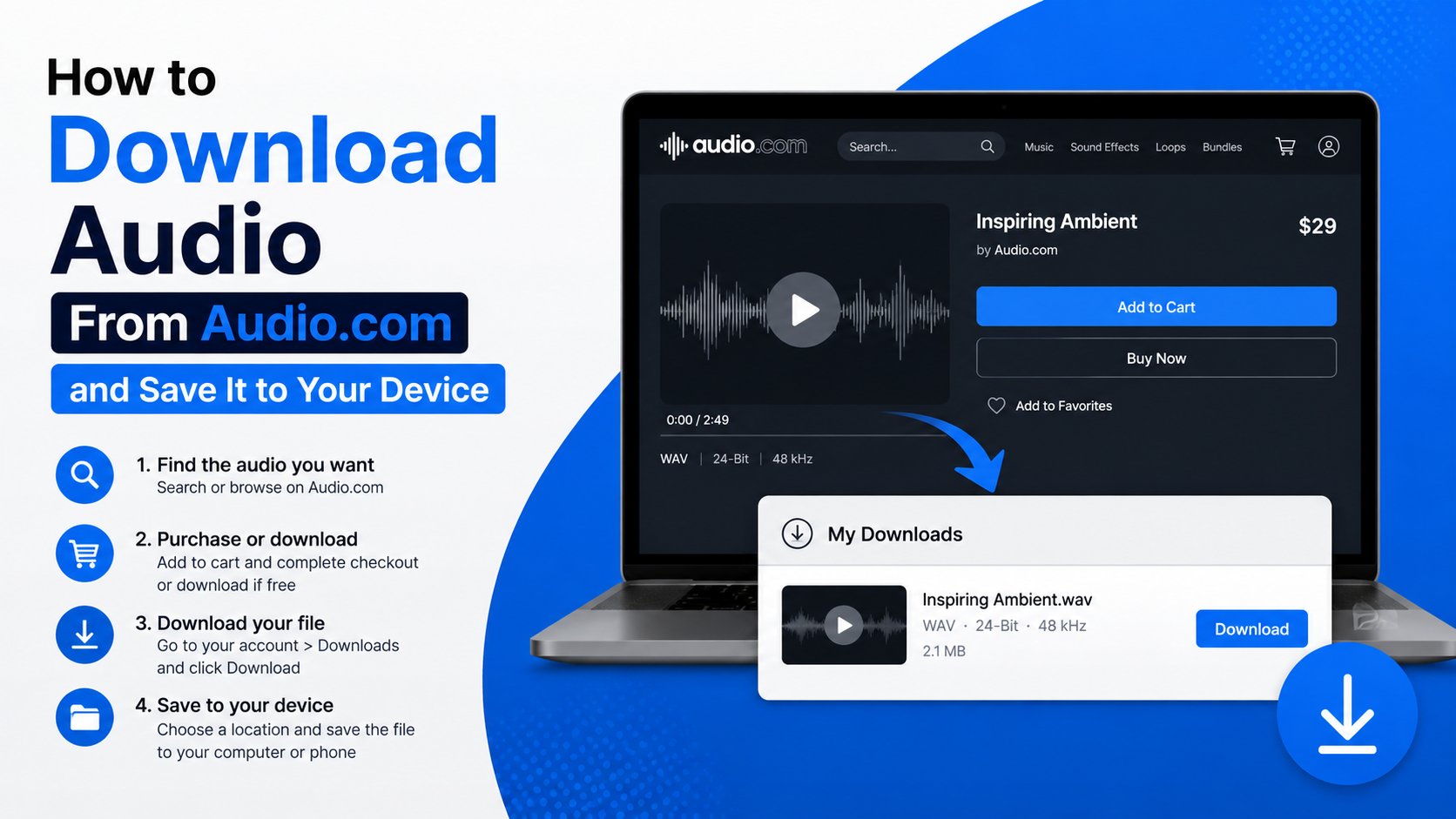
If you want to know how to download an audio from Audio.com, open the individual track’s Audio.com page and select Download—but only if the creator has allowed downloads. You do not need an Audio.com account to download an enabled track. If there is no Download option, the creator has disabled it and the legitimate solution is to ask them for permission or a copy.
Audio.com is a browser-based audio hosting and sharing platform. It supports streaming on desktop and mobile without requiring an app, while creators control whether listeners can save a track locally.
Key Takeaways
- Download an Audio.com track only when its page shows an official Download button.
- A listener does not need to sign in when downloads are enabled.
- Downloads are disabled by default for newly uploaded tracks.
- Public and unlisted tracks can both be downloadable if the creator enables the setting.
- If no button appears, do not use unofficial “Audio.com downloader” websites or browser extensions.
- The saved file is normally found in your browser’s Downloads area or your device’s Downloads folder.
The quickest way to download audio from Audio.com
Use the track’s official page, not a copied player embed or a third-party download service.
- Open the direct Audio.com link for the track you want to save.
- Look near the track information or controls for Download.
- Select Download.
- If your browser asks where to save the file, choose a folder and select Save. Otherwise, the file will download automatically.
- Open your device’s Downloads section to play, move, rename or share the file.
Audio.com states that listeners can download a track without creating an account when the uploader has enabled downloads. This applies to both public tracks and unlisted tracks accessed through their direct link. Audio.com Help Centre
Do not confuse the play button with Download. Streaming lets you listen in the browser; downloading creates a local file you can keep on your device.
Where the downloaded audio is saved
The download location depends on your browser and device settings, not Audio.com itself.
| Device | Where to look first | Helpful tip |
|---|---|---|
| Android phone or tablet | Files by Google, My Files, or Downloads | Open your browser’s download notification to locate the file quickly. |
| iPhone or iPad | Files app → Browse → Downloads | Safari commonly saves downloads in iCloud Drive or On My iPhone, depending on your settings. |
| Windows PC | File Explorer → Downloads | Press Ctrl + J in Chrome, Edge or Firefox to view recent downloads. |
| Mac | Finder → Downloads | In Safari, use the download arrow near the address bar. |
| Linux computer | Your browser’s download list or Downloads folder | The exact location can be changed in browser settings. |
After downloading, check the file name and extension before moving it. If the name is unclear, rename it to something useful, such as podcast-episode-12 or voice-note-client-name, while keeping the existing extension intact.
How to download Audio.com tracks on Android
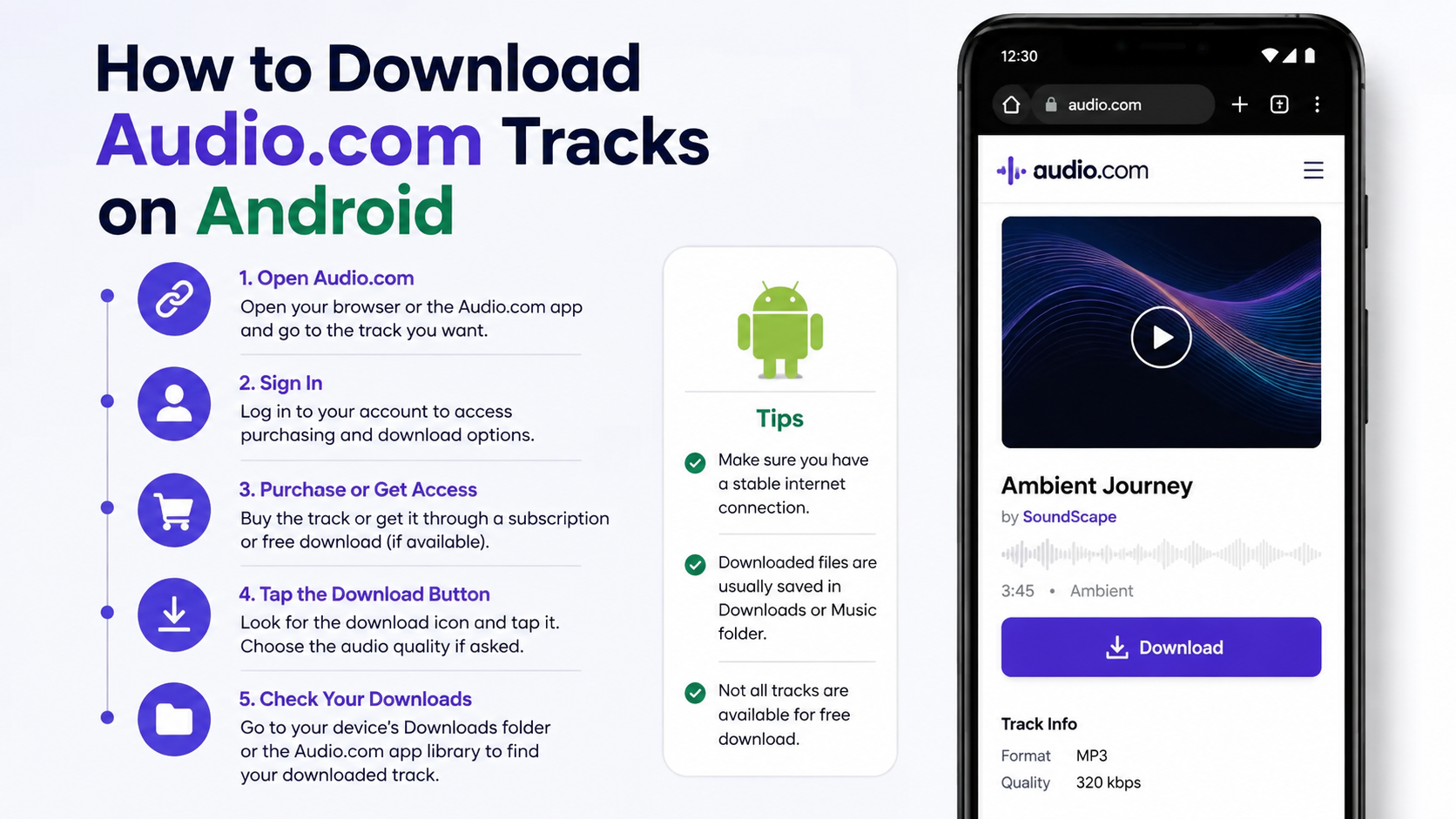
Audio.com works through a mobile web browser, so you generally do not need to install a separate Audio.com app.

- Open the track link in Chrome, Firefox, Samsung Internet or another trusted browser.
- Scroll to the track controls and select Download, if it is available.
- Accept the browser’s download prompt if one appears.
- Wait for the download notification or progress indicator to finish.
- Tap the completed notification, or open your phone’s Files app and go to Downloads.
On many Android phones sold in India, downloads may be saved to internal storage by default. If your phone has limited free space, check available storage before downloading lengthy recordings or high-quality music files.
If you cannot find the file, open the browser menu and choose Downloads. Avoid repeatedly pressing Download: that can create duplicate copies and use unnecessary mobile data.
How to save Audio.com audio on iPhone or iPad
On iPhone and iPad, Safari is usually the simplest option.
- Open the Audio.com track’s direct link in Safari.
- Select Download if the uploader has enabled it.
- Confirm the download when Safari asks.
- Tap the download arrow in Safari’s address bar when it finishes.
- Choose the file, or select the magnifying-glass icon to open its location in the Files app.
To change Safari’s default download folder, go to Settings → Apps → Safari → Downloads. You can choose iCloud Drive, On My iPhone, or another supported location.
A downloaded audio file is separate from an offline download inside a streaming app. You can normally manage it through Files, attach it to an email, or import it into an editing app if that app supports the file format.
How to download Audio.com audio on Windows, Mac and Linux
The process is almost the same across computer browsers.
- Visit the individual Audio.com track page.
- Select the official Download button.
- Choose a save location if your browser asks; otherwise, wait for the download to complete.
- Open the browser’s download list:
- Chrome, Edge and Firefox on Windows/Linux: press
Ctrl + J - Chrome and Firefox on Mac: press
Command + Shift + J - Safari on Mac: select the download arrow in the toolbar
- Select Show in folder or its equivalent to reveal the saved audio file.
For a recording you plan to edit, save a backup before making changes. Downloading a track gives you a local copy; it does not replace the creator’s hosted version or preserve every online setting, such as descriptions, comments or visibility.
Why the Audio.com Download button is missing
The usual reason is simple: the uploader has not permitted downloads. Audio.com says downloads are off by default for uploads, and the uploader decides whether to enable them. Audio.com’s download-permission guidance
Other possible reasons include:
- You are viewing an embedded player instead of the original Audio.com track page.
- The shared link is incomplete or no longer works.
- The track is private or you do not have access to it.
- A browser extension, content blocker or strict privacy setting is interfering with page controls.
- The creator has changed the track’s permissions after sharing the link.
Try opening the original link in a current browser and temporarily disabling only the relevant content blocker for Audio.com. If Download is still absent, contact the creator rather than trying to extract the streaming audio.
Do not use unofficial Audio.com downloaders
Third-party converter sites, download extensions and “copy URL to MP3” services are not the official Audio.com download method. They can expose you to misleading buttons, unwanted downloads, account phishing, modified files or aggressive advertising. They may also bypass a creator’s choice to disable downloads.
A missing Download button is a permission boundary, not a technical error to work around. Streaming may still be available because Audio.com supports browser playback for public and unlisted content. Audio.com’s streaming and playback guide
How creators can enable downloads for their own Audio.com track
If you own the audio or have the right to distribute it, enable downloads from the track settings.
- Sign in to your Audio.com account.
- Open your track page.
- Select the three-dot menu (⋯) or Edit.
- Find Allow downloads.
- Turn the setting on.
- Select Save.
According to Audio.com, the setting can be changed even after a track is published. Public tracks can be discoverable by anyone, while unlisted tracks are accessible only to people with the direct link; either can be downloadable when permission is enabled. Audio.com’s privacy-options guide
Before enabling downloads, make sure you own the recording or have permission to share it. Audio.com requires uploaders to have full rights to distribute their content, including original work, properly licensed audio or public-domain material. Audio.com copyright guidance
Tips for saving and using downloaded audio responsibly
Downloading a file does not automatically grant permission to repost, edit, upload, sell or use it in a video. A creator may allow downloads for personal listening, review by a client, classroom use or collaboration while retaining all other rights.
Use these practical checks:
- Keep the original link and creator name with your saved file.
- Read the track description for a licence or usage terms.
- Ask the creator before using music, sound effects or voice recordings in commercial work.
- Use Wi-Fi for large downloads if mobile data is limited or costly.
- Back up important recordings to a trusted cloud service or external drive.
- Scan any unexpected executable file; an audio download should not ask you to install software to play it.
Audio.com’s official subscription page lists download allowances as part of creator hosting plans, but a listener does not need a paid subscription or account simply to download an enabled track. Audio.com subscriptions
Frequently Asked Questions
Can I download audio from Audio.com without an account?
Yes. Audio.com says listeners do not need to sign in when the creator has enabled downloads for the track and you have access to its link.
Why can I listen to a track but not download it?
Streaming and downloading are separate permissions. The creator may allow browser playback while keeping downloads disabled.
Can I download an unlisted Audio.com track?
Yes, if you have the direct link and the uploader has turned on Allow downloads. Unlisted tracks do not appear in public search or on the creator’s public profile.
Is there an Audio.com app I must install to download audio?
No dedicated app is required for the normal process. Audio.com’s browser player works on desktop and mobile devices, and the official Download button saves the file through your browser.
How do I find an Audio.com download on my phone?
Open your browser’s Downloads list, then check the Downloads folder in your Files or file-manager app. On iPhone and iPad, use the Files app; on Android, use Files by Google, My Files or a similar app.
Can I convert an Audio.com stream to MP3 if Download is unavailable?
You should not use conversion tools to bypass a disabled download option. Ask the uploader for a downloadable copy or permission instead.
Can the creator turn downloads off later?
Yes. Audio.com says creators can change the Allow downloads setting after publication. Turning it off prevents future official downloads, but it does not remove copies already saved by listeners.