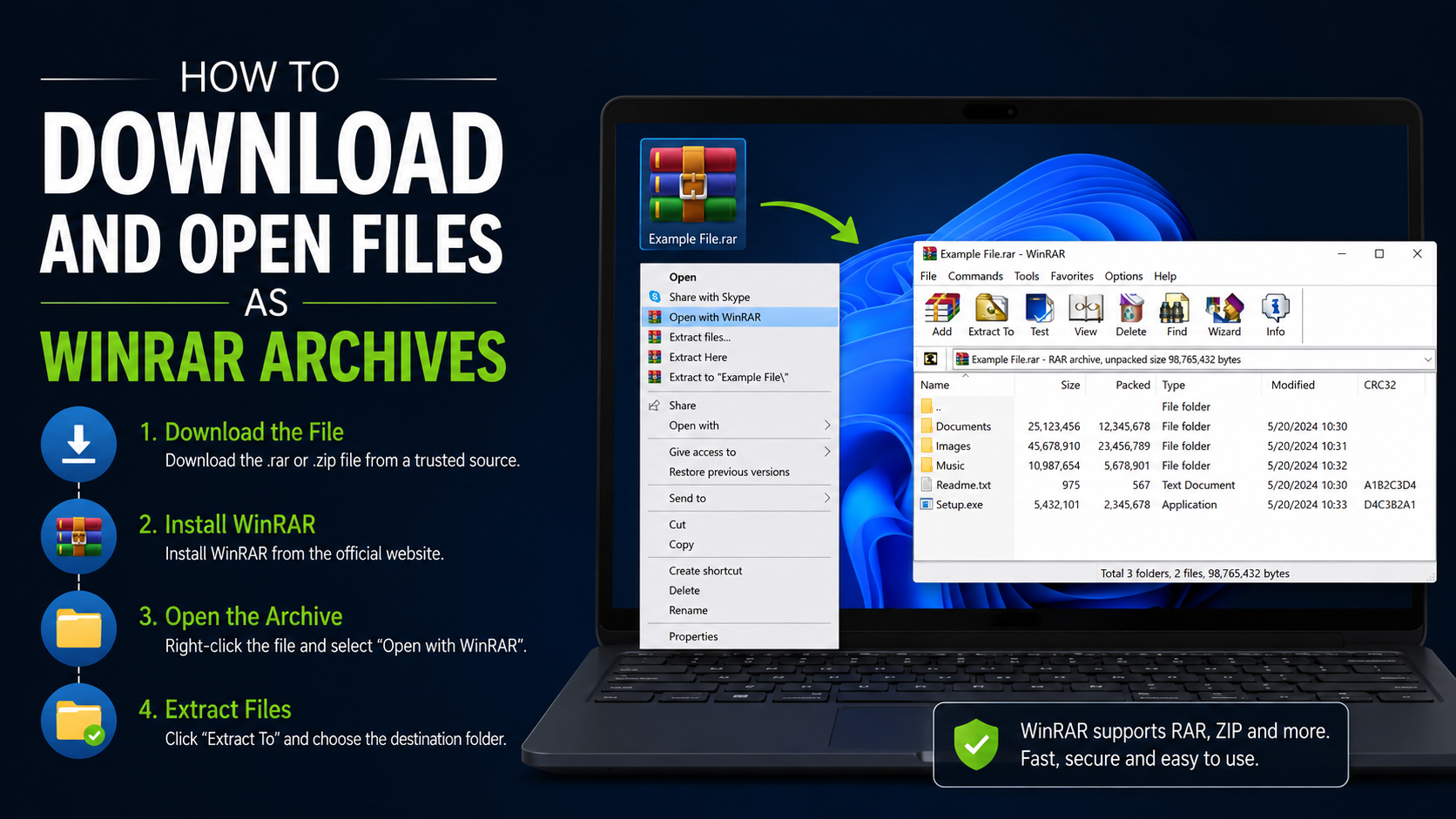
How to Download as WinRAR and Open RAR Archives on Windows
If you searched for how to download as WinRAR, there are two possible meanings:
- You want to download a file that a website has already packaged as a
.rararchive. - You want to download ordinary files and then compress them into your own WinRAR archive.
A web browser cannot normally change a PDF, video, installer, or document into a RAR file during download. The website must provide a RAR download, or you must download the original file first and create a RAR archive afterward.
This guide explains both methods for Windows 10 and Windows 11, including installation, extraction, compression, safety checks, and troubleshooting.
Key Takeaways
- Download WinRAR only from the official RARLAB download page or the official WinRAR website.
- A
.rarfile is an archive containing one or more compressed files. - To open a downloaded RAR file, install WinRAR, double-click the archive, choose Extract To, and select a destination folder.
- To make your own RAR archive, select files in File Explorer, right-click, and choose Add to archive.
- Windows 11 version 24H2 can extract RAR files, but Microsoft says encrypted archives still require an application such as WinRAR.
- Do not open archives from suspicious websites, unknown email senders, or pirated-download pages without checking them first.
What Does “Download as WinRAR” Mean?

WinRAR is file-compression and archive-management software. Its native archive format is RAR, which uses the .rar extension. An archive can contain one file, such as a game installer, or many files and folders.
For example:
project-files.rar
movie-part1.rar
software_backup.rar
The .rar extension identifies the archive; it does not indicate that the file itself is an application. You must extract the contents before using documents, installers, photos, or other files inside it.
A download button labelled RAR, Download RAR, or Download archive means the website has prepared the file as a RAR archive. If a website offers only .zip, .exe, .pdf, or another format, you cannot force the browser to download it as RAR. Download it normally, then compress it with WinRAR.
How to Download WinRAR on Windows
The safest method is to use the publisher’s official website.
- Open the official RARLAB download page (https://www.rarlab.com/download.htm).
- Under the English release, choose the Windows version that matches your computer.
- Save the installer, usually an
.exefile, to your Downloads folder. - Open the downloaded installer.
- Review the licence information and select Install.
- In the setup options, keep the default file associations unless you have another archive program that should remain the default.
- Select OK or Done when installation finishes.
WinRAR’s official licence describes it as trialware. The EULA permits a maximum 40-day trial period; continued use requires a valid licence according to the publisher’s terms. Avoid modified “pre-activated” installers, cracks, or unknown mirror sites because they can contain malware or unwanted programs.
How to Download a RAR File from a Website

If the website offers a genuine RAR archive, the process is the same as downloading any other file.
- Visit the publisher’s or developer’s legitimate website.
- Find the download button marked RAR, Archive, or a similar description.
- Check the file name and extension before clicking. A RAR archive normally ends in
.rar. - Start the download and wait until the browser shows it as complete.
- Open your browser’s Downloads list or press
Ctrl + J. - Select Show in folder to locate the archive in Windows File Explorer.
Do not rename an .exe, .apk, or other file to .rar. Changing the name does not convert its format and may make the file harder to identify.
Multipart RAR downloads
Large archives may be divided into several files, such as:
backup.part1.rar
backup.part2.rar
backup.part3.rar
Download every part and place them in the same folder. Start extraction from part1.rar. Do not extract each part separately, and do not rename the parts. If one part is missing or incomplete, WinRAR may report a CRC or unexpected-end error.
How to Open and Extract a RAR File with WinRAR
After WinRAR is installed, use these steps:
- Open the folder containing the
.rarfile. - Double-click the archive. WinRAR should display its contents.
- Select the files you need, or leave everything selected.
- Click Extract To on the toolbar.
- Choose a destination folder, such as
Documents\Extracted Files. - Click OK.
- Open the destination folder after extraction completes.
The official WinRAR instructions also support right-clicking the archive and choosing Open with WinRAR. You can browse files inside the archive before extracting them, but opening a file directly from the archive may create temporary files. Extracting first is usually clearer and helps preserve the folder structure.
Extracting from the right-click menu
Depending on your Windows version and WinRAR settings:
- Right-click the
.rarfile. - Select WinRAR or Show more options.
- Choose one of the following:
- Extract files… to choose a destination.
- Extract Here to place files in the current folder.
- Extract to
<archive name>to create a new folder automatically.
For unknown archives, Extract to a new folder is the safest organisational choice because it prevents the contents from being mixed with unrelated downloads.
How to Create or Download Your Own WinRAR Archive
If you download normal files and want to package them as RAR:
- Put the files or folders in one location.
- Select the items in File Explorer.
- Right-click the selection and choose Add to archive.
- Choose
.raras the archive format. - Adjust compression settings if needed, then click OK.