How to Download Any File Safely on a Phone, Computer, or Tablet: Step-by-Step Guide
Downloading a PDF, photo, video, ZIP archive, document, driver, app, or installer is usually simple: open a trustworthy source, select the correct download link, wait for completion, then open the file with a compatible app. The safest approach is to use the publisher’s official website, Google Play, Apple’s App Store, or your operating system’s trusted software repository.
This guide explains how to download files on Android, iPhone and iPad, Windows, macOS, and Linux, where downloaded files are stored, how to check them before opening, and what to do when a download fails.
Key Takeaways
- Use the official website or app store whenever possible.
- Check the domain name, file type, publisher, and requested permissions before opening anything.
- Android downloads usually appear in the Files or Downloads app; iPhone and iPad downloads appear in Files > Downloads.
- Windows and Mac browsers normally save files in the Downloads folder.
- Do not install cracked software, unknown APKs, or suspicious email attachments.
- If a download fails, check storage, internet stability, browser permissions, and the file’s compatibility.
The safest way to download any file

Before clicking Download, identify what you are downloading and who publishes it.
- Search for the developer, company, government department, school, or organisation that owns the file.
- Open its official website by checking the spelling of the domain.
- Choose the download page for your device or operating system.
- Confirm the file name, extension, language, architecture, and version where shown.
- Download over a trusted Wi-Fi or mobile-data connection.
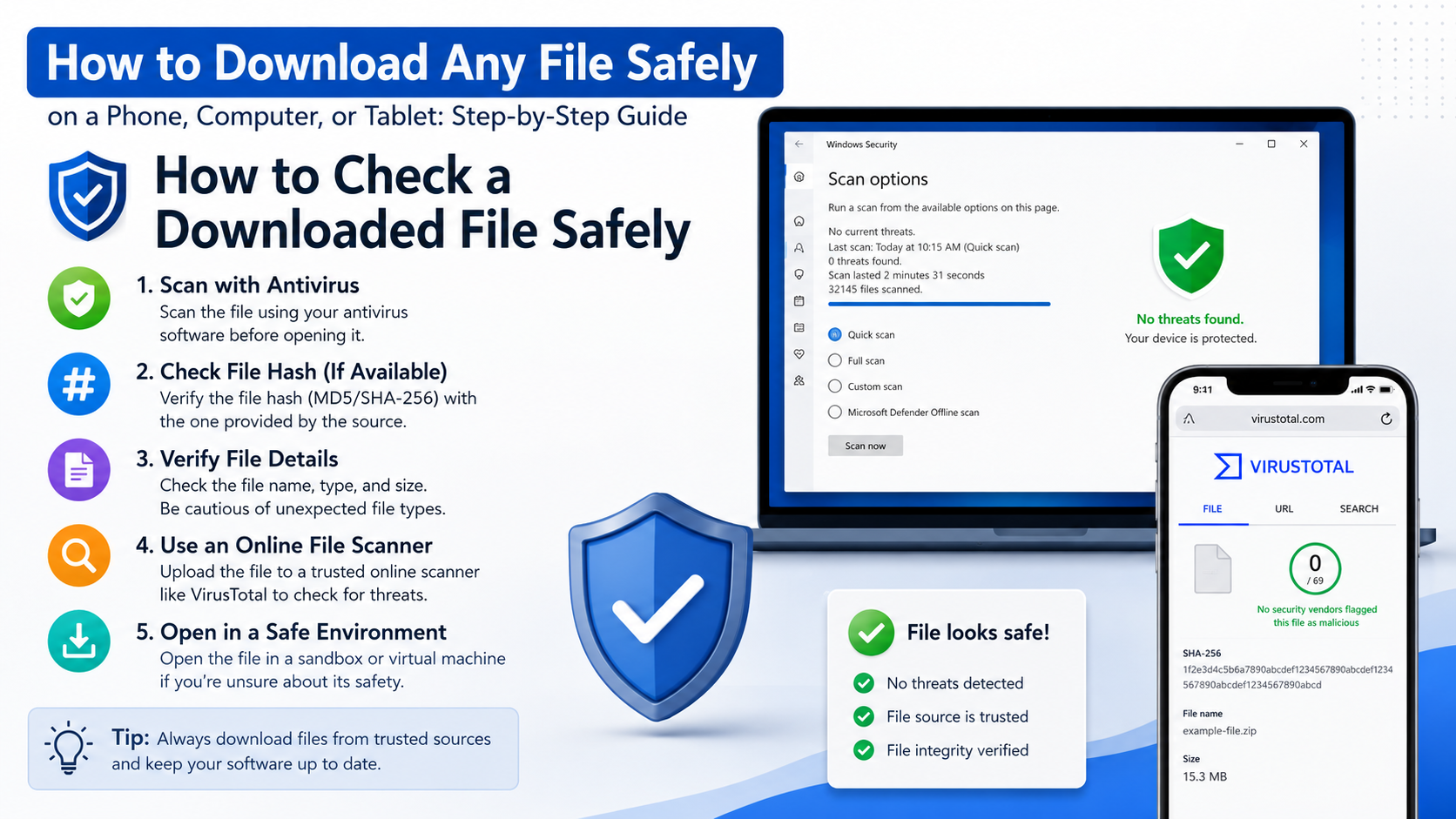
- Scan the file with your device’s built-in security tools before opening it.
- Keep the original file until you have confirmed that it opens correctly.
For applications, use the Google Play Store on Android or the Apple App Store on iPhone and iPad. Google says Play Store apps are designed for supported Android and Chromebook devices, not Windows or Mac computers, and are installed by selecting an app and tapping Install or its price. Google Play Help
A direct download link takes you straight to a file. A mirror is a copy hosted by another server. A third-party download site may bundle advertisements, modified installers, or unwanted programs. A mirror can be legitimate, but verify that it is listed by the original publisher.
How to download a file on Android
These steps apply to most Android phones and tablets using Chrome.
- Open Chrome.
- Visit the trusted website containing the file.
- Tap the download button or link.
- For an image or link, touch and hold it, then tap Download link or Download image.
- If Chrome displays a warning, stop and verify the website and file before continuing.
- Wait until the download finishes.
- Open the Files, Files by Google, or Downloads app.
- Tap the file to open it with a compatible application.
Google’s Chrome instructions confirm that downloaded files are saved in the device’s default download location. In Chrome, open More (⋮) > Downloads to pause, cancel, share, rename, or delete files. Chrome Help for Android downloads
Downloading Android apps and APK files
Install apps through Google Play whenever possible. An APK is an Android application package installed outside the Play Store. Only use an APK when the developer provides it directly or when you have a specific, legitimate reason.
Before installing an APK:
- Confirm that the file comes from the developer’s real domain.
- Check the application name, publisher, permissions, and file signature if the developer provides one.
- Avoid “mod”, “premium unlocked”, “cracked”, and pirated packages.
- Do not enable installation from unknown sources permanently.
- Run a security scan and delete the APK after installation if you do not need it.
An APK can request powerful access to messages, accessibility controls, contacts, storage, or banking information. If those permissions do not match the app’s purpose, do not install it.
How to download a file on iPhone or iPad
Safari saves internet downloads in the Files app.
- Open Safari and visit the official or trusted website.
- Tap the file link or Download button.
- Confirm the download if Safari asks.
- Tap the Downloads button beside Safari’s address or search field to view progress.
- Open Files.
- Tap Browse > iCloud Drive > Downloads. Depending on your settings, the file may instead be under On My iPhone or On My iPad.
- Tap the file to preview it, or use the Share button to open it in another app.
Apple documents the Downloads folder location and the Safari Downloads button in its support guide. Apple Support: Find downloads on iPhone and iPad
To change where future Safari files are saved, open Settings > Safari > Downloads, then select iCloud Drive, On My iPhone/iPad, or another available location.
iOS and iPadOS do not install ordinary desktop programs such as Windows .exe or macOS .dmg files. Look for an App Store version or a web-based alternative instead.
How to download a file on Windows
The process is similar in Chrome, Edge, Firefox, and other desktop browsers.
- Open your browser.
- Go to the official source.
- Select the correct file for Windows and your device type.
- Click Download or right-click the link and choose Save link as.
- Select a folder if the browser asks where to save it.
- Wait for the progress indicator to reach 100 percent.
- Open File Explorer > Downloads or the folder you selected.
- Check the file before opening or installing it.
Common Windows file extensions include:
| Extension | Typical use | What to do |
|---|---|---|
.pdf | Documents and forms | Open with a PDF reader |
.jpg, .png | Images | Open with Photos |
.zip | Compressed files | Extract before using contents |
.docx, .xlsx | Office documents | Open with compatible office software |
.exe, .msi | Windows installers | Run only when obtained from a trusted publisher |
.iso | Disk image | Mount or write to installation media |
Microsoft Edge uses SmartScreen to assess a file’s reputation and may warn about potentially harmful downloads. It also lets you change the save location through Settings and more > Settings > Downloads. Microsoft Edge download guidance
Do not disable SmartScreen or antivirus protection simply to open an unfamiliar installer. If Windows blocks a file, first confirm that the publisher and download source are genuine.
How to download a file on Mac
In Safari:
- Open Safari.
- Visit the trusted download page.
- Click the download link. You can also Control-click a link and choose Download Linked File.
- Monitor progress using the Downloads button near the top-right of the window.
- Open the Downloads folder in the Dock or Finder.
- Double-click the file only after checking its source and type.
Safari may automatically decompress ZIP files. Apple warns that software downloads should not be opened if you were not expecting them or if they came from an untrusted source. Apple Support: Download items in Safari on Mac
To change the destination, choose Safari > Settings > General > File download location.
Typical Mac downloads include .dmg disk images, .pkg installers, PDFs, images, and ZIP archives. A Windows .exe file will not normally install on macOS; find a Mac version from the software publisher.
How to download software on Linux
For Ubuntu and other Linux distributions, the safest method is the built-in software centre or package manager.
On Ubuntu:
- Open App Center.
- Search for the application.
- Check the publisher and package details.
- Select Install and authenticate if requested.
Ubuntu recommends official Snap and Debian (.deb) packages. Its documentation warns that third-party .deb files can have unrestricted system access and may introduce security or dependency problems. Ubuntu package guidance
For command-line software, use the distribution’s package manager, such as:
sudo apt update
sudo apt install package-name
Only download an ISO image or standalone package from the project’s official website. Ubuntu also explains that APT verifies repository metadata and package hashes, protections that are bypassed by manually downloading packages from an untrusted site. Ubuntu security documentation
How to check a downloaded file safely
A completed download is not proof that a file is safe.
Use this checklist:
- Confirm the source: The address should belong to the expected organisation. Watch for misspellings and lookalike domains.
- Inspect the extension: A file named
invoice.pdf.exeis an executable, not a PDF. - Check the publisher: For software, compare the publisher shown by the operating system with the developer’s name.
- Scan the file: Use Google Play Protect, Windows Security, macOS security features, or your Linux security tools.
- Verify a checksum: When a publisher provides a SHA-256 hash, calculate the downloaded file’s hash and compare it exactly.
- Avoid unexpected prompts: A document or image should not ask you to enable macros, install a codec, or provide banking details.
- Respect copyright: Download books, films, games, music, and software only from sources authorised to distribute them.
For sensitive documents such as Aadhaar forms, examination materials, or government applications, start from the relevant official .gov.in website rather than a forwarded social-media link.
How to download large files reliably
Large videos, operating-system images, and game installers need more preparation.
- Use stable Wi-Fi or a reliable 4G/5G connection.
- Check available storage; keep extra space for temporary files and extraction.
- Avoid downloading on a nearly empty battery.
- Do not close the browser if it cannot resume interrupted downloads.
- Prefer official download managers or torrent links supplied by the publisher.
- Compare the final file size with the publisher’s listed size when available.
- For mobile data in India, check your daily data allowance before downloading multi-gigabyte files.
A ZIP archive may expand to several times its downloaded size, so ensure the device has room before extracting it.
Troubleshooting common download problems
The download button does nothing
Disable aggressive pop-up blocking for the trusted site, try another browser, or right-click the link and select Save link as on a computer. Confirm that the page does not require you to sign in.
The download is stuck or keeps failing
Check the network, pause other downloads, restart the browser, and try again. A damaged partial file should be deleted before restarting. Also check whether the website has reached a download limit.
You cannot find the file
Search the device for its file name and check the default folders:
- Android: Files/Downloads
- iPhone and iPad: Files > Browse > Downloads
- Windows: File Explorer > Downloads
- Mac: Finder > Downloads
- Linux: usually Home > Downloads
Cloud services may save files inside their own app until you select Save to device or Make available offline.
The file will not open
Install an application that supports the extension, extract a ZIP archive, or download the file again. If an installer is for a different operating system or processor architecture, obtain the correct version instead.
The browser says the file is dangerous
Do not bypass the warning automatically. Recheck the domain, publisher, file type, and expected download. If you cannot establish the file’s authenticity, cancel it.
Frequently Asked Questions
What is the safest way to download an app?
Use Google Play on Android, the App Store on iPhone or iPad, and the official software repository or developer website on a computer. Avoid cracked apps and modified installers.
Where are downloaded files stored on Android?
Most browser downloads are in the Downloads folder, accessible through Files, Files by Google, or Chrome’s More > Downloads menu.
How do I download a PDF on my phone?
Open the PDF’s trusted webpage, tap the download icon or link, wait for completion, then open it from the Downloads folder or Files app.
Can I download a Windows program on an iPhone?
You can download the file for storage, but a Windows .exe or .msi program cannot normally run on iPhone or iPad. Find an iOS app or web version.
Is a mirror download safe?
A mirror may be safe when the original publisher lists it. If the publisher does not identify the mirror, use the official source instead.
Why does my download stop when I switch apps?
Battery-saving settings, weak mobile data, browser restrictions, or limited memory can pause background downloads. Keep the browser open, disable battery optimisation for the browser temporarily, and retry on stable Wi-Fi.
Should I open a file immediately after downloading it?
No. First verify the source, extension, publisher, and security warning. Scan the file and open it only when you understand what it contains.
How can I download without using mobile data?
Connect to trusted Wi-Fi and disable mobile-data access for the browser or app in your device’s network settings. Avoid public Wi-Fi for confidential documents unless the connection is protected.