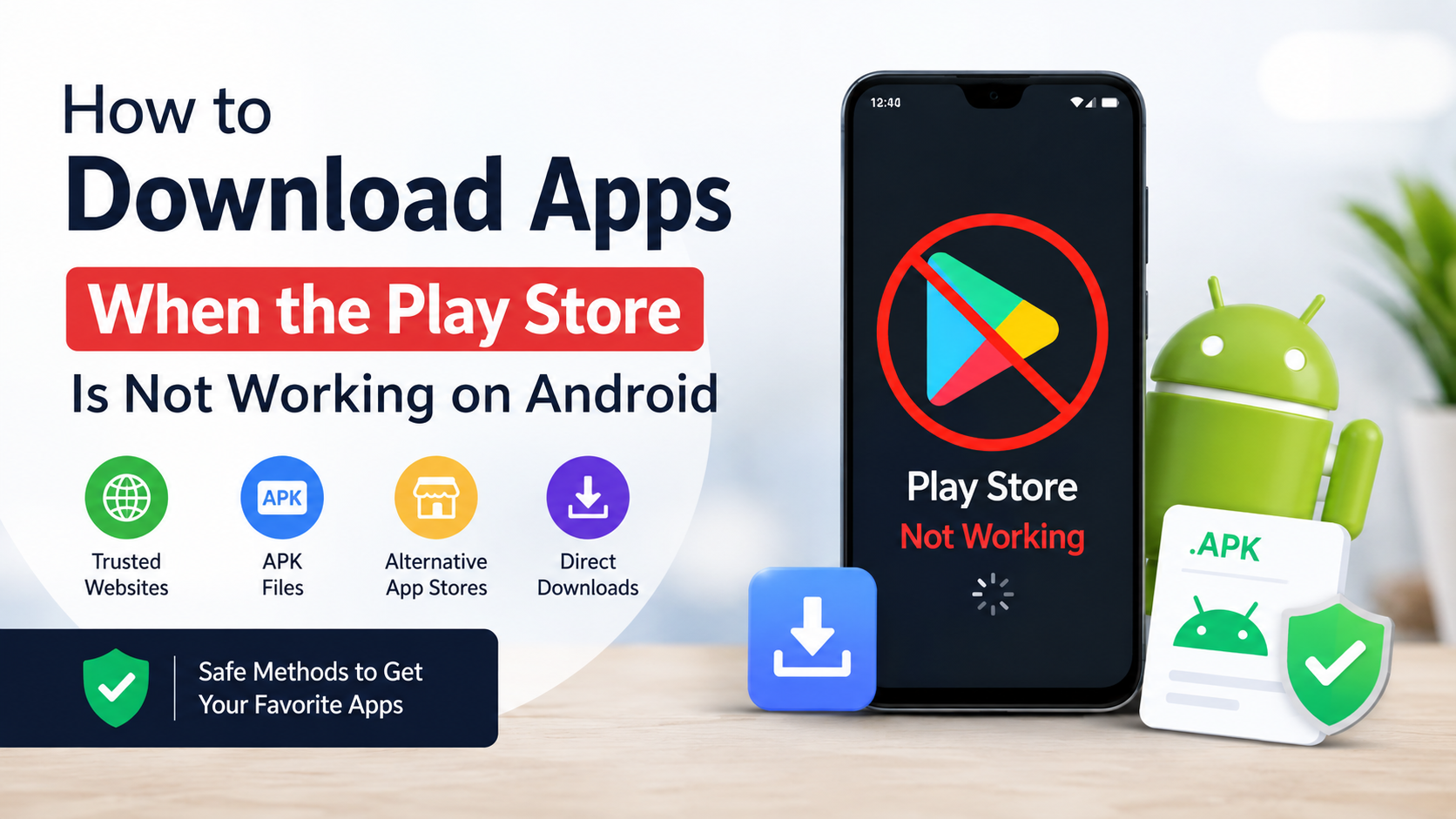
How to Download Apps When the Play Store Is Not Working on Android
If you are searching for how to download apps when the Play Store is not working, first try to repair Google Play. Most download failures are caused by a weak connection, insufficient storage, incorrect date and time, outdated system software, or a stuck Play Store cache. Google’s official troubleshooting guidance recommends checking these issues before using another download source. Google Play Help
If the Play Store still fails, you can install an app from the developer’s official website or a reputable manufacturer app store. Downloading an APK (Android Package Kit) can work, but it requires extra security checks because the file comes from outside Google Play.
Key Takeaways
- Check your internet connection, storage, date and time, Android updates, and Play Store status first.
- Clearing the Play Store cache is usually safer than immediately downloading an APK.
- You can install apps from an official developer website, but avoid cracked, modified, or pirated APKs.
- Android requires permission for the specific browser or file manager installing an app from outside Google Play.
- Keep Google Play Protect enabled and scan any app installed from another source.
- An app may be unavailable because of device compatibility, country restrictions, parental controls, or developer removal—not because your Play Store is broken.
1. Fix the Play Store before using another download method
Try these steps in order. After each step, open Google Play and attempt the download again.
Check Wi-Fi or mobile data
Open a website in Chrome to confirm that the connection works. If you are using mobile data in India:
- Turn Airplane mode on for about 10 seconds, then turn it off.
- Try a different network, such as a home Wi-Fi connection or another SIM’s hotspot.
- Disable a VPN temporarily, because some VPN servers can interfere with Play services.
- Check whether your daily data limit or network plan has been exhausted.
Google recommends a strong Wi-Fi connection where possible. If Wi-Fi is unavailable, use a stable mobile-data connection.
Check available storage
Low storage can stop an app from downloading or installing. Google identifies less than 1 GB of free space as a possible cause.
Go to Settings > Storage. Remove unused videos, duplicate photos, offline downloads, or apps you no longer need. Remember that an app may need more temporary space than the size shown on its Play Store page.
Close and reopen Play Store
Open the recent-apps screen and swipe the Play Store away. Reopen it and retry the download. This clears a temporary frozen state without changing your account or settings.
Restart your Android phone
Press and hold the power button, then tap Restart. A restart can reconnect Google services and release a download process that is stuck in the background.
Set date and time automatically
Incorrect time settings can prevent secure connections to Google servers.
Open Settings > System > Date & time (the wording differs by phone brand) and enable:
- Set time automatically
- Set time zone automatically
Restart the phone and try again.
Install Android and security updates
Go to Settings > System > Software update or Settings > Software update on Samsung and some other phones. Install available updates, then restart the device.
2. Clear the Play Store cache and data
A damaged cache is a common reason for “Pending”, “Can’t download”, or repeated download failures.
- Open Settings > Apps.
- Select Google Play Store. Tap See all apps first if necessary.
- Tap Storage & cache.
- Tap Clear cache.
- Reopen Play Store and test the download.
If that does not help, return to the same screen and choose Clear storage or Clear data. This resets Play Store preferences; it does not uninstall your other apps, but you may need to accept Play Store terms again.
Google also provides steps for clearing Google Play services. Use them only after trying less disruptive fixes, because clearing Play services data can remove some saved information, including certain Google Pay cards, and may require you to sign in again. Google Play services Help
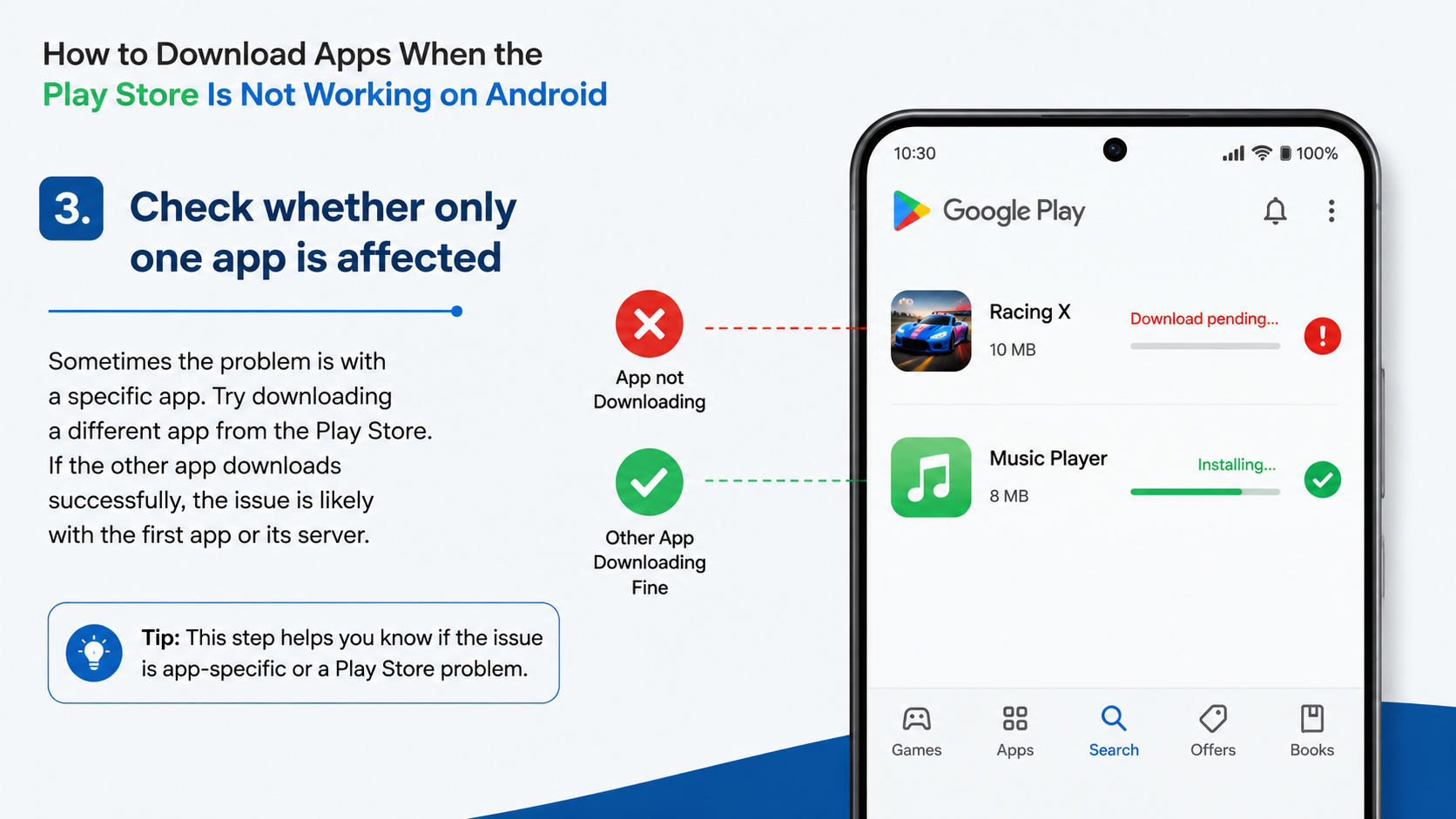
3. Check whether only one app is affected
If other apps download normally, the problem may be specific to the app you selected.
On the app’s Play Store page, check:
- Whether the app is compatible with your Android version and device
- The required operating-system version
- The download size and available storage
- Whether the app is available in your Google Play country
- Whether parental controls restrict it
Google says developers determine device compatibility, and Play Store content varies by country. An app may also have been removed or unpublished. Google’s “Can’t find an app” guidance
Do not change your Play country simply to bypass availability. Google generally requires that you are located in the new country and have a payment method there; changing regions can affect access to existing content. Country availability rules
4. Install the app through Google Play’s website
If the Play Store app itself will not open but your Google account works, try the official web interface:
- Open Chrome and visit play.google.com.
- Sign in with the same Google account used on your phone.
- Search for the app.
- Open its listing and select Install.
- Choose your Android phone from the device list, if prompted.
This method still uses Google Play for delivery and verification. It cannot bypass country, age, device, or developer restrictions.
5. Download an APK from the developer’s official website
An APK is Android’s installable application package. Use this option only when the developer clearly provides the file on its own official domain.
Examples include:
- A developer’s documented Android download page
- An open-source project’s official release page
- An organisation’s verified website linking to its Android package
Before downloading, confirm the domain letter by letter. Avoid links from pop-up advertisements, random “APK” blogs, messaging groups, file-sharing pages, and search-result redirects.
How to install an official APK
- Download the APK using Chrome or another trusted browser.
- Open the downloaded file from the notification or Files app.
- If Android displays a permission warning, open Settings and allow Install unknown apps for that specific browser or file manager.
- Return to the APK and tap Install.
- After installation, disable the browser’s “Install unknown apps” permission unless you need it again.
- Open Play Store, tap your profile picture, choose Play Protect, and scan the device.
On Android 8.0 and later, permission is granted per source—for example, Chrome can be allowed while another app remains blocked. Older Android versions may show a general Unknown sources option under security settings. Android Developers: alternative distribution
Some developers distribute an XAPK, APKS, or split APK rather than a single APK. These packages may require the developer’s own installer or a documented installation method. Do not rename files or install random “APK installer” tools to force compatibility.
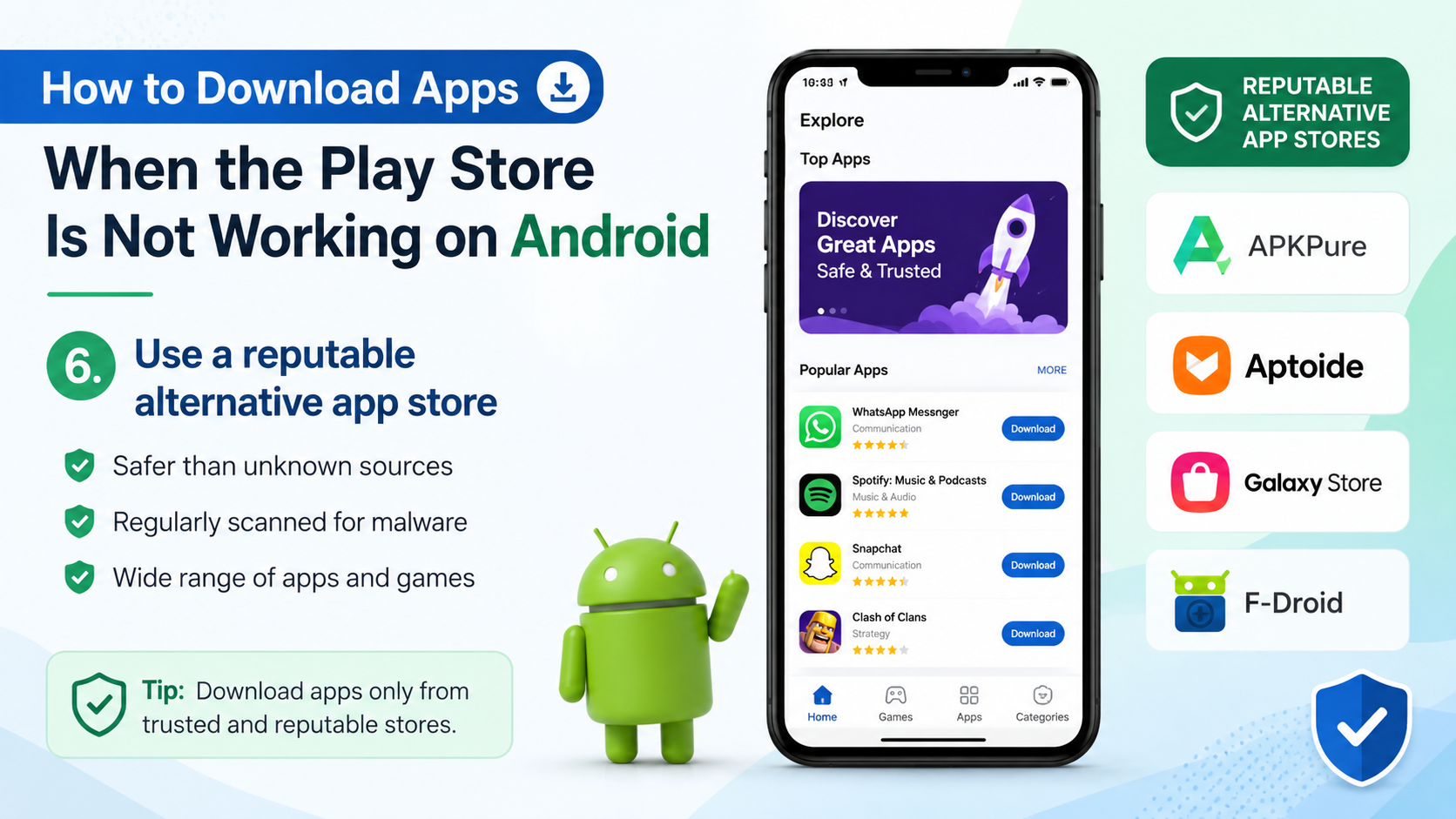
6. Use a reputable alternative app store
Some Android phones include a manufacturer store, such as Samsung’s Galaxy Store. Use a pre-installed store or one linked directly from the phone manufacturer’s official website. Availability and app selection vary by device and country, including India.
Alternative stores are not automatically safer than Google Play. Check the publisher name, permissions, update history, privacy information, and download domain. Avoid stores that advertise paid apps for free or offer modified game currencies, premium unlocks, or “no-ads” versions.
| Download method | Best use | Main risk or limitation |
|---|---|---|
| Google Play app | Normal app installation | Requires Play Store and compatible device |
| Google Play website | Play Store app is temporarily broken | Cannot bypass compatibility or country limits |
| Official developer APK | Developer provides no Play listing | You must verify the site and manage updates |
| Manufacturer app store | Phone includes a trusted store | Catalogue differs by brand and region |
| Random APK or mod site | Not recommended | Malware, scams, modified code, and missing updates |
7. Security checks you should not skip
Google Play Protect scans apps and can warn about harmful software, including apps installed from outside Play Store. Keep it enabled:
- Open Google Play Store.
- Tap your profile picture.
- Tap Play Protect > Settings.
- Ensure Scan apps with Play Protect is on.
- Consider enabling Improve harmful app detection when installing from outside Google Play. Android Help
Never install an APK that asks for unrelated access, such as a calculator requesting SMS, contacts, or accessibility control. Be especially cautious with apps claiming to be bank, courier, electricity, Aadhaar, UPI, or government services. Download those only through the organisation’s verified website or the official Play Store listing.
Do not disable Play Protect to complete an installation. If Android blocks an app, investigate the developer and package source instead of bypassing the warning.
8. What to do when installation fails
“App not installed”
Possible causes include insufficient storage, an incompatible Android version, a conflicting package already installed, or a corrupt download. Delete the file, download it again from the official source, and uninstall the existing version only if you have confirmed your data is backed up.
“Parse error” or “There was a problem parsing the package”
The APK may be incomplete, built for a different Android version, or not intended for your device’s processor. Find the developer’s compatibility information rather than downloading several random variants.
Download stuck on “Pending”
Cancel other queued downloads and updates in Play Store. Check storage and connectivity, then clear the Play Store cache. Restarting the phone can also refresh the download queue.
“For your security, your phone currently isn’t allowed…”
Android is blocking the source app. Go to Settings > Apps > Special app access > Install unknown apps, select the browser or file manager you used, and enable permission temporarily. Menu names differ between Motorola, Xiaomi, OnePlus, Samsung, Vivo, Oppo, and other brands.
Play Store keeps crashing
Clear Play Store cache and data, update Android, and check Google Play services. If the device is rooted, uses a modified ROM, or shows Device is not certified, some Google apps may not work correctly. Google recommends checking certification under Play Store > Profile > Settings > About. Play Protect certification guidance
Frequently Asked Questions
Can I download apps without Google Play Store?
Yes. You can use the Google Play website, a manufacturer’s official app store, or an APK supplied on the app developer’s official website. The last option requires careful source verification.
Is it safe to install APK files?
An APK is not automatically safe or unsafe. Risk depends on its source, integrity, permissions, and publisher. Prefer official developer downloads, keep Play Protect enabled, and avoid modified or pirated packages.
Why is Play Store not downloading apps on mobile data?
Data Saver restrictions, weak network coverage, exhausted data limits, VPN settings, or Play Store download preferences may be responsible. Test another network and check the app’s mobile-data permissions in Settings > Apps > Google Play Store > Mobile data.
Can I install an app that is unavailable in India?
Only if the developer legally distributes it through an authorised source and it supports your device. Do not use VPNs, altered APKs, or unofficial payment workarounds to evade regional restrictions.
Will an APK update automatically?
Usually not through Google Play if it was installed outside Play. You may need to revisit the developer’s official site or use the developer’s update mechanism. This is one reason Play Store installation is preferable when available.
Why does an app download but refuse to install?
Common reasons are low storage, incompatible Android or processor architecture, a corrupt package, an existing conflicting version, or a split package requiring a special installer. Check the developer’s installation instructions.
Should I factory-reset my phone?
No—not as a first step. A factory reset erases personal data and should be considered only after backing up your phone and consulting the device manufacturer or Google support for persistent system-level problems.