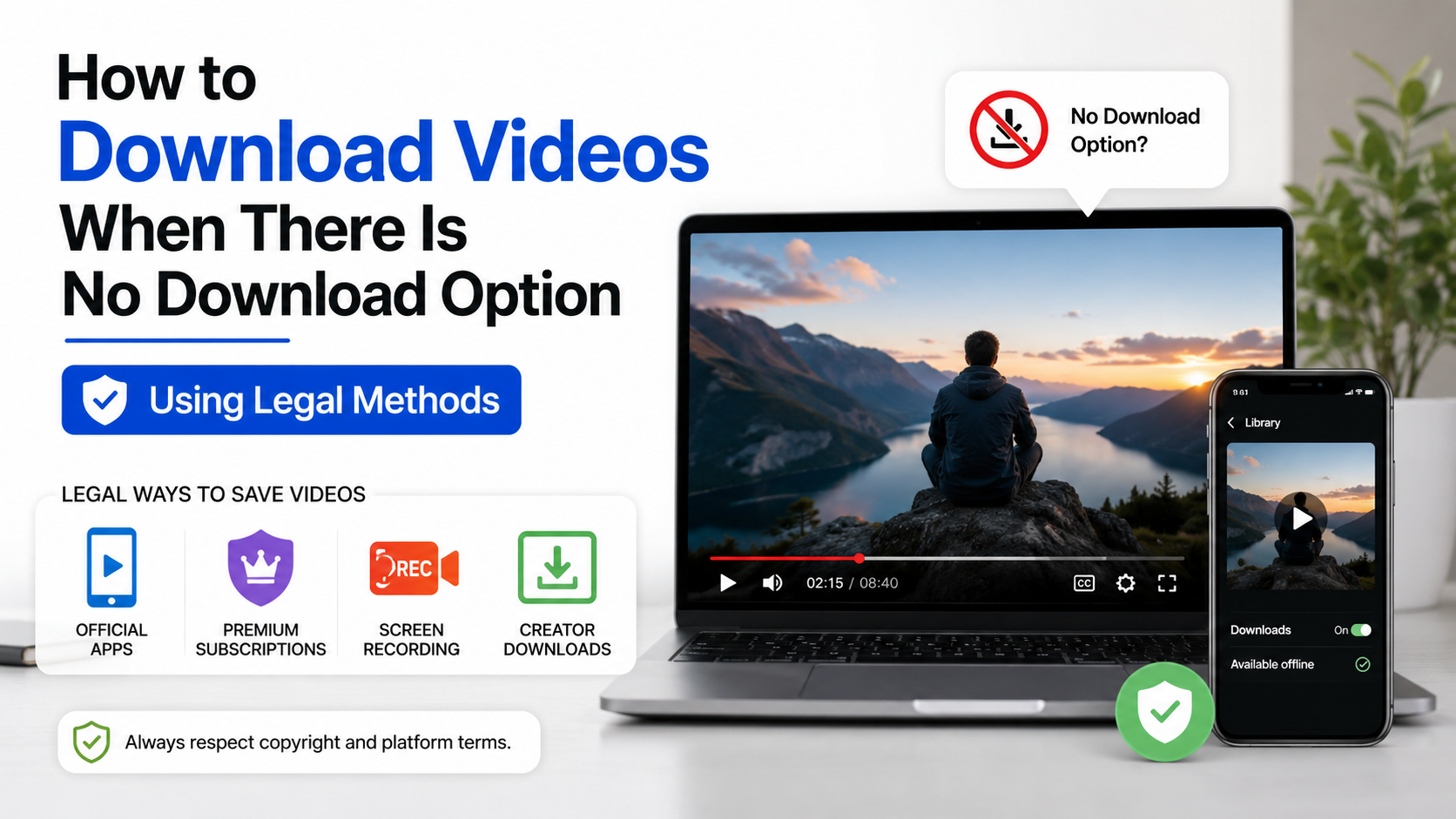
How to Download Videos When There Is No Download Option Using Legal Methods
If you are searching for how to download videos when there is no download option, the safest answer is not to bypass the website’s restrictions. A missing button may mean the platform has disabled downloads, the creator has not granted permission, or the video is available only for streaming.
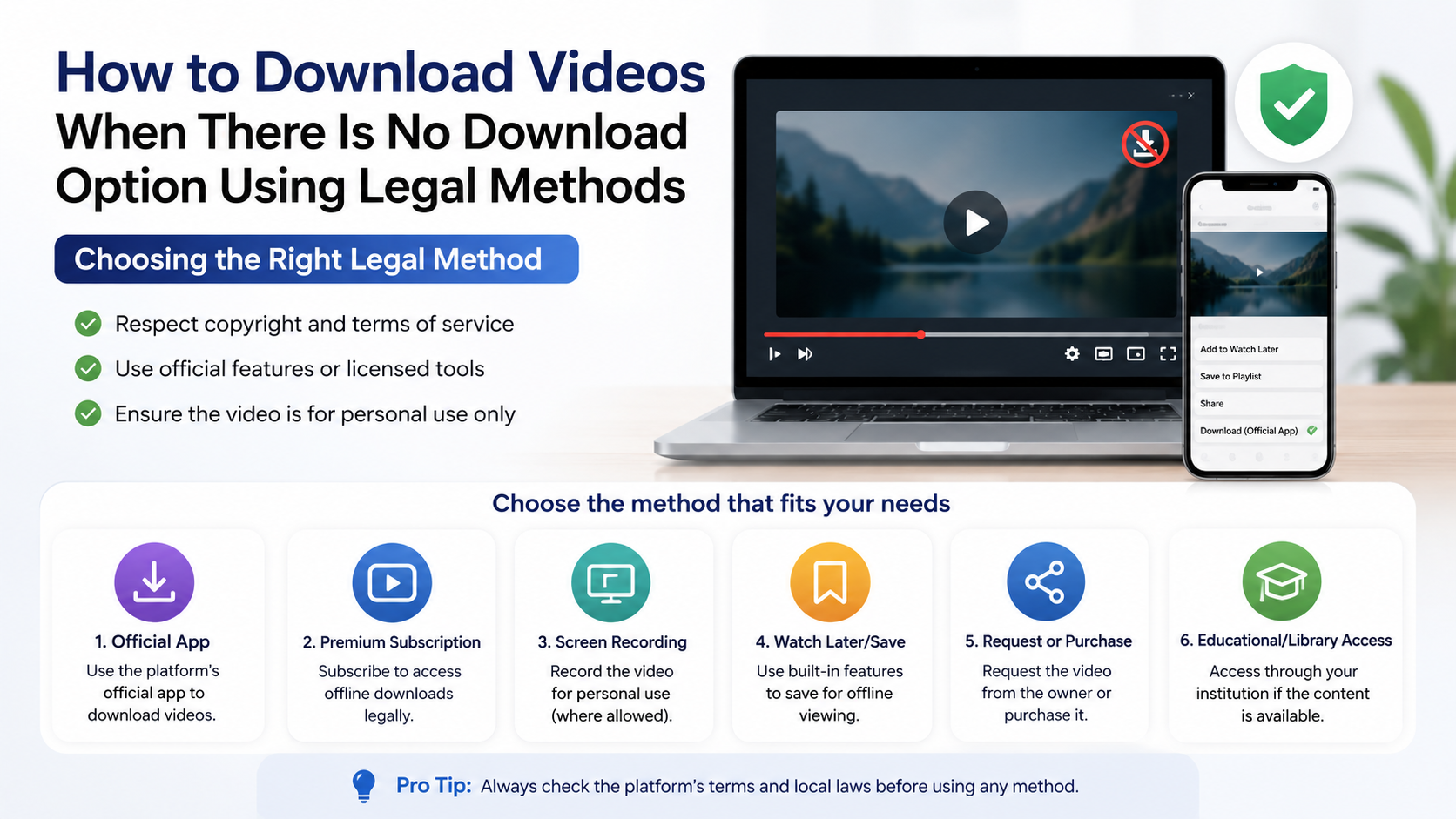
Legal options include using the platform’s official offline feature, requesting the original file from the creator, downloading your own uploaded video, using a lawful file supplied by an organisation, or making a screen recording when the content owner and platform rules allow it.
Key Takeaways
- Use an official “Download” or “Offline” feature whenever the platform provides one.
- YouTube Premium downloads are for in-app or authorised offline playback, not unrestricted MP4 files.
- Download your own videos through the platform’s creator tools or account-data export.
- Screen recording is suitable for permitted personal reference, presentations, or content you own—but some apps block it.
- Avoid downloader websites and APKs that promise to bypass restrictions; they may contain malware, intrusive ads, or violate terms and copyright.
- In India, copyright exceptions are limited. Personal access does not automatically permit redistribution or commercial use.
Why Some Videos Have No Download Button
A download control may be absent for several reasons:
- The creator disabled downloads. Some services let uploaders prevent saving or downloading.
- The platform offers streaming only. The service may allow viewing but not an exportable video file.
- Licensing restrictions apply. Music, films, sports and other licensed content may be restricted by country or subscription.
- The account or post is private. Private videos generally cannot be downloaded by people who do not own or manage them.
- The app or browser is outdated. A feature may appear only in a supported version or on selected devices.
- Offline viewing is controlled by the platform. The downloaded data may be encrypted and playable only inside the official app.
A missing button is therefore not a technical challenge to defeat. It is usually an access rule.
Method 1: Use the Platform’s Official Offline Feature
The shortest legitimate method is to use the service’s own offline option.
YouTube
YouTube’s official help says that certain videos can be downloaded in the mobile app in selected regions. Where YouTube Premium is available, members can download eligible videos on supported phones, tablets and computers for offline viewing (YouTube Help).
Typical steps are:
- Open the YouTube app and sign in.
- Open the video.
- Tap Download below the player, if it is available.
- Select video quality when prompted.
- Open You > Downloads to watch it offline.
These downloads remain inside YouTube. They are not ordinary video files that you can freely move to a gallery, edit, or upload elsewhere. YouTube also states that content may be removed from offline playback after synchronisation if it is no longer available (YouTube Premium offline viewing).
YouTube’s developer policies prohibit applications that let users download videos outside the standard Premium or platform-approved experience (YouTube Developer Policies).
Instagram and Facebook
Some public Instagram Reels may show Share > Download when the creator has allowed downloads and the feature is available to your account and region. If the option is missing, use Save or Copy link for later viewing, or ask the creator for the file. Do not use an external downloader to access private content.
On Facebook, look for the three-dot menu on videos you own or manage. Meta also provides account tools that allow users to download their information, including content associated with their account. Menu names can change, so use Settings and privacy > Settings > Accounts Centre > Your information and permissions and follow the current export instructions.
Method 2: Ask the Creator or Rights Holder
Requesting the original file is often the best option when a download button is unavailable.
Send a short message explaining:
- Why you need the video
- Whether it is for personal, educational or commercial use
- Where it will be stored or shared
- Whether you will credit the creator
The owner may send a Google Drive, OneDrive, Dropbox or email attachment, or provide a licensed download link. Keep written permission, especially if you plan to edit, publish, translate or use the video for a business, YouTube channel, course or advertisement.
Do not assume that a public post is free to copy. Public visibility means people can watch it; it does not automatically transfer copyright ownership.
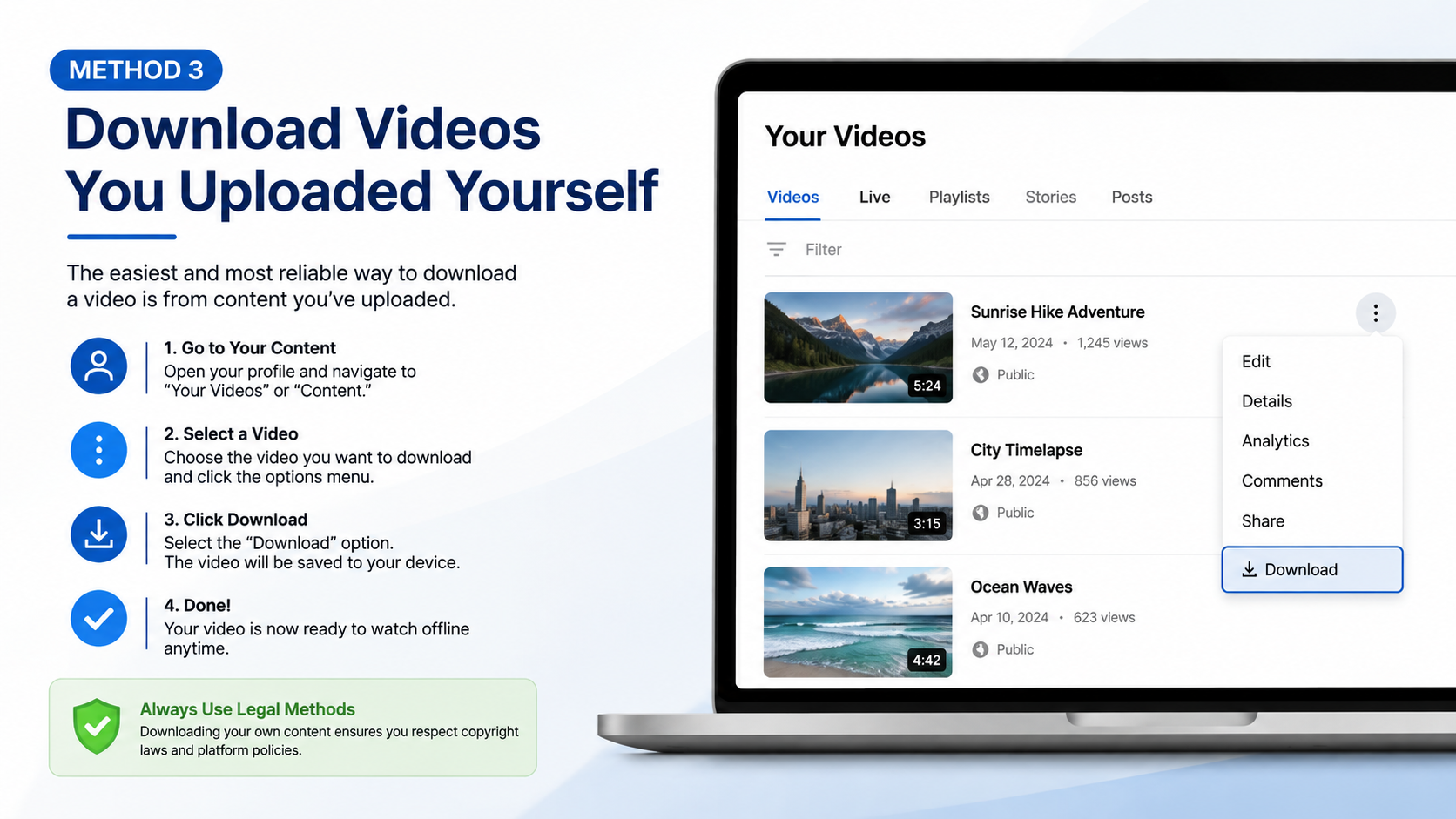
Method 3: Download Videos You Uploaded Yourself
If you created or uploaded the video, use the platform’s creator dashboard rather than a third-party site.
Common routes include:
- Open the platform’s creator or professional dashboard.
- Select Content, Videos, Reels or Media.
- Open the specific upload.
- Choose Download, Export or Download original, if offered.
- Save the file to a known folder and keep a backup.
If no single-video button exists, use the service’s official Download your information or data-export tool. Exports can take time and may arrive as a ZIP archive. Check the file type before opening it, and delete the archive from shared computers after use.
For future uploads, keep the original recording in cloud storage or on an external drive. Social-media copies may be compressed, watermarked or stripped of metadata.
Method 4: Use Screen Recording When It Is Permitted
Screen recording captures what is displayed rather than extracting the platform’s underlying video file. It can be appropriate for:
- Your own content
- A presentation or software demonstration
- A public lecture where recording is allowed
- Personal reference with the owner’s consent
- Content released under a licence that permits recording
It may be blocked for films, paid courses, banking apps or other protected content. Do not try to defeat a black screen, DRM or copy-protection system.
Android
On many Android phones, including devices running Android 11 or later, the built-in recorder is available in Quick Settings. Google’s instructions are:
- Swipe down twice from the top of the screen.
- Tap Screen recorder. If it is missing, tap Edit and add it to Quick Settings.
- Choose whether to record device audio, microphone audio or touch indicators.
- Tap Start and play the permitted video.
- Swipe down and tap the screen-recorder notification to stop.
Recordings are usually found in Google Photos under Collections > On this device > Movies, although menus vary by manufacturer (Android Help).
iPhone and iPad
- Open Settings > Control Centre and add Screen Recording if necessary.
- Open Control Centre.
- Tap the record button and wait for the three-second countdown.
- Play the video.
- Open Control Centre and tap the red record button, or tap the red status indicator and choose Stop.
The recording is saved in the Photos app. Apple notes that some apps may prevent recording of audio or video (Apple Support).
Before recording, close notifications, avoid capturing private messages or account details, and confirm that the owner allows it. Trim the beginning and end, but do not remove attribution or watermarks when the licence requires them.
Method 5: Find a Licensed or Public-Domain Copy
The same video may be legally available from another source. Check:
- The creator’s official website
- A university, government or company media library
- A stock-video service with a clear licence
- Wikimedia Commons or an established public-domain archive
- A Creative Commons page that specifies reuse conditions
Read the licence carefully. Creative Commons terms can require attribution, prohibit commercial use, or forbid modified versions. Save a copy of the licence page or record the URL and access date for your files.
For Indian government material, check the department’s reproduction policy. Some government portals permit reuse with attribution, while third-party photographs, music or footage may remain protected.
Choosing the Right Legal Method
| Your situation | Recommended option | What you receive |
|---|---|---|
| You only need to watch offline | Official app download | In-app offline playback |
| You own the video | Creator dashboard or data export | Original or platform copy |
| You need another person’s file | Ask the rights holder | Permission-based video file |
| Recording is expressly allowed | Built-in screen recorder | New screen-capture video |
| You need reusable footage | Licensed or public-domain source | File subject to licence terms |
| The video is private or protected | Do not bypass controls | Request access instead |
Security Risks of “No Download Button” Websites
Search results often promote sites that ask you to paste a video URL. These services can expose users to:
- Fake download buttons and pop-up redirects
- Malicious browser notifications
- APK files disguised as video players
- Requests for Google, Instagram or Facebook passwords
- Poor-quality or altered files
- Copyright and platform-policy violations
Never install an APK from a random downloader page, disable Play Protect, or enter your social-media password into a downloader. On Android, use Google Play or the developer’s recognised official channel. On Windows and macOS, download software only from the publisher’s verified website.
If a site asks you to install an extension, copy a command into PowerShell, or enable “unknown sources” merely to save a video, stop and reassess whether the method is legitimate.
Copyright Considerations in India
India’s Copyright Office explains that Section 52 of the Copyright Act, 1957 contains limited exceptions, including fair dealing for private or personal use, research, criticism, review and reporting of current events (Copyright Office: Exceptions).
This does not create a blanket right to download any online video. Uploading a copy to another platform, sharing it in a WhatsApp group, selling access, removing attribution, or using it in a monetised project may require permission. “I downloaded it only for personal use” is not a defence for every situation.
When in doubt, obtain permission, use the platform’s licensed offline feature, or choose material with an explicit reuse licence. For commercial projects or disputes, consult an Indian copyright professional.
Troubleshooting: When the Official Option Is Missing
The Download button is unavailable: Update the app, sign in, check your subscription and try the official mobile app. The video may simply be ineligible.
Offline playback stops working: Connect to the internet and synchronise the app. The video may have been removed, made private or restricted in your region.
Screen recording has no sound: Check the recorder’s audio setting and your phone’s media volume. Some apps intentionally block audio capture.
The recording is black: The app is probably using protected playback. Do not attempt to circumvent it; request an authorised copy.
You cannot find the saved file: Check Photos/Gallery, Files, Downloads and the app’s own offline library. Platform downloads may never appear as normal files.
Frequently Asked Questions
Can I legally download a video if there is no download option?
Only when the platform, creator or licence allows it. Use an official offline feature, request the file, download your own upload, or record the screen where recording is permitted.
Is screen recording the same as downloading?
No. Screen recording creates a new capture of what appears on your display. It still may infringe copyright or violate terms if used without permission.
Can I save a YouTube Premium video as an MP4?
Generally, no. YouTube Premium downloads are designed for offline playback within YouTube, not as unrestricted MP4 files.
Why does a downloaded Reel have a watermark?
Platforms may add the creator’s username, watermark or audio attribution to identify the source and preserve licensing information.
Are online video downloader websites safe?
Safety cannot be assumed. Many use aggressive advertising, redirects or unwanted software. Avoid them when they bypass platform controls or request passwords and installations.
Can I download a private video?
Do not bypass privacy settings. Ask the owner to send you the video or grant access through an authorised platform.
Where are Android screen recordings stored?
On many phones they appear in Google Photos under Collections > On this device > Movies. Manufacturer interfaces may use a different folder.
What should I do if I need the video for a business project?
Contact the rights holder and obtain written permission or a commercial licence. Keep the licence terms, attribution requirements and permitted-use details with your project files.