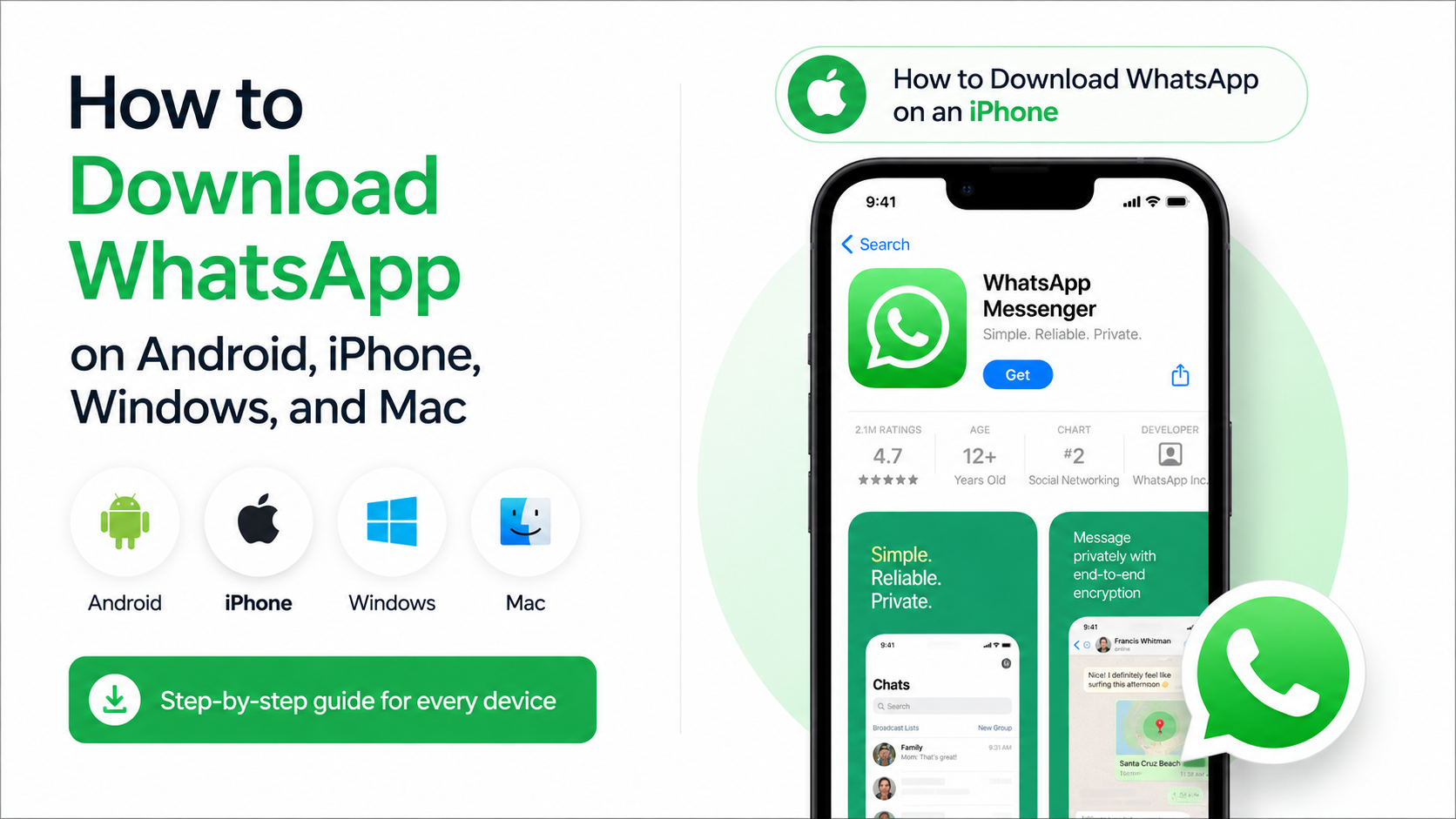
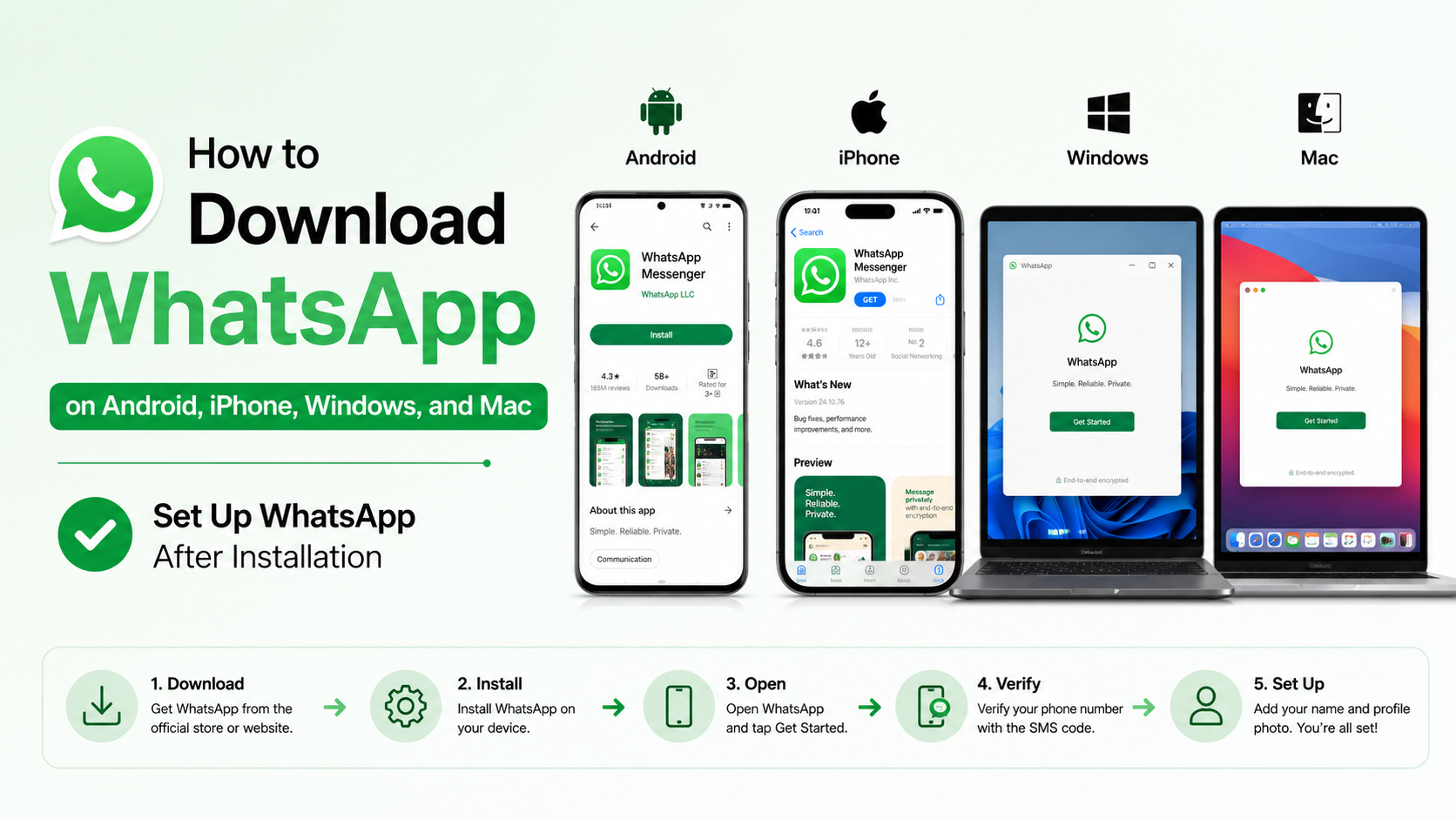
How to Download WhatsApp on Android, iPhone, Windows, and Mac
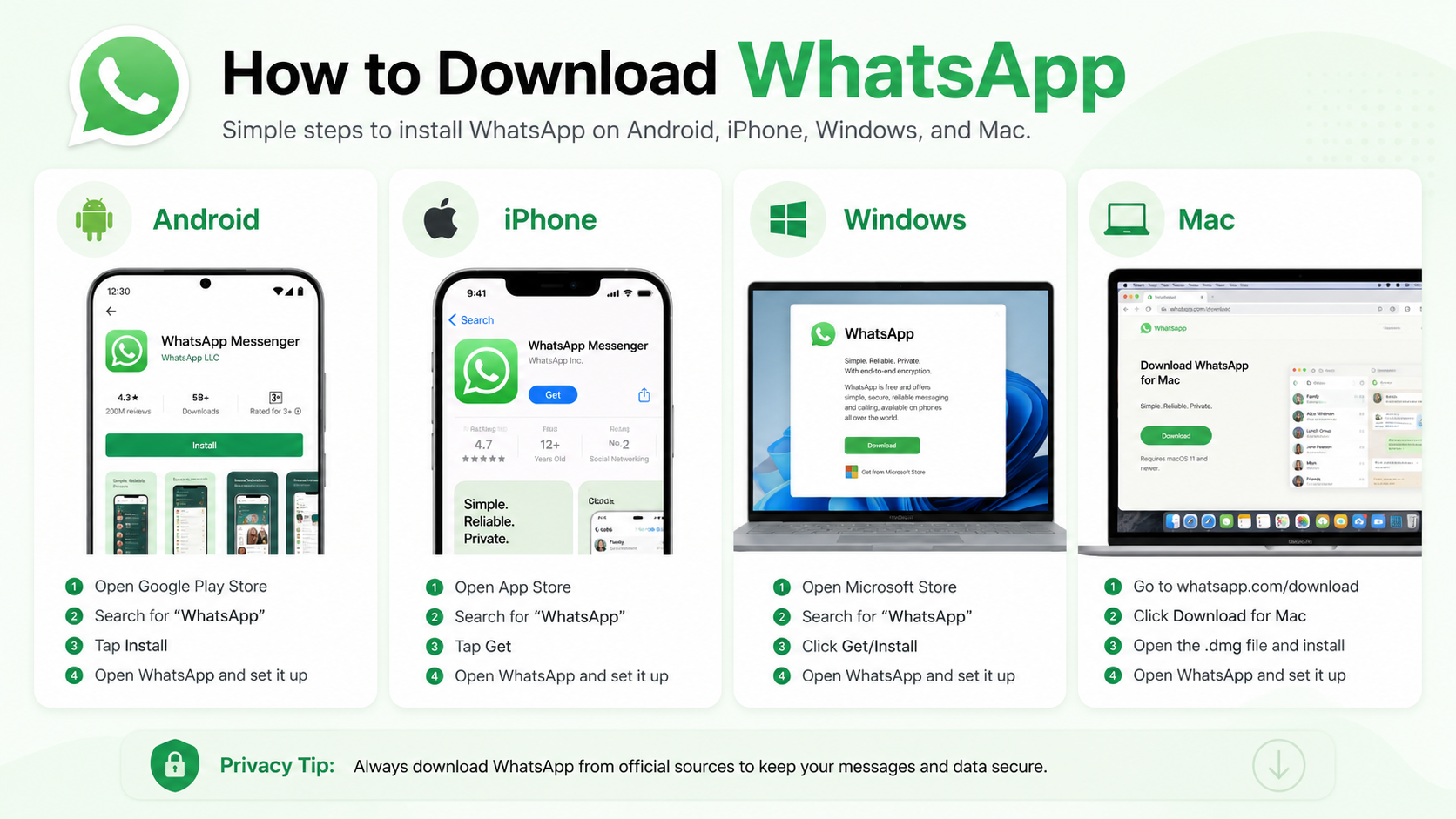
If you are searching for how to download WhatsApp, use an official app store or WhatsApp’s own download page. Android users should install WhatsApp Messenger from Google Play, iPhone users from the App Store, and computer users from whatsapp.com/download. You can also use WhatsApp Web without installing a desktop application.
Key Takeaways
- Install the official app published by WhatsApp LLC or WhatsApp Inc.
- On Android, use Google Play rather than a random APK website.
- On iPhone, check that your device meets the App Store compatibility requirement.
- Windows and Mac users can download the desktop app from WhatsApp’s official website.
- WhatsApp registration requires a phone number that can receive a verification code.
- Back up chats before changing phones if you want to restore your message history.
Choose the Correct WhatsApp Download Method
| Device | Official method | What you need |
|---|---|---|
| Android phone or tablet | Google Play WhatsApp Messenger | Google account, internet connection and phone number |
| iPhone or iPad | Apple App Store WhatsApp Messenger | Apple ID, compatible iOS/iPadOS version and phone number |
| Windows PC | WhatsApp download page or Microsoft Store | Internet connection and an existing WhatsApp account for linking |
| Mac | WhatsApp download page or Mac App Store | Compatible macOS version and an existing WhatsApp account for linking |
| Any computer browser | WhatsApp Web | Supported browser and a WhatsApp account on your phone |
WhatsApp’s official download page provides links for Android, iPhone, Mac/PC and WhatsApp Web. It also states that installing WhatsApp means agreeing to its Terms and Privacy Policy. Open the official download page before downloading.
How to Download WhatsApp on Android
The Google Play Store is the safest and simplest way to install WhatsApp on an Android phone.
- Open the Google Play Store.
- Tap the search bar and enter WhatsApp Messenger.
- Select the app whose developer is WhatsApp LLC. Check the green WhatsApp icon and developer name carefully.
- Tap Install.
- Wait for the download and installation to finish.
- Tap Open.
- Read the terms and tap Agree and continue.
- Select India if it is not selected automatically, enter your mobile number with the +91 country code, and tap Next.
- Enter the SMS or call verification code.
- Add your name and profile photo. If a backup is available, follow the on-screen instructions to restore it.
The official Google Play listing describes WhatsApp Messenger as a free messaging and calling app from Meta and displays WhatsApp LLC as the developer. View it on Google Play.
Android compatibility and storage
The Play Store automatically checks whether your phone is compatible. If you see “This app won’t work for your device”, update Android if an update is available, free storage space, and install pending Google Play system updates. WhatsApp’s storage use increases as you receive videos, photos and documents, so leave additional space beyond the initial installation.
Avoid downloading “WhatsApp Plus”, “GB WhatsApp” or modified APK files. They are not the official WhatsApp Messenger app and may expose chats, contain unwanted software or result in account restrictions. If your phone does not include Google Play, use WhatsApp’s official Android download option rather than an unknown mirror.
How to Download WhatsApp on an iPhone
- Open the App Store.
- Search for WhatsApp Messenger.
- Confirm that the seller or developer is WhatsApp Inc.
- Tap Get, then authenticate with Face ID, Touch ID or your Apple ID password.
- Open WhatsApp after installation.
- Tap Agree & Continue, choose India, and enter your mobile number.
- Enter the verification code sent by SMS or phone call.
- Set your name and profile photo.
- When prompted, allow contacts and notifications if you want those features.
- Choose Restore Chat History if an iCloud backup is detected.
The Indian App Store listing identifies WhatsApp Messenger as free and shows WhatsApp Inc. as the seller. Apple’s listing currently states that the iPhone version requires iOS 15.1 or later; requirements can change, so check the listing on your device before installation. Open WhatsApp on the App Store.
Installing WhatsApp on iPad
Availability and compatibility can depend on the iPad model and iPadOS version. Search for WhatsApp Messenger in the App Store on the iPad itself. If the app is not offered, use WhatsApp Web in Safari or link the iPad through WhatsApp’s linked-devices feature when available.
How to Download WhatsApp on Windows
WhatsApp offers a Windows desktop application through its official download page and distribution platforms such as the Microsoft Store.
- Visit whatsapp.com/download on your PC.
- Choose the Windows download option, or open the Microsoft Store and search for WhatsApp.
- Confirm that the publisher is WhatsApp or WhatsApp LLC.
- Select Install or download the installer.
- Open WhatsApp for Windows.
- On your phone, open WhatsApp and go to Settings > Linked devices on iPhone, or tap the three-dot menu and choose Linked devices on Android.
- Tap Link a device.
- Scan the QR code shown on your computer.
- Wait for your chats to synchronise.
The desktop app is useful for calls, messages and file sharing while you work. It still depends on an account registered with a phone number. If you only need occasional access, open web.whatsapp.com in a browser and link it by scanning the QR code.
How to Download WhatsApp on a Mac
- Go to WhatsApp’s official download page, or search for WhatsApp in the Mac App Store.
- Download the version offered for your Mac.
- Open the downloaded file or select Get in the App Store.
- Move WhatsApp to the Applications folder if macOS asks you to do so.
- Launch WhatsApp.
- On your phone, open Linked devices and select Link a device.
- Scan the QR code on the Mac screen.
Apple’s App Store information lists Mac compatibility requirements, including a supported macOS release. If the Mac App Store does not show an install option, update macOS where possible or use WhatsApp Web.
Set Up WhatsApp After Installation
Downloading the app is only the first step. During setup:
- Use a phone number you control and can verify.
- Do not share your six-digit verification code with anyone.
- Turn on two-step verification under Settings > Account > Two-step verification.
- Review Settings > Privacy to control who can see your profile photo, status and last-seen information.
- Enable chat backups before replacing or resetting your phone.
- On Android, backups may use your Google account; on iPhone, they use iCloud. The backup must be associated with the same phone number and account used for restoration.
WhatsApp says personal messages and calls are end-to-end encrypted, but scams can still occur through links, impersonation and social engineering. Treat unexpected payment requests, job offers and verification-code requests as suspicious.
WhatsApp Download Problems and Solutions
WhatsApp is not appearing in the store
Check your country, age restrictions, device compatibility and operating-system version. In India, make sure the Play Store or App Store region is set correctly. Restart the store and try searching for the exact name WhatsApp Messenger.
The download is stuck
Switch between Wi-Fi and mobile data, check available storage, and restart the phone. On Android, updating Google Play services can resolve installation failures. On iPhone, check that your Apple ID is signed in and that billing or download restrictions are not blocking free apps.
The verification SMS did not arrive
Confirm the number and country code, ensure the SIM can receive SMS, and wait for the timer before requesting another code. Avoid repeatedly requesting codes, as this can temporarily delay verification. Use the voice-call option if it is offered.
Your old chats did not restore
Do not skip the restore prompt if you need previous messages. Confirm that you are using the same phone number and Google or Apple account used for the backup. A backup from one platform generally cannot be restored directly to the other without WhatsApp’s supported transfer process.
WhatsApp Web will not link
Update WhatsApp on your phone, open Linked devices, remove an unrecognised session, and scan the QR code again. Check that your computer and phone have a reliable internet connection.
Is It Safe to Download a WhatsApp APK?
An APK is an Android installation file. Downloading one from an unofficial website can expose you to modified software, malware, fake login screens or an outdated version. For most Android users, Google Play is preferable. If Google Play is unavailable, use only the Android download route linked from WhatsApp’s official website and verify the website address before installing.
Never disable security protections permanently just to install an unknown file. WhatsApp support and your mobile-security provider are the appropriate sources when an installation warning appears.
Frequently Asked Questions
Is WhatsApp free to download in India?
Yes. WhatsApp Messenger is listed as a free app on Google Play and Apple’s App Store. Mobile-data or SMS charges may still apply depending on your telecom plan.
Can I download WhatsApp without a phone number?
You can download the application, but registration requires a number that can receive a verification code. A landline may work with voice verification in some cases, but mobile-number verification is the normal method.
Can I use WhatsApp on a computer without installing it?
Yes. Go to web.whatsapp.com and link the browser to your phone through Linked devices.
Why can’t I install WhatsApp on my old Android phone?
The device may be running an unsupported Android release, have insufficient storage or lack required Google services. Check for system updates and use the compatibility message in Google Play as the current authority.
Can I use the same WhatsApp account on a phone and computer?
Yes. Install WhatsApp on the phone, register the number there, and link the Windows or Mac application through Linked devices.
How do I update WhatsApp?
Open Google Play or the App Store, search for WhatsApp Messenger, and tap Update if one is available. On Windows or Mac, update through the store or official WhatsApp installation channel you used.
Where should I report a WhatsApp problem?
Open WhatsApp and go to Settings > Help > Contact Us. For download issues, also use the support option on the official WhatsApp website or the relevant app-store support page.