How to Have Downloads Open Automatically in Chrome After Downloading
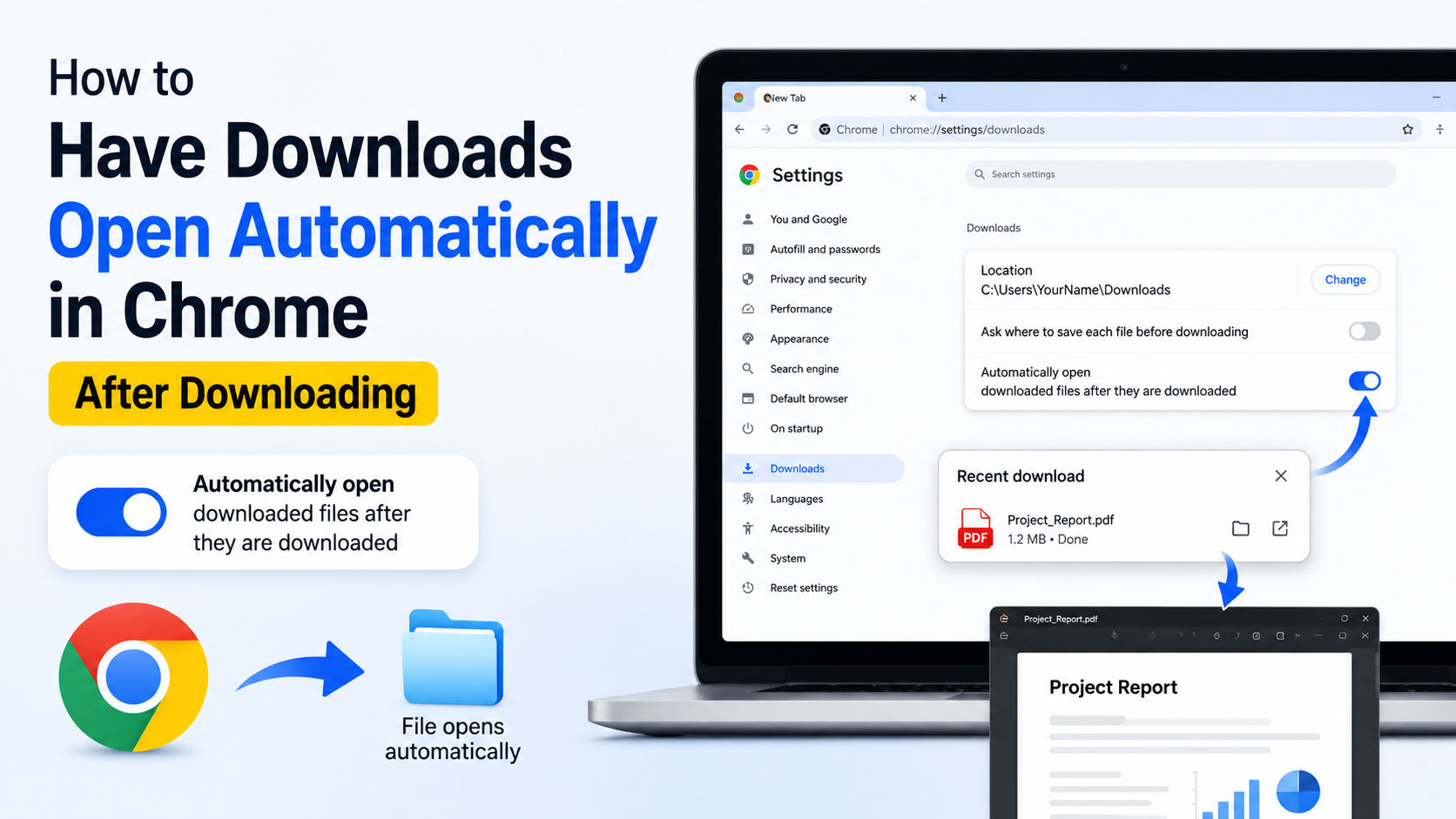
If you want a downloaded PDF, document, image or other file to launch immediately, Chrome lets you save an “Always open files of this type” preference. The quickest method is to download one file, open Chrome’s Downloads panel, right-click the completed file and select Always open files of this type.
This setting applies to that file extension, such as .pdf, .docx, .xlsx, .zip or .jpg. It does not automatically open every file downloaded by Chrome.
Key Takeaways
- On desktop Chrome, download a file, open the Downloads panel and choose Always open files of this type.
- Chrome opens the file only after the download and security checks finish.
- The downloaded file opens in the operating system’s default app for that file type.
- You can remove all automatic-opening preferences from
chrome://settings/downloads. - PDF behaviour is controlled separately under Chrome’s PDF documents settings.
- Android and iPhone Chrome do not provide the same general desktop auto-open control.
The Fastest Way to Make Chrome Open Downloaded Files Automatically

These steps apply to Google Chrome on Windows, macOS, Linux and Chromebook.
- Open Chrome and download a file from a trusted website. For example, download a PDF, Word document or image.
- Wait until the download has completed.
- Click the Downloads button near the top-right of Chrome. Depending on your version, it may appear as a download arrow or inside the download bubble.
- Locate the file you just downloaded.
- Right-click the file. On a Chromebook, use a two-finger click on the touchpad if necessary.
- Select Always open files of this type.
Chrome will remember the choice for that extension. The next time you download the same type of file, Chrome saves it and then launches it using the app associated with that extension in your operating system.
Google’s official download guidance confirms that a file type can be set to open automatically from the recent download history menu. It also explains how to turn the behaviour off later. Google Chrome Help: Download a file
Example
Suppose you download notes.pdf and select Always open files of this type. Future PDF downloads will still be saved to your Downloads folder, but Chrome will open each completed PDF automatically.
If .docx files are associated with Microsoft Word, they open in Word. If .jpg files are associated with the Windows Photos app, they open there. Chrome does not decide which desktop program should handle the file; your operating system does.
Choose the Correct File Type
Automatic opening is extension-based. An extension is the ending after the file name:
| File extension | Typical application |
|---|---|
.pdf | Chrome PDF viewer, Adobe Acrobat or another PDF reader |
.docx | Microsoft Word or another compatible office app |
.xlsx | Microsoft Excel or another spreadsheet app |
.jpg, .png | Photos or another image viewer |
.zip | File Explorer, Finder or an archive utility |
.mp4 | A media player such as VLC or the system player |
The website and download link must provide a recognisable file type. If a website serves a file without a normal extension, or sends it as a page rather than an attachment, Chrome may not offer the automatic-open option.
Also remember that some downloads are not suitable for automatic opening. Executable files such as .exe, scripts and unknown archives can present security risks. Use this setting only for file types and websites you trust.
Where Chrome Saves the File
Automatic opening does not replace Chrome’s download location. Chrome first saves the file, then opens it.
To review or change the location:
- Open Chrome.
- Select the three-dot menu.
- Choose Settings.
- Select Downloads.
- Next to Location, click Change.
You can also enable Ask where to save each file before downloading. This lets you choose a folder for every download, although automatic opening may be less convenient when downloading many files.
Chrome’s default locations are generally:
- Windows:
C:\Users\<username>\Downloads - macOS:
/Users/<username>/Downloads - Linux:
/home/<username>/Downloads
The exact folder can differ if your computer or organisation has changed the default.
How to Stop Chrome Opening a File Automatically
If you enabled the setting by mistake, there are two practical ways to reverse it.
Remove the preference for all file types
- Enter
chrome://settings/downloadsin Chrome’s address bar. - Look for Open certain file types automatically after downloading.
- Select Clear.
The section may not appear if you have never enabled automatic opening. Clearing the setting removes Chrome’s remembered auto-open choices.
Disable it for a specific file type
- Download another file of the same type.
- Open the Downloads panel.
- Right-click the file.
- Clear or uncheck Always open files of this type, if the option is shown.
Chrome’s interface changes occasionally, so the wording or location may differ slightly between versions. If the individual option is unavailable, use the Clear button in Downloads settings.
PDF Files Need Separate Settings
PDFs can behave differently because Chrome has its own built-in PDF viewer. You may be viewing a PDF in a browser tab without actually downloading it, or you may be downloading it and opening it in a desktop PDF application.
To choose Chrome’s PDF behaviour:
- Open
chrome://settings/content/pdfDocuments. - Choose one of the available options:
- Open PDFs in Chrome
- Download PDFs
- Close the settings tab; Chrome saves the choice automatically.
Choose Open PDFs in Chrome when you want PDF links to display in a browser tab. Choose Download PDFs when you want the file saved first. After selecting Download PDFs, you can still use Always open files of this type from the Downloads panel if you want downloaded PDFs to launch in a default PDF application.
This distinction is important: Open PDFs in Chrome controls what happens when you follow a PDF link, while Always open files of this type controls what happens after a downloaded file finishes.
Windows, Mac and Linux: Check the Default App
If Chrome downloads the file but nothing useful opens, check the default application assigned to that extension.
Windows 11
- Open Settings.
- Select Apps, then Default apps.
- Search for the extension, such as
.pdfor.docx. - Select the preferred application and confirm the change.
macOS
- Find a downloaded file in Finder.
- Control-click it and choose Get Info.
- Under Open with, select the application.
- Click Change All if you want every file with that extension to use the same app.
Linux
Open your file manager, right-click a file, select Properties or Open With, and choose the preferred application. The exact labels depend on your Linux distribution and desktop environment.
Chrome can only launch an application that is installed and registered with the operating system. For example, automatic .xlsx opening will not work as expected if no spreadsheet program is installed.
Android and iPhone: What Is Possible?
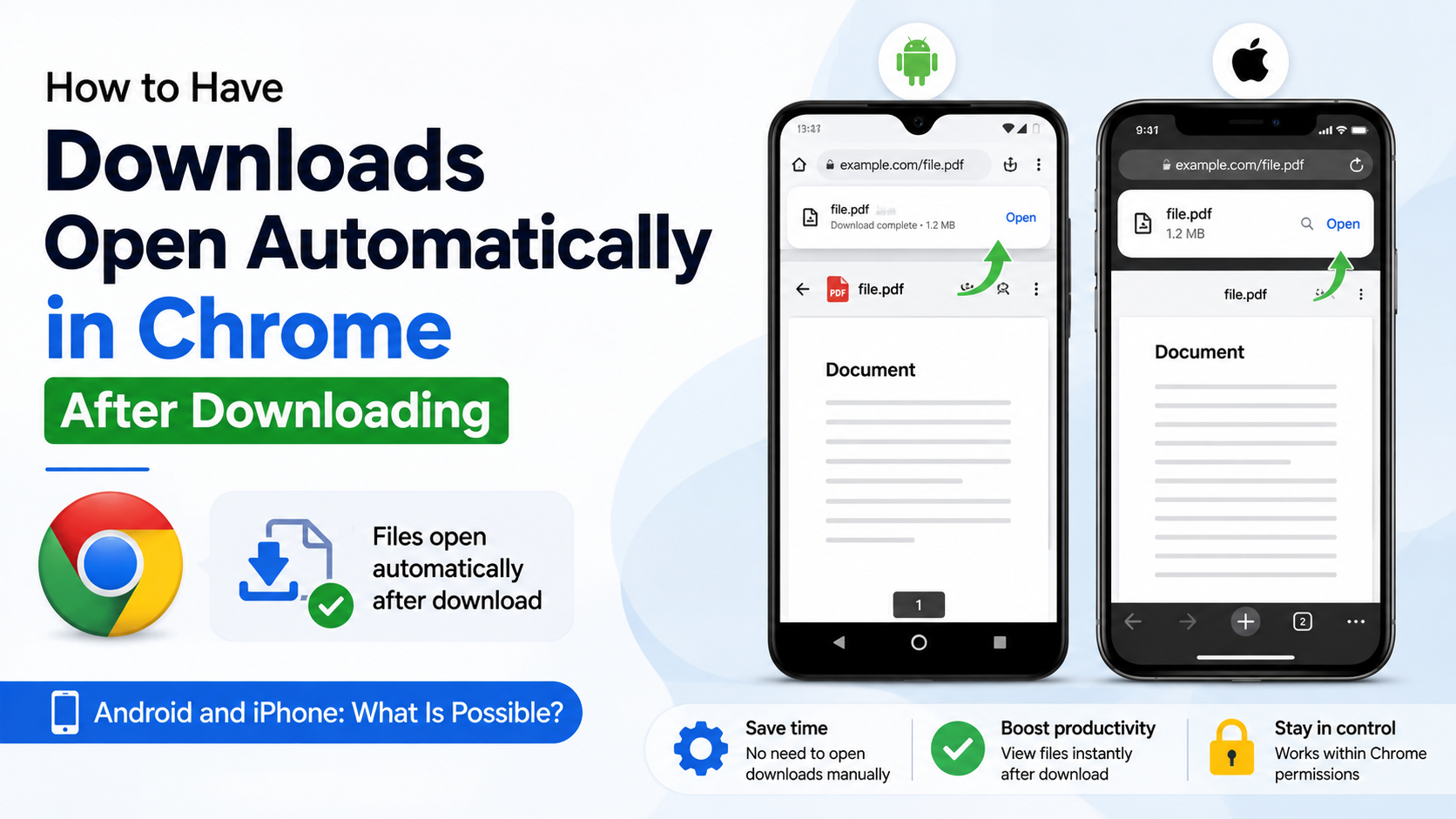
The desktop auto-open preference is not generally available in Chrome for Android or Chrome for iPhone/iPad.
On Android, Chrome normally downloads the file and shows it in the download notification or Downloads list. You usually need to tap the file and select an installed app. Android’s default-app settings determine which application handles formats such as PDF, DOCX or ZIP.
To change an Android default app:
- Open Settings.
- Tap Apps.
- Select Default apps or Choose default apps.
- Choose the relevant file-handling application, where supported by your device.
Manufacturers such as Samsung, Xiaomi, OnePlus and Motorola may use different menu names. Chrome updates and Android releases can also change how downloaded files are handed off to another app. Avoid experimental Chrome flags or unknown download-manager apps on a main device unless you understand the risks.
On iPhone and iPad, iOS controls file handling through the Files app and installed applications. Chrome can download a file, but automatic launching after every download is restricted by the operating system.
Why Chrome May Not Open the File Automatically
If the setting appears enabled but does not work, check these common causes.
The download is incomplete
Chrome waits until the transfer finishes. Large files, slow mobile broadband connections and unstable Wi-Fi can delay opening.
Safe Browsing blocked or delayed the file
Chrome checks many downloads for security threats. Google states that downloads are checked when Safe Browsing is enabled, and automatic opening occurs only after the file passes those checks. Chrome Enterprise policy documentation
The file type is different
A website may provide .pdf, .PDF, .zip or a file with no extension. The automatic preference may apply only to the exact type Chrome recognises.
No compatible application is installed
Install a legitimate application for the format, then set it as the operating system’s default.
An extension is interfering
Download managers, PDF extensions, antivirus browser add-ons and office extensions can change download behaviour. Temporarily disable unfamiliar extensions at chrome://extensions and test again.
Your organisation controls Chrome
A school, office or cybercafé may manage Chrome with administrator policies. Enterprise administrators can specify permitted auto-open file types and URLs, and users may not be able to override those rules. Chrome Enterprise and Education Help
Security and Privacy Tips
Automatic opening is convenient, but it removes one manual check from the process. Follow these precautions:
- Enable automatic opening only for formats you regularly use.
- Use trusted official websites, government portals, recognised publishers and established app stores.
- Do not auto-open unknown executable files or scripts.
- Keep Chrome, Windows, macOS, Android and your document apps updated.
- Scan unexpected files with your security software before opening them.
- Be cautious of files delivered through shortened links, unsolicited emails or suspicious pop-ups.
- If a download opens unexpectedly, clear Chrome’s auto-open preferences and review installed extensions.
Chrome does not guarantee that every downloaded file is safe. Automatic opening should be treated as a convenience feature, not a security certificate.
Frequently Asked Questions
Can Chrome automatically open every downloaded file?
No. Chrome remembers automatic opening by file type. You must enable the option for each supported extension, and the file still needs a compatible default application.
Will the file still be saved if it opens automatically?
Yes. Chrome saves the completed download in its configured download folder and then launches it.
How do I make downloaded PDFs open in Adobe Acrobat automatically?
Set Chrome to Download PDFs in chrome://settings/content/pdfDocuments. Download a PDF, open the Downloads panel, right-click it and select Always open files of this type. Ensure Adobe Acrobat is the default .pdf application in your operating system.
Why do I not see “Always open files of this type”?
Download a file first and open the Downloads bubble. The option normally appears in the context menu for a completed, recognised file. It may also be unavailable when an administrator policy controls Chrome or when the website does not provide a standard file type.
How do I reset all automatic file-opening choices?
Open chrome://settings/downloads and click Clear beside Open certain file types automatically after downloading, if that section is present.
Does this feature work in Chrome on Android?
Chrome for Android generally does not offer the same desktop-wide auto-open preference. Tap the completed download and use Android’s default-app settings to choose an application.
Can Chrome open a file before the download finishes?
No. Chrome must complete the download and perform applicable security checks before opening the file.
Is automatic opening available for files from any website?
Chrome can apply the preference broadly, but security checks, website behaviour, file type, extensions and administrator policies can restrict it. Use the feature only with trusted downloads.