Is Download and Install the Same? The Simple Difference Explained
No, download and install are not the same, although they often happen together.
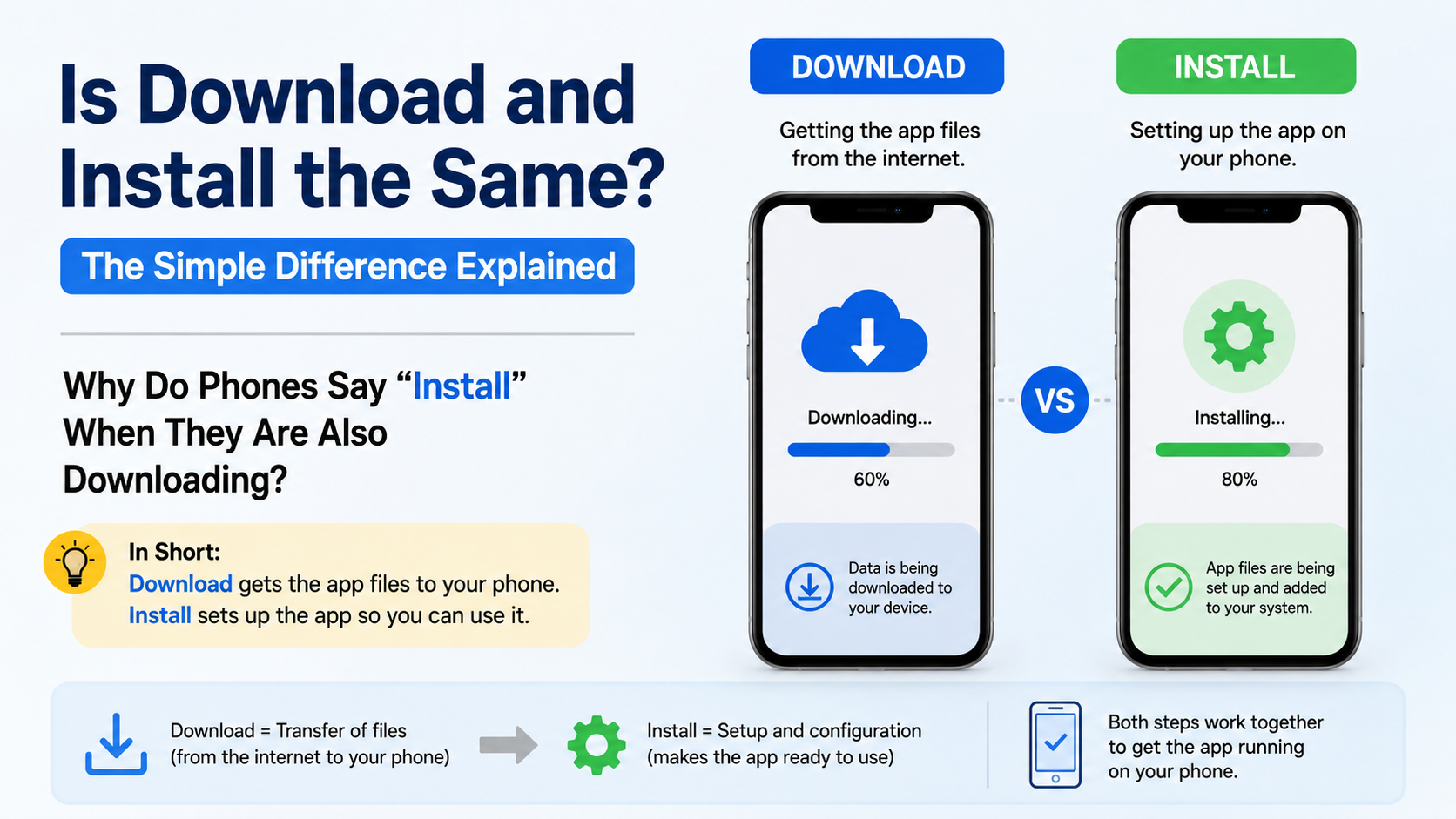
Downloading means copying an app’s files from the internet to your phone or computer. Installing means setting up those files on the device so the operating system can run the app.
For example, when you tap Install in Google Play Store, your phone usually downloads the app package first and then installs it automatically. Because both steps are handled in one action, it is easy to think they mean the same thing.
Key Takeaways
- A download transfers a file or app package to your device.
- Installation prepares that downloaded package for use.
- App stores often combine downloading and installation behind one button.
- Downloaded installer files can remain in the Downloads folder after installation.
- An app can be downloaded but not installed; it cannot normally be used until installation finishes.
- The safest option is to use the official app store or the developer’s official website.
Downloading vs Installing: The Main Difference
| Action | What happens | Can you use the app afterwards? | Common example |
|---|---|---|---|
| Downloading | App files are transferred from the internet to your device | Usually no | A .apk, .exe, .dmg, or .pkg file appears in Downloads |
| Installing | The operating system places and registers the app so it can run | Yes, if installation succeeds | The app icon appears in the app drawer, Start menu, or Applications folder |
Think of downloading as receiving a packed box at home. Installation is opening the box, arranging the contents correctly, and making them ready to use.
A downloaded app file may be incomplete, incompatible, or waiting for you to approve installation. An installed app is one that your device recognises and can launch.
What Happens When You Download an App?
When you download an app, your browser, app store, or download manager copies data from an online server to your device storage.
Depending on the platform, that download may be:
- An Android app package, commonly an APK file
- A Windows setup file, such as
.exeor.msi - A macOS disk image or installer, such as
.dmgor.pkg - A compressed archive, such as
.zip - An app-store package that is managed in the background and may not appear as a normal file
The download stage mainly depends on:
- Internet connection quality
- File size
- Available storage
- Data restrictions or Wi-Fi settings
- Whether the download source is available in India and supports your device
If a download stops halfway, the app may not install. If your device runs out of storage, downloading may also fail before installation starts.
What Happens During Installation?
Installation prepares the app for your operating system. The exact process varies, but it can include:
- Checking whether the app is compatible with your device and operating system
- Verifying the package or its developer signature
- Extracting compressed files
- Copying files into the correct app location
- Creating an app icon and shortcuts
- Registering permissions and app information with the operating system
- Downloading additional components, updates, or language files when needed
On a Windows computer, an installer may also offer options such as the installation folder, desktop shortcut, or additional components. On Android and iPhone, the process is usually less visible because the store and operating system handle it automatically.
Installing does not necessarily mean granting every permission. Permissions such as camera, microphone, contacts, location, or storage access may be requested later when you first use a feature.
Why Do Phones Say “Install” When They Are Also Downloading?
Modern app stores simplify the process.
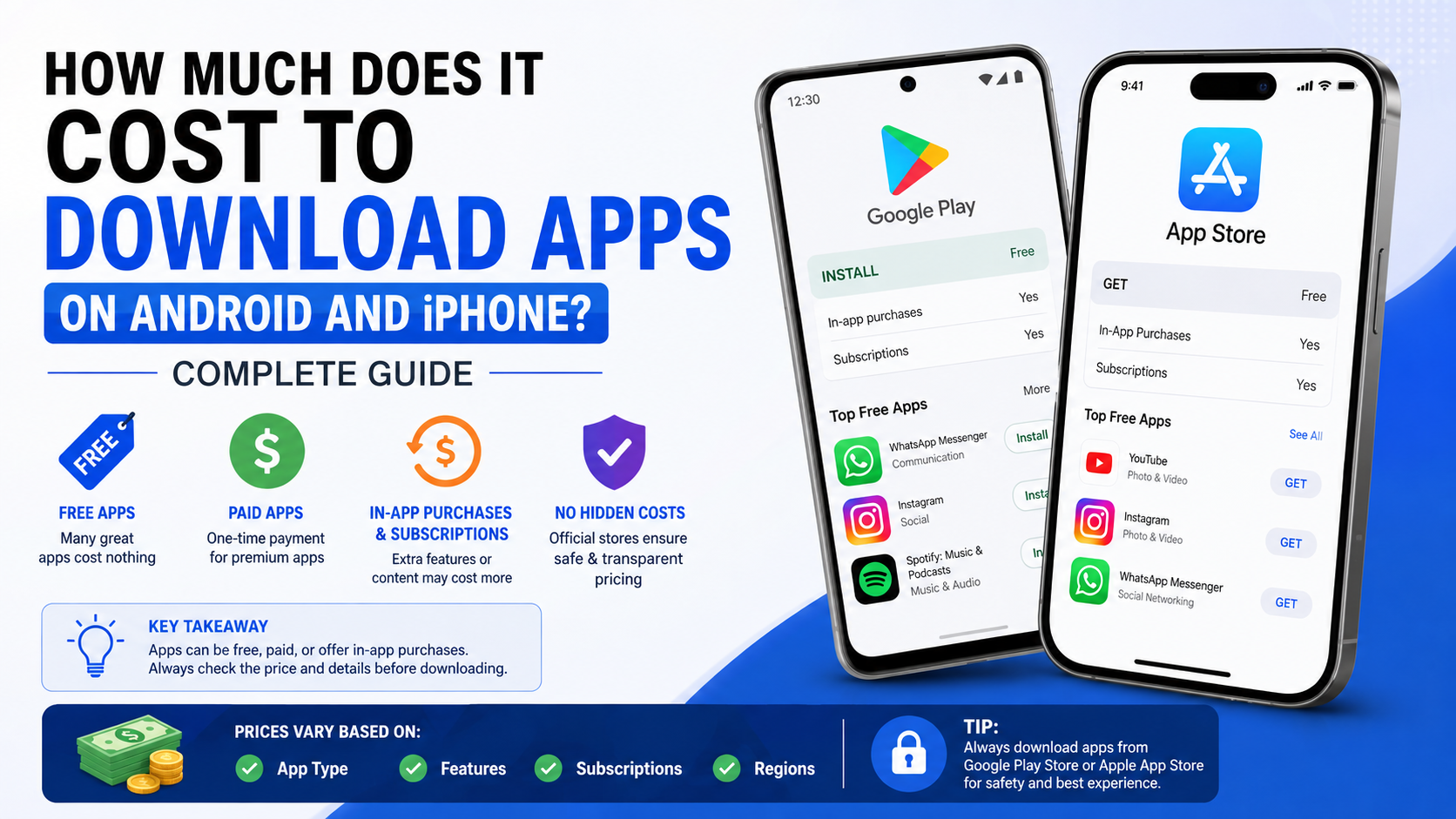
On Android, Google Play Store commonly shows an Install button. After you tap it, the store downloads the required app files and installs the app automatically. On iPhone and iPad, the App Store commonly uses Get for a free app or displays a price for a paid app; the device then completes the download and installation process.
So, when you use an official app store, one tap may trigger both stages:
- The store checks your account, device compatibility, and available storage.
- The app files download.
- The operating system installs and prepares the app.
- The button changes to Open when the app is ready.
That is why someone may casually say, “I downloaded Instagram” even though the phone also installed it. In everyday conversation, both phrases are often understood. Technically, though, they describe separate steps.
How Downloading and Installing Work on Different Devices
Android phones and tablets
The safest route is usually Google Play Store:
- Open Google Play Store.
- Search for the app by name.
- Check the developer name, ratings, permissions, and app details.
- Tap Install.
- Wait until the button changes to Open.
Google Play combines downloading and installation. You normally do not need to locate an APK file yourself.
If you download an APK through a browser, you have downloaded the package but still need to open it and approve installation. Android may show a warning or require you to permit that browser or file manager to install unknown apps. This is called sideloading.
Only sideload an APK when you have a legitimate reason and trust the source. Modified APKs, fake update pages, and lookalike websites can expose you to malware, unwanted subscriptions, stolen login details, or apps that behave differently from the official version.
iPhone and iPad
For most users, the App Store is the normal installation method:
- Open App Store.
- Search for the app.
- Tap Get or the displayed price.
- Confirm with Face ID, Touch ID, your passcode, or Apple Account credentials if prompted.
- Wait for the app icon to finish loading, then tap Open.
The App Store manages the download and installation together. If you see Open, the app is already installed on that device.
An iPhone app may not download if the device lacks storage, your Apple Account has a billing or account issue, content restrictions block app installations, or the app requires a newer version of iOS.
Windows computers
Windows software is commonly installed in one of two ways.
Microsoft Store method
- Open Microsoft Store.
- Search for the app.
- Select the correct listing and publisher.
- Choose Get, Install, or the price button.
- Open the app from the Start menu after installation completes.
Official website method
- Visit the software developer’s official website.
- Download the Windows installer, often an
.exeor.msifile. - Open the downloaded file from your browser or Downloads folder.
- Approve the security prompt only after confirming the publisher is legitimate.
- Follow the setup instructions.
Here, downloading and installing are clearly separate. Downloading setup.exe does not put the complete application in your Start menu. You usually need to run that file to begin installation.
Mac computers
Mac apps may come from the App Store or directly from a developer.
With the App Store, choose Get or the price button and macOS handles the process. For direct downloads, you may receive a .dmg or .pkg file.
- A
.pkgfile usually opens an installation wizard. - A
.dmgfile often opens a window where you drag the app into the Applications folder.
Only download Mac software from the App Store or the developer’s official website. macOS may warn you about apps from unidentified developers; do not bypass a warning merely because a website tells you to.
Can an App Be Downloaded but Not Installed?
Yes. This is common on computers and sometimes on Android.
Examples include:
- A Windows installer is sitting in your Downloads folder, but you have not opened it.
- An APK has downloaded to your Android phone, but you have not approved installation.
- A macOS DMG file has downloaded, but you have not moved the app to Applications.
- A download completed, but the installation failed because the device lacks storage or is incompatible.
In these cases, deleting the downloaded installer file usually does not remove the app because the app was never installed. However, if installation has already finished, deleting the original installer generally does not uninstall the app.
Does Installing an App Use More Storage Than Downloading It?
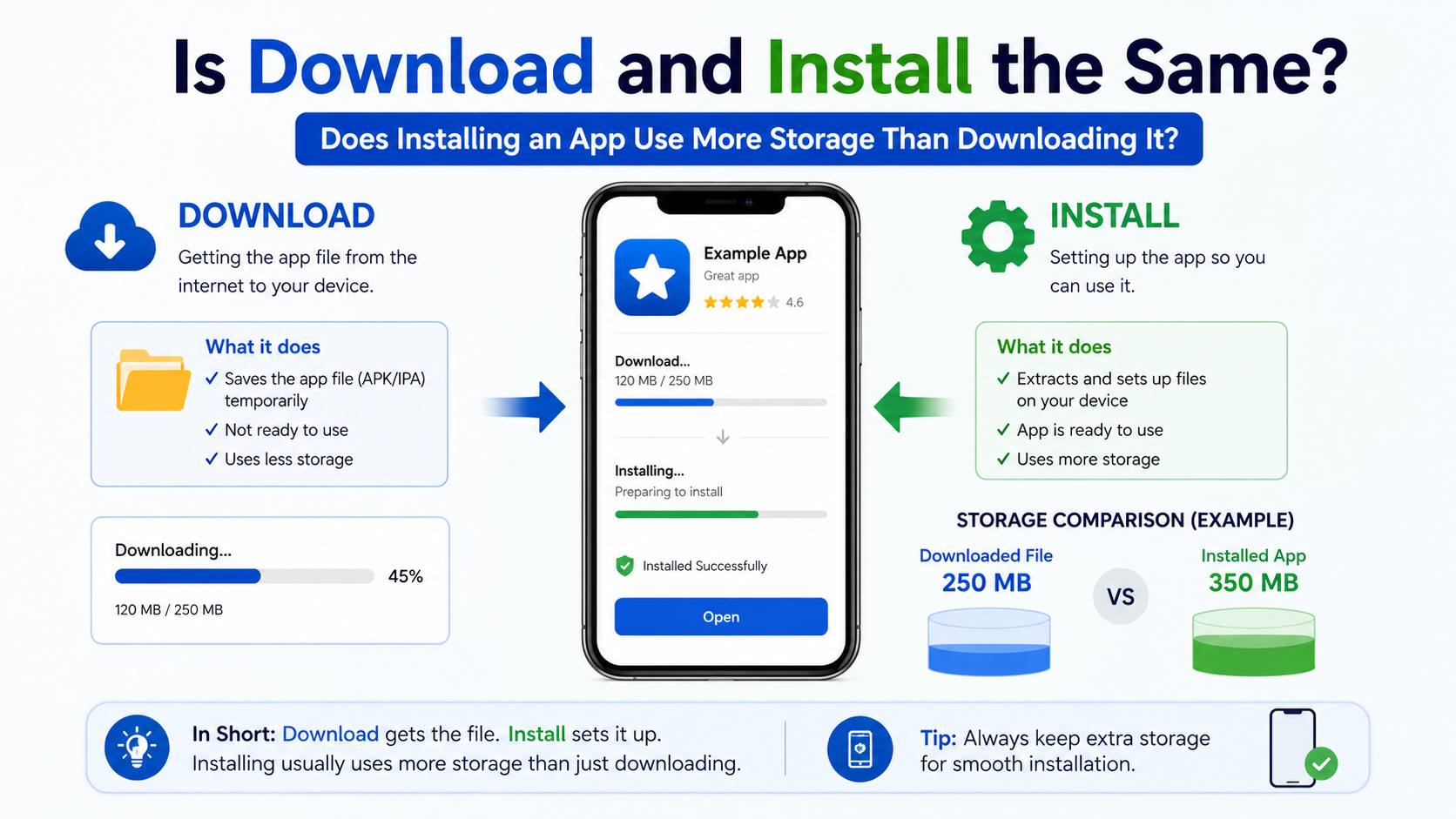
It can.
The download is often a compressed package. During installation, the device extracts files and creates additional data needed to run the app. Some apps also download extra content after installation, such as game maps, offline media, language packs, or updates.
Before installing a large app or game, check:
- The app-store listing’s stated size, where available
- Free storage on the device
- Whether the app may need extra in-app downloads
- Your mobile-data plan if you are not using Wi-Fi
For users on limited mobile data, use Wi-Fi for large downloads where practical. Also check whether your phone’s Play Store or App Store settings allow downloads over mobile data.
Download, Install, Update and Uninstall: Do Not Confuse These Terms
These actions are related but different.
| Term | Meaning |
|---|---|
| Download | Transfer a file or app package to your device |
| Install | Set up the app so the device can run it |
| Update | Download and install a newer version of an existing app |
| Uninstall | Remove an installed app from the device |
| Delete installer | Remove the downloaded setup file; this usually does not remove the installed app |
An update usually repeats both key stages: it downloads newer files and installs them over or alongside the existing version.
Uninstalling removes the app itself. It may not remove every document, saved file, account setting, or cloud backup associated with that app.
Safest Way to Download and Install Apps
Use official distribution channels first:
- Android: Google Play Store or the app developer’s official website
- iPhone/iPad: Apple App Store
- Windows: Microsoft Store or the developer’s official website
- Mac: Mac App Store or the developer’s official website
Before proceeding, check:
- The app name and publisher/developer
- Reviews and ratings, while remembering that reviews alone do not prove legitimacy
- Required permissions
- Compatibility with your device
- Whether the website address is genuine
- Whether an unexpected pop-up, advertisement, or message is trying to pressure you to install something
Avoid downloading apps from random file-hosting sites, Telegram links, social-media comments, or pages offering “premium unlocked” software. These sources can distribute altered files and may violate the developer’s terms or copyright.
Common Problems and Quick Fixes
The app downloaded but will not install
Check available storage, restart the device, and try again. Also confirm that the app supports your Android version, iOS version, Windows version, or Mac hardware.
The download keeps waiting or stopping
Switch between Wi-Fi and mobile data if appropriate, check whether Airplane Mode is off, and make sure your device has a stable connection. Pause and resume the download if the store offers that option.
Android says the app cannot be installed
The APK may be corrupted, incompatible, already installed with a conflicting signature, or designed for a different device architecture. Downloading the official Play Store version is usually the safest solution.
Windows shows a security warning
Do not ignore it automatically. Confirm that the installer came from the genuine developer site and that the publisher shown in the prompt is expected. If you cannot verify the source, cancel the installation.
The app installs but will not open
Update the app and operating system, restart the device, and review the app’s compatibility requirements. If the problem continues, uninstall the app and reinstall it from the official source.
Frequently Asked Questions
Is download and install the same on Android?
Not technically. Downloading obtains the app files; installation prepares them to run. Google Play Store usually performs both automatically after you tap Install.
If an app is downloaded, is it already installed?
Not always. A downloaded installer or APK file may still need to be opened and installed. If the app icon appears in your app drawer or Start menu and opens normally, it is installed.
Can I delete a setup file after installing the app?
Usually, yes. On Windows, deleting an .exe or .msi installer normally does not remove the installed program. Keep it only if you need it for offline reinstallation and trust the file.
Does uninstalling an app delete everything?
Not necessarily. It removes the app, but files, cloud data, backups, or account information may remain. Check the app’s own settings and your device storage for related data.
Why does an app take time to install after it has downloaded?
Your device may be verifying, extracting, and placing files, creating app data, or downloading additional components. A slow installation can also indicate low storage or an older device.
Is it safe to install APK files from websites?
It carries more risk than using Google Play Store because the file may be modified or come from an untrustworthy source. Use the official store whenever possible, and only use an APK from a source you can independently verify.
What is the difference between “Get” and “Install” on an iPhone?
Both can lead to installation. Get is generally shown for a free App Store app, while a price appears for a paid app. After authentication, the iPhone downloads and installs the app.
Can I use an app without installing it?
Sometimes. A website may provide similar features in a browser, and Android also supports certain instant-app experiences. However, most full apps need to be installed before you can use all their features.