

How Long Does Genmoji Take to Download and What Affects Download Time?
If you are seeing “Downloading support for Genmoji” on your iPhone, the wait is usually for Apple Intelligence models—not a separate Genmoji app. Apple does not publish a fixed download duration or official model size. In practical terms, a fast Wi-Fi connection may complete the download in several minutes, while slower or unstable connections can take 30 minutes, several hours, or longer.
Apple says download time varies and recommends keeping a compatible device connected to Wi-Fi and power while the on-device models download. citeturn1view0
Key Takeaways
- Genmoji is part of Apple Intelligence; there is no official standalone Genmoji app to download.
- A realistic estimate is 5–30 minutes on good Wi-Fi, but Apple provides no guaranteed time.
- Slow Wi-Fi, low storage, low battery, language mismatches and Apple server demand can extend the process.
- Compatible hardware includes iPhone 15 Pro models and iPhone 16 models or later, subject to Apple’s current requirements.
- English (India) is listed as a supported Genmoji language in Apple’s India feature-availability information. citeturn1view1
- Keep the iPhone charging, connected to Wi-Fi and idle for the best chance of completing the download.
What Is Actually Downloading for Genmoji?

Genmoji uses Apple Intelligence, Apple’s generative AI system. After you update iOS and enable Apple Intelligence, the iPhone downloads on-device language and image-generation models. These models allow supported features—including Genmoji—to work directly on the device.
Therefore, “Genmoji download” can refer to several related steps:
- Downloading and installing an iOS update.
- Downloading Apple Intelligence models.
- Downloading or matching the required Siri language.
- Preparing Genmoji and other Apple Intelligence features.
- Generating your first custom emoji.
Only the first step has a clearly displayed software-update progress bar. Apple does not provide a published Genmoji-specific file size or countdown.
Genmoji itself is accessed from the emoji keyboard or supported apps. Apple’s instructions say to open a text field, switch to the emoji keyboard and tap Genmoji in the top-right corner. citeturn0search0
How Long Does Genmoji Take to Download?
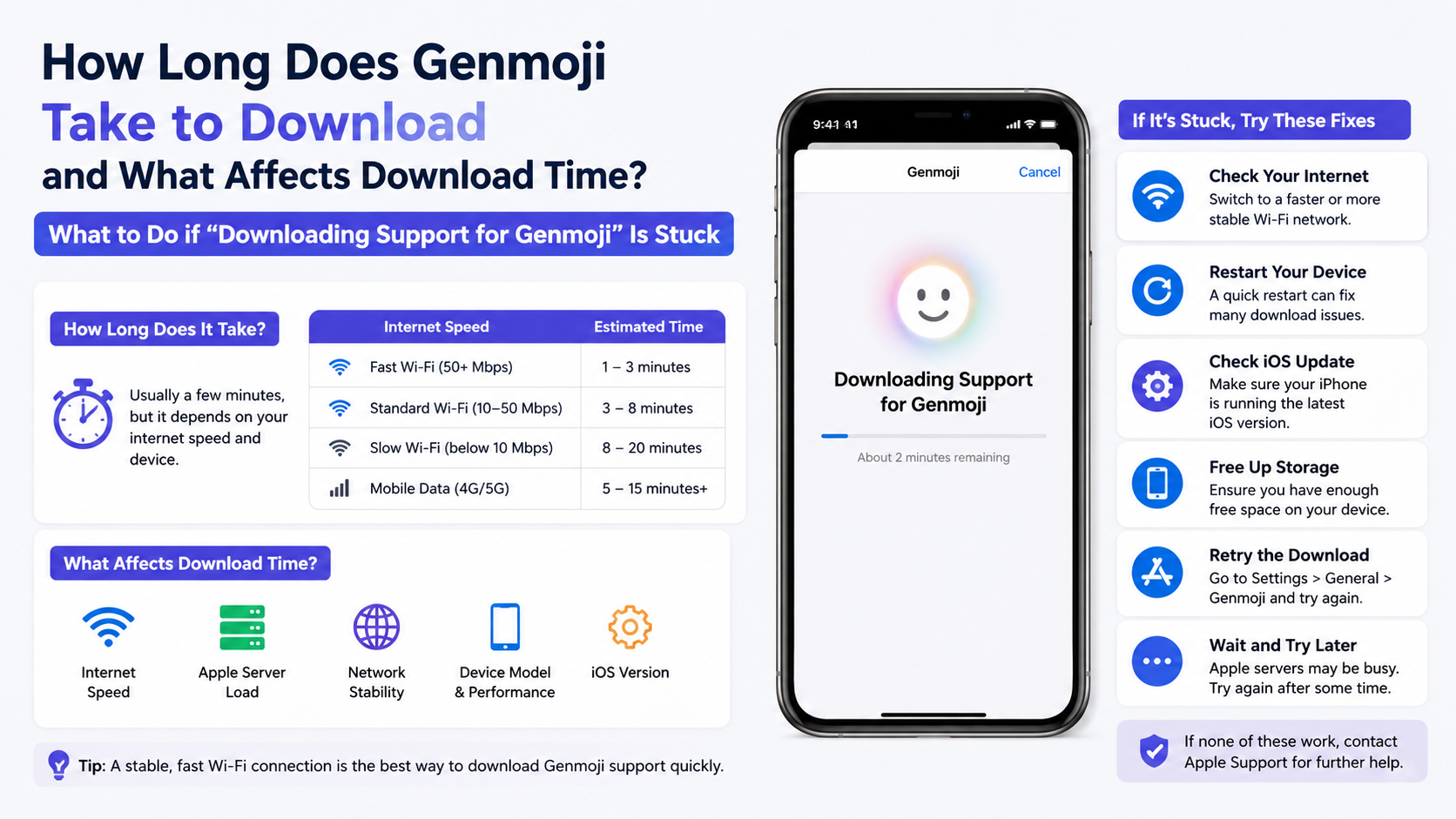
There is no single answer because the download depends on your device, network and Apple’s delivery process.
| Situation | Likely waiting time | What it means |
|---|---|---|
| Fast, stable Wi-Fi; device charging | About 5–30 minutes | Typical best-case experience |
| Average home broadband or mobile hotspot | 30–90 minutes | The download may pause or progress slowly |
| Busy network, weak signal or limited storage | Several hours | The iPhone may retry, pause or prepare files |
| Language or compatibility problem | May never finish | The issue is configuration, not speed |
| Major iOS update plus Apple Intelligence setup | Longer than the model download alone | The update, restart and model download happen in sequence |
These are practical estimates, not an Apple guarantee. Apple’s official guidance only states that model-download time varies. citeturn1view0
On an Indian 4G or 5G connection, speeds can change significantly between cities, buildings and peak hours. A fibre connection may be faster and more consistent, but the quality of the Wi-Fi signal at the iPhone still matters.
Main Factors That Affect Genmoji Download Time
1. Internet speed and stability
The download needs a reliable internet connection. A high advertised speed does not help if the phone is far from the router, repeatedly switching between Wi-Fi and mobile data, or experiencing packet loss.
Common causes of slow downloads include:
- Weak Wi-Fi signal in another room
- Congested public or office Wi-Fi
- Unstable mobile hotspot
- ISP outages or evening congestion
- VPN or network-filtering software
- Wi-Fi that requires a browser sign-in
Use a private, stable Wi-Fi network whenever possible. Avoid starting the download while travelling between mobile towers.
2. Device storage
Apple Intelligence models need free local storage. Apple does not list a universal Genmoji-only storage requirement because model packages and system versions can change.
Check available space at:
Settings > General > iPhone Storage
If storage is nearly full, remove or offload large videos, downloaded films, podcasts or unused apps. Do not delete important photos without a backup. A small amount of free space may not be enough if iOS also needs temporary working space.
3. Battery, charging and thermal conditions
Apple recommends connecting the device to power during model downloads. A low battery, Low Power Mode or excessive heat can delay background activity.
For the smoothest setup:
- Plug the iPhone into a charger.
- Remove a thick case temporarily if the phone is hot.
- Keep it on a cool, hard surface.
- Leave the screen locked for periods of time.
- Avoid intensive gaming or video recording during the download.
The download can continue in the background, so you do not need to keep the Genmoji screen open.
4. Device model and processor
Apple Intelligence is not available on every iPhone. Apple currently lists iPhone 15 Pro models and iPhone 16 models or later among the compatible iPhone devices. Compatible iPads, Macs with Apple silicon and other Apple products have separate requirements. citeturn1view0
If your iPhone is not supported, Genmoji will not become available simply by waiting longer or installing an unofficial app.
5. iOS version
Genmoji first appeared with iOS 18.2 on supported devices. Current Apple Intelligence features may require a later iOS release, so install the newest iOS version offered for your compatible iPhone.
To check:
- Open Settings.
- Tap General.
- Select Software Update.
- Install an available update.
- Restart the iPhone if prompted.
Keep enough storage and battery available before beginning a major update.
6. Device and Siri language
Apple Intelligence requires the device language and Siri language to be compatible and, in some cases, matched. Apple warns that changing Siri language can make Apple Intelligence temporarily unavailable until the new language finishes downloading and matches the device language. citeturn1view0
For users in India, Apple’s feature-availability page lists English (India) for Genmoji. citeturn1view1 If you change between English (India), English (US) or another supported language, allow the related language resources to finish downloading before testing Genmoji.
Check these settings under:
- Settings > General > Language & Region
- Settings > Apple Intelligence & Siri > Language
7. Apple server demand
After a major iOS release, many users activate Apple Intelligence at the same time. Apple’s servers may deliver model files more slowly during periods of high demand. This is especially possible soon after an update becomes available in India or after setting up a new iPhone.
If your internet works normally and the progress eventually moves, waiting while connected to power and Wi-Fi is usually the safest approach.
Safest Way to Download and Enable Genmoji
Genmoji is distributed through iOS and Apple Intelligence. Do not search for a “Genmoji APK” or install a configuration profile from an unknown website.
Follow these steps:
- Confirm that your iPhone model supports Apple Intelligence.
- Update iOS through Settings > General > Software Update.
- Open Settings > Apple Intelligence & Siri.
- Turn on or request Apple Intelligence, if the option appears.
- Set the device and Siri to a supported, matching language.
- Connect to a trusted Wi-Fi network and plug in the charger.
- Leave the iPhone idle while the models download.
- Open Messages or another supported text field.
- Switch to the emoji keyboard and look for Genmoji.
- Enter a description, review the generated options and tap Done to save one.
Apple says created Genmoji are saved with your stickers and can be used in messages, as stickers or as Tapbacks. citeturn0search0
What to Do if “Downloading Support for Genmoji” Is Stuck
Try the following in order:
- Check Wi-Fi: Open Safari and load several websites. Reconnect to your router if pages are slow.
- Connect power: Plug in the iPhone and disable Low Power Mode temporarily.
- Check storage: Go to Settings > General > iPhone Storage and free space if necessary.
- Verify languages: Ensure the device and Siri languages are both supported and compatible.
- Restart the iPhone: A restart can resume a paused background download.
- Install pending updates: Return to Software Update and complete any available update.
- Leave it overnight: Keep the phone charging on stable Wi-Fi with the screen locked.
- Toggle Apple Intelligence: If the download remains stuck, turning Apple Intelligence off and on may trigger a fresh setup. Note that Apple says turning it off removes the on-device models, so this can require downloading them again. citeturn1view0
- Contact Apple Support: If a compatible, updated iPhone still cannot complete the download after a full day, Apple Support can check account, region and software issues.
Avoid repeatedly changing the region, installing beta profiles from unofficial sources or resetting the phone before backing up your data.
Does Creating Each Genmoji Require Another Download?
Normally, no. The initial Apple Intelligence model download is the significant setup step. After it is complete, creating additional Genmoji generally involves entering a description and waiting for the device to generate variations.
Generation time is separate from download time. A new Genmoji may take a few seconds, depending on the prompt, device workload and software version. If the keyboard again says it is downloading support, the model may have been removed, updated or become unavailable after a language change.
Is Genmoji Available on Android or Windows?
Genmoji is an Apple Intelligence feature integrated into Apple operating systems and supported Apple devices. There is no official Android APK or Windows installer for Genmoji. Websites offering one should be treated cautiously because modified downloads can contain malware, scams or unwanted profiles.
You may receive a Genmoji from an iPhone user as an image, sticker or message attachment, but that does not provide the full Genmoji creation feature on another platform.
Frequently Asked Questions
How long does Genmoji take to download on an iPhone?
Apple gives no fixed duration. On reliable Wi-Fi while charging, it may finish in roughly 5–30 minutes; slower networks, low storage or language downloads can make it take much longer.
Why is Genmoji taking hours to download?
The usual causes are unstable Wi-Fi, insufficient storage, a language mismatch, low battery, overheating, pending iOS updates or heavy Apple server demand. Check each item before assuming the iPhone is defective.
Can I download Genmoji separately from the App Store?
No. Genmoji is part of Apple Intelligence and iOS. There is no official standalone Genmoji app, APK or Windows installer.
Does Genmoji use mobile data?
Apple recommends Wi-Fi and power for Apple Intelligence model downloads. To avoid unexpected data use or interruptions, use a trusted Wi-Fi connection instead of a mobile hotspot where possible.
Which iPhones support Genmoji?
Apple lists iPhone 15 Pro models and iPhone 16 models or later for Apple Intelligence, subject to current software, language and regional availability. citeturn1view0
Is English (India) supported for Genmoji?
Apple’s India feature-availability page lists English (India) under Apple Intelligence Genmoji languages. Availability can still depend on the device model, iOS version and Apple’s regional rollout. citeturn1view1
What should I do if Genmoji never appears?
Update iOS, confirm compatible hardware, match the device and Siri languages, free storage, connect to Wi-Fi and power, then restart. If it still does not appear after the model download completes, contact Apple Support.


