How to Download and Install eFootball on Android, iPhone, and PC
If you are searching for how to download eFootball when the game does not appear, your device shows an incompatibility error, or you want to install it on a computer, use the official store for your platform. eFootball is free to download, but it requires internet access, substantial storage, and compatible hardware.
This guide explains the safest download and installation methods for Android phones, iPhones, iPads, and Windows PCs, along with solutions for common problems.
Key Takeaways
- Download eFootball only from Google Play, Apple’s App Store, Steam, or the official Konami website.
- Android requires Android 7.0 or later, at least 2 GB RAM, and a 64-bit Arm-based quad-core processor.
- iPhone and iPad devices must support iOS/iPadOS 15 or later.
- The PC version is distributed through Steam and requires Windows 11 64-bit, 8 GB RAM, a compatible graphics card, and 100 GB of available storage.
- eFootball is an online game, so a stable Wi-Fi or mobile-data connection is needed.
- Avoid modified APKs, “unlimited coins” versions, torrents, and unofficial installers.
What Is eFootball?

eFootball is Konami’s free-to-play football game and the successor to the Pro Evolution Soccer (PES) series. It is available on Android, iOS, PlayStation, Xbox, Windows PC, and Steam. The game includes online matches, team-building features, events, tutorials, and in-game purchases.
The official eFootball website lists the currently supported platforms and technical requirements. Because the game receives seasonal updates, the download size and hardware requirements may change over time.
How to Download eFootball on Android
The safest method is Google Play. Do not install an APK from a random website simply because it promises an older version or free eFootball coins.
Android requirements

Konami currently lists these minimum mobile requirements:
| Requirement | Minimum specification |
|---|---|
| Operating system | Android 7.0 or later |
| Memory | 2 GB RAM or more |
| Processor | 64-bit Arm-based quad-core CPU, 1.5 GHz or higher |
| Internet | Broadband or mobile-data connection |
| Storage | Enough free space for the app and future updates |
Meeting the minimum specification does not guarantee smooth gameplay. Performance also depends on the phone’s graphics processor, temperature, storage speed, and network quality.
Installation steps
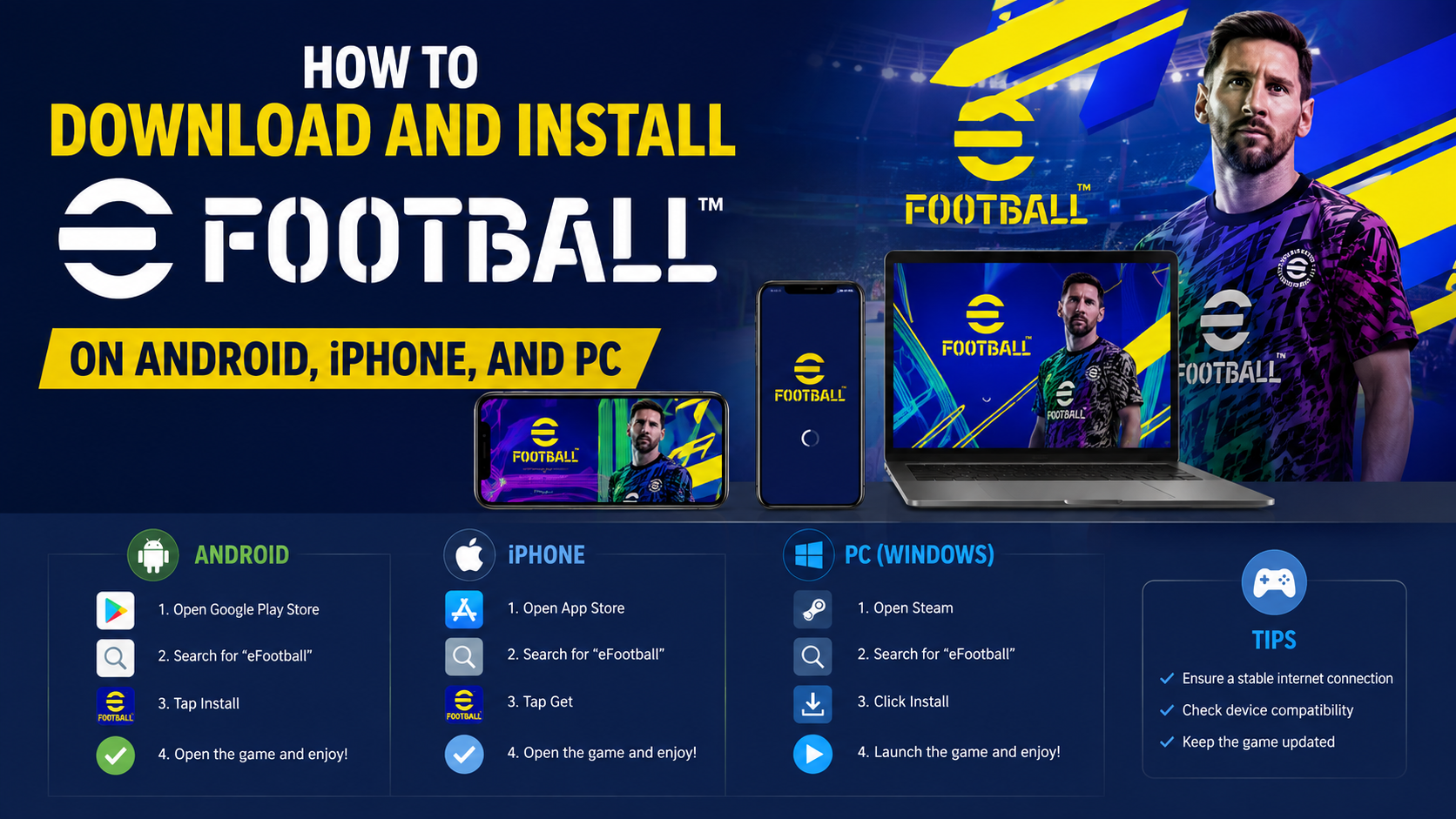
- Open the Google Play Store on your Android phone.
- Search for eFootball.
- Select eFootball™ published by KONAMI.
- Check the developer name and app icon before downloading.
- Tap Install.
- Wait for Google Play to finish downloading and installing the app.
- Open eFootball and allow the initial game data to download.
- Use Wi-Fi if possible, especially when downloading updates.
- Complete the tutorial and link your game data through the available account-linking options.
The official Google Play listing uses the package identifier jp.konami.pesam. If you open a direct listing from a search result, confirm that the publisher is KONAMI before proceeding.
If eFootball does not appear on Google Play
Try these checks:
- Update Google Play Store and Google Play Services.
- Confirm that your phone is running a supported Android version.
- Check that at least 2 GB RAM and a 64-bit processor are available.
- Clear the Play Store cache from Settings > Apps > Google Play Store > Storage.
- Restart the phone and search again.
- Check whether your Google Play country is set correctly.
Konami states that if the app is visible in Google Play or the App Store, it is officially available for that country or region. Accessing the game through another region may not be supported.
Do not use a VPN or a modified APK to bypass regional or device restrictions. It can lead to installation failures, account problems, malware exposure, or loss of game data.
How to Download eFootball on iPhone or iPad
For Apple devices, download eFootball from the Indian App Store listing published by KONAMI.
iPhone and iPad requirements
Konami’s current requirements include:
- iOS or iPadOS 15.0 or later
- iPhone 6s or newer
- iPad Pro 9.7-inch or newer
- iPad Air 2 or newer
- iPad mini 4 or newer
- iPad 5th generation or newer
- iPod touch 7th generation
The Indian App Store listing states that approximately 3.3 GB of free space is required for the initial download and installation. Updates may require additional temporary space.
Installation steps on iPhone
- Open the App Store.
- Tap Search and enter eFootball.
- Select eFootball™ from KONAMI.
- Review the compatibility information.
- Tap Get.
- Authenticate with Face ID, Touch ID, or your Apple Account password.
- Wait for the installation to finish.
- Open the game and download its additional data.
- Keep the app open until the first data download is complete.
An internet connection is required to play eFootball. Konami recommends a stable connection for online matches, so Wi-Fi is preferable when available.
How to Download eFootball on a Windows PC
The official PC version is available through Steam. It is not a normal standalone ZIP file, and you should avoid websites offering “pre-installed,” cracked, or repacked versions.
PC system requirements
Konami lists the following requirements for the Windows and Steam versions:
| Component | Minimum | Recommended |
|---|---|---|
| Operating system | Windows 11 64-bit | Windows 11 64-bit |
| Processor | Intel Core i5-2300 or AMD FX-4350 | Intel Core i5-7600 or AMD Ryzen 5 1600 |
| Memory | 8 GB RAM | 8 GB RAM |
| Graphics | GeForce GTX 660 Ti or Radeon HD 7790 | GeForce GTX 1060 or Radeon RX 590 |
| Storage | 100 GB available space | 100 GB available space |
| Internet | Broadband connection | Broadband connection |
A 64-bit processor and operating system are required. The game may run poorly on a PC that only meets the minimum requirements, particularly at higher resolutions.
Steam installation steps
- Download and install the official Steam client.
- Open Steam and sign in or create an account.
- Use the Steam search bar to find eFootball™.
- Open the listing published by KONAMI.
- Select Play Game or Install, depending on the listing display.
- Choose an installation drive with at least 100 GB free.
- Wait for Steam to download and install the game.
- Open eFootball from your Steam Library.
- Allow any first-launch updates or additional files to finish.
Steam may reserve more space temporarily during installation or updates. Keep additional free storage beyond the stated minimum.
Is eFootball Free to Download?
Yes. eFootball is free to download on mobile and PC, but it includes optional in-app purchases. These can include eFootball Coins, player packs, or other digital items. You do not need to purchase coins to install the game.
On Android and iPhone, payment settings can be protected with Google Play or Apple purchase authentication. Parents should review in-app purchase controls before allowing children to play.
Why Is eFootball Not Installing?
“Your device isn’t compatible”
This usually means the phone does not meet one or more requirements, such as operating-system version, processor architecture, RAM, or supported device profile. Updating Android may help, but it cannot make an older 32-bit processor compatible.
Download stuck at 100%
A large update may continue processing after Google Play shows 100 percent. Konami has warned that the progress bar may not show the full remaining work. Leave the phone connected to Wi-Fi and avoid closing the store or game immediately.
Not enough storage
Delete unused videos, apps, or downloads and empty the device’s recycle bin. Leave extra space for temporary installation files and future seasonal updates. On iPhone, check Settings > General > iPhone Storage. On Android, open Settings > Storage.
Game crashes after installation
Try the following:
- Restart the phone or PC.
- Install the latest operating-system updates.
- Close other background apps.
- Lower the game’s graphics settings.
- Verify the game files in Steam.
- Reinstall only after linking or backing up your game data.
Network or login errors
Switch between Wi-Fi and mobile data to identify connection problems. Restart your router, disable unstable VPN connections, and check Konami’s official notices and support pages for maintenance or known issues.
Should You Install an eFootball APK?
An APK is the installation file used by Android, but an APK downloaded from an unofficial website is not the same as the official Google Play release. Modified APKs can contain malware, steal account credentials, display unwanted advertisements, or alter game files.
Avoid downloads described as:
- eFootball MOD APK
- Unlimited coins
- Premium unlocked
- No verification
- eFootball OBB download
- Crack or offline version
Konami’s official support does not recommend bypassing store availability or regional restrictions. If Google Play does not offer the game for your device, the safest option is to use a supported phone rather than forcing an unofficial installation.
Frequently Asked Questions
Can I download eFootball offline?
You may be able to download installation files through a store while temporarily offline only if the store has already cached them, but the game itself requires an internet connection for play and updates.
Is eFootball available in India?
The game is listed on the Indian App Store, and availability can also be checked through Google Play. Store visibility depends on your account region and device compatibility.
Can I play eFootball on a low-end Android phone?
Only if the phone meets Konami’s minimum requirements. Even then, you may experience low frame rates, overheating, or crashes. A newer 64-bit phone with more than the minimum RAM generally provides a better experience.
Does eFootball work on Windows 10?
Konami’s current official PC requirements specify Windows 11 64-bit. Check the official site before installing because operating-system support can change with updates.
How much storage does eFootball need?
The Indian App Store lists approximately 3.3 GB for the mobile download. Android and PC requirements can vary with updates; the PC listing specifies 100 GB of available storage, and extra space is advisable.
Can I transfer my mobile progress to PC?
Do not assume that mobile and PC saves are interchangeable. Check Konami’s current account-linking and data-transfer guidance before changing platforms.
What should I do if eFootball disappears from the store?
Check your country setting, operating-system version, device compatibility, and Play Store or App Store updates. If the listing remains unavailable, contact Konami through its official support page instead of installing an APK from an untrusted source.