

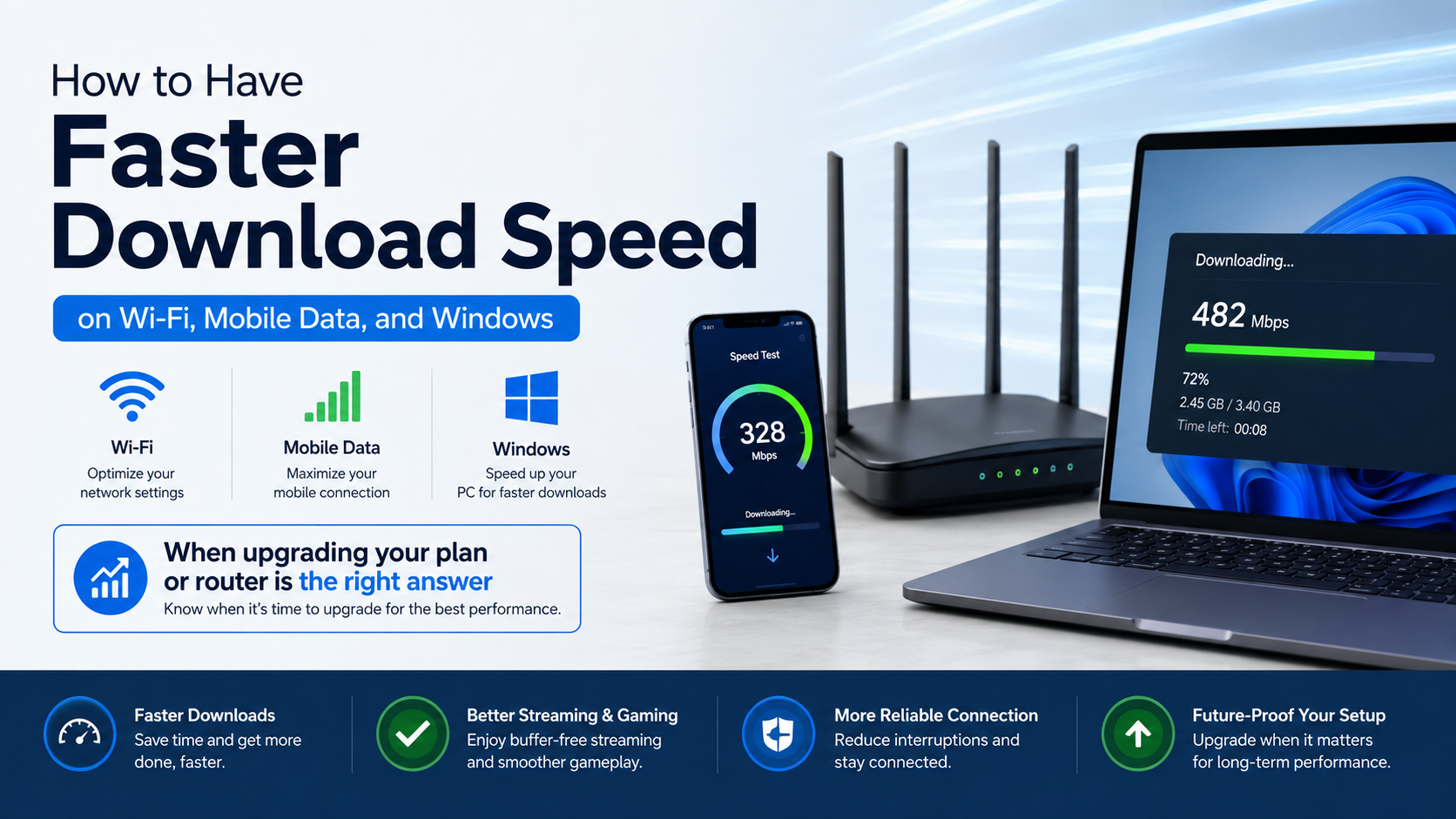
How to Have Faster Download Speed on Wi‑Fi, Mobile Data, and Windows
If downloads are slow, the cause may be weak Wi‑Fi, network congestion, a mobile-data limit, a busy server, or Windows using bandwidth in the background. The quickest approach is to measure your speed, identify where the slowdown occurs, and then apply the fix for that connection.
This guide explains how to have faster download speed on home Wi‑Fi, Android and iPhone mobile data, and Windows 10 or Windows 11 computers.
Key Takeaways
- Restart the router and device, then test download speed near the router.
- Use 5 GHz Wi‑Fi for speed at short range and 2.4 GHz for better range through walls.
- Stop cloud sync, streaming, VPNs, and other downloads while downloading a large file.
- On mobile data, move to an area with stronger 4G or 5G coverage and check whether your plan has a data or speed limit.
- Windows users can check background usage, update network drivers, and use Network reset only as a last resort.
- A slow result on every device usually indicates a router, ISP, or mobile-network problem rather than a single device.
First, find out what is making downloads slow

Before changing settings, run two or three speed tests at different times. Use the same device and, if possible, the same test server. Test:
- Next to the Wi‑Fi router.
- In the room where downloads are normally slow.
- On another phone or computer connected to the same network.
- On mobile data with Wi‑Fi turned off.
Record download speed, upload speed, ping (response time), and whether the connection drops. Microsoft also recommends establishing a baseline and testing at different locations in the home before changing Wi‑Fi settings. Microsoft’s Wi‑Fi layout guidance explains this approach.
Remember that internet plans are usually advertised in Mbps (megabits per second), while many browsers show MB/s (megabytes per second). Divide Mbps by eight to estimate MB/s. For example, a 100 Mbps connection may download at about 12.5 MB/s under ideal conditions.
A speed test can also be higher than an individual download because the file server may be busy or impose its own limit.
How to increase download speed on Wi‑Fi
Restart the router correctly
Unplug the router—and a separate modem or fibre ONT, if you have one—from power. Wait about 30 seconds, power the modem or ONT first, and then start the router. Wait until the status lights stabilise before testing again. Microsoft lists restarting network equipment as a standard troubleshooting step. See Microsoft’s official procedure.
A restart can clear temporary faults, renew the connection to your ISP, and remove a stuck router process. It will not increase the speed included in your broadband plan.
Choose the right Wi‑Fi band
Most modern routers broadcast two bands:
| Band | Best use | Limitation |
|---|---|---|
| 2.4 GHz | Longer range, more wall penetration, smart-home devices | Usually slower and more crowded |
| 5 GHz | Faster downloads close to the router | Shorter range and weaker through walls |
| 6 GHz | Compatible Wi‑Fi 6E/7 devices in low-interference areas | Requires compatible router and device; shorter range |
Connect a laptop or phone to the 5 GHz network when you are in the same room or nearby. Use 2.4 GHz when the 5 GHz signal is weak. If both networks have the same name, open the router’s app or web interface and check which band your device is using.
Windows 11 supports newer Wi‑Fi 6, Wi‑Fi 6E and Wi‑Fi 7 features only when the router, wireless adapter, drivers and operating system all support them. Microsoft explains these requirements here.
Improve router placement and reduce interference
Place the router in an open, elevated, central position—not inside a cabinet or behind a television. Keep it away from thick concrete walls, metal objects, microwaves and large electrical appliances. In apartments, neighbouring networks can compete for the same channels.
If your router has automatic channel selection, leave it enabled unless you have diagnosed interference. Advanced users can use a Wi‑Fi analyser to find a less crowded channel. Microsoft notes that 5 GHz networks generally have less channel overlap than 2.4 GHz networks, while 2.4 GHz channel-width settings can affect reliability. Read the home-layout recommendations.
Reduce congestion during the download
Pause or schedule:
- YouTube, Netflix and other streaming
- Google Drive, OneDrive, iCloud or Dropbox synchronisation
- Game updates and torrents
- CCTV uploads
- Video calls
- Other phones or TVs downloading large files
Change the Wi‑Fi password if unknown devices appear in the router’s client list. Use WPA2-AES or WPA3 security where supported, and update router firmware through the manufacturer’s official app or website.
For a desktop PC or gaming laptop, Ethernet is usually more consistent than Wi‑Fi. If the computer has no Ethernet port, a compatible USB-to-Ethernet adapter can provide a wired connection.
How to get faster download speed on mobile data
Mobile speed depends on tower capacity, signal quality, spectrum, indoor construction, device capability and your operator’s plan. A 5G icon does not guarantee high speed at every location.
Try these steps on Android
Google recommends restarting the phone and switching between Wi‑Fi and mobile data when diagnosing connection problems. Follow Google’s Android troubleshooting guide.
- Turn Wi‑Fi off so the phone uses mobile data.
- Turn Airplane mode on for about 10 seconds, then turn it off.
- Move near a window or go outdoors and test again.
- In Settings > Network & internet or Connections, confirm that Mobile data is enabled.
- Check whether Data Saver or an app-specific data restriction is limiting downloads.
- Install pending system and carrier updates.
- Remove a thick or poorly fitting case temporarily if it appears to affect signal.
- Test the SIM in another compatible phone, if available.
Menu names differ between Samsung, Xiaomi, OnePlus, Vivo, Oppo and other Android devices. If mobile data is slow in several locations and on multiple devices, contact your operator. Ask whether you have reached a daily or monthly high-speed allowance, whether there is an outage, and whether the SIM or network settings need replacement.
iPhone and iPad checks
On iPhone, open Settings > Cellular and confirm cellular data is enabled for the downloading app. Turn off Low Data Mode temporarily if you need automatic downloads and updates; Apple says Low Data Mode reduces background network activity and automatic downloads. Apple’s Low Data Mode instructions show where the setting is located.
If speed changes significantly by location, the issue is likely coverage or congestion. Try Wi‑Fi, another location, or a different supported network mode. Do not install “network booster” apps that promise to create additional tower capacity; an app cannot overcome an overloaded cell site.
Use hotspot or USB tethering carefully
A phone hotspot can provide a temporary connection for Windows, but it uses your mobile-data allowance and may heat the phone. USB tethering is often more stable than a wireless hotspot because the cable avoids an extra Wi‑Fi link. Check your operator’s hotspot terms before downloading large games or Windows updates.
How to increase download speed on Windows
Identify applications using bandwidth
Press Ctrl + Shift + Esc to open Task Manager. In the Processes tab, sort by the Network column and close or pause programs you recognise that are using significant bandwidth. Also check the download manager, browser, game launcher and cloud-storage client.
Do not terminate unknown Windows processes simply because they appear in the list. If malware is suspected, run Windows Security and remove suspicious software through trusted tools.
Use Windows’ built-in troubleshooting
On Windows 11, open the Get Help app and run the Network and Internet troubleshooter. You can also:
- Open Settings > Network & internet > Wi‑Fi.
- Select your connected network and choose Forget.
- Connect again and enter the password.
- Restart the PC and router.
Microsoft’s Wi‑Fi troubleshooting instructions apply to Windows 10 and Windows 11.
Check Delivery Optimization
Windows uses Delivery Optimization to download updates and Microsoft Store apps. Depending on your settings, it can also share update parts with other PCs. Open Settings > Windows Update > Advanced options > Delivery Optimization. You can turn off Allow downloads from other PCs, restrict it to your local network, or set bandwidth limits.
This does not speed up every browser download, but it can prevent Windows update traffic from competing with a large file, game or video call. Microsoft documents Delivery Optimization settings.
Update or reinstall the network driver
Download the latest Wi‑Fi or Ethernet driver from your computer manufacturer’s official support page. Avoid random driver-download websites. If a recent update caused problems, open Device Manager > Network adapters, right-click the adapter, choose Uninstall device, and restart. Windows may reinstall the driver automatically; keep a manufacturer driver available first.
Try Ethernet and Network reset
If possible, connect the PC directly to the router with Ethernet. If Ethernet is fast but Wi‑Fi is slow, focus on wireless interference, adapter drivers or router placement.
Use Network reset only after simpler steps:
- Windows 11: Settings > Network & internet > Advanced network settings > Network reset
- Windows 10: Settings > Network & internet > Status > Network reset
Network reset removes installed network adapters and settings, so you may need to reconnect to Wi‑Fi and reinstall VPN or virtual-switch software. Microsoft describes it as a last step, not a routine speed boost.
When upgrading your plan or router is the right answer
Upgrade only after testing several devices near the router. Consider a faster broadband plan when every device reaches the same plan limit and the household regularly downloads large files. Consider a newer router or mesh system when the speed is good beside the router but poor in distant rooms.
Check the router’s actual Ethernet port speed, Wi‑Fi standard, coverage and ISP compatibility. A Wi‑Fi 7 router cannot make a Wi‑Fi 4 phone operate at Wi‑Fi 7 speeds, and a gigabit plan cannot deliver gigabit downloads through a 100 Mbps router port.
Common problems that still limit download speed
- Only one website is slow: The server, route or file host may be limiting speed.
- Speed is slow only at night: Local ISP or mobile-tower congestion is likely.
- Speed is fast near the router but slow in one room: Distance, walls or interference are the main suspects.
- Speed is shown in MB/s: Convert it to Mbps before comparing it with your plan.
- VPN makes downloads slower: Encryption and the VPN server route can add overhead; test without it if privacy requirements allow.
- Downloads stop at 0%: Restart the app, check storage space, sign in again, and verify that the source is available.
Frequently Asked Questions
What is the fastest way to increase download speed?
Restart the router and device, connect to 5 GHz Wi‑Fi or Ethernet, pause other downloads, and test again. If every device remains slow, contact your ISP or mobile operator.
Does changing DNS make downloads faster?
Changing DNS can sometimes make websites start resolving faster, but it normally does not increase the sustained speed of a large file. Fix signal, congestion and background traffic first.
Is 5 GHz always faster than 2.4 GHz?
No. 5 GHz usually offers higher throughput at short range, while 2.4 GHz travels farther and passes through walls more effectively. The faster option depends on distance and interference.
Why is my phone faster than my Windows laptop on the same Wi‑Fi?
The phone may have a newer Wi‑Fi adapter, better antenna placement or stronger driver support. Test both devices beside the router, update the laptop driver and try Ethernet.
Can a VPN increase download speed?
Usually not. A VPN often reduces speed because traffic travels through an additional server. It may help only when an ISP route is unusually congested or traffic is being handled differently.
How can I speed up downloads on Windows 11?
Pause bandwidth-heavy applications, review Delivery Optimization, update the network driver, use Ethernet where possible and run the Get Help network troubleshooter. Use Network reset only as a last resort.
Does a Wi‑Fi booster guarantee faster downloads?
No. An extender can improve coverage, but an incorrectly placed extender may reduce throughput. Place it where it still receives a strong signal, or consider a wired access point or mesh system.
Should I use a “download accelerator” app?
Be cautious. Many third-party accelerators add advertising, unwanted software or privacy risks. Use the official browser, app store, game launcher or file provider first, and download software only from a trusted source.


