How Long Does Valorant Take to Download and Install on a Typical Internet Connection?
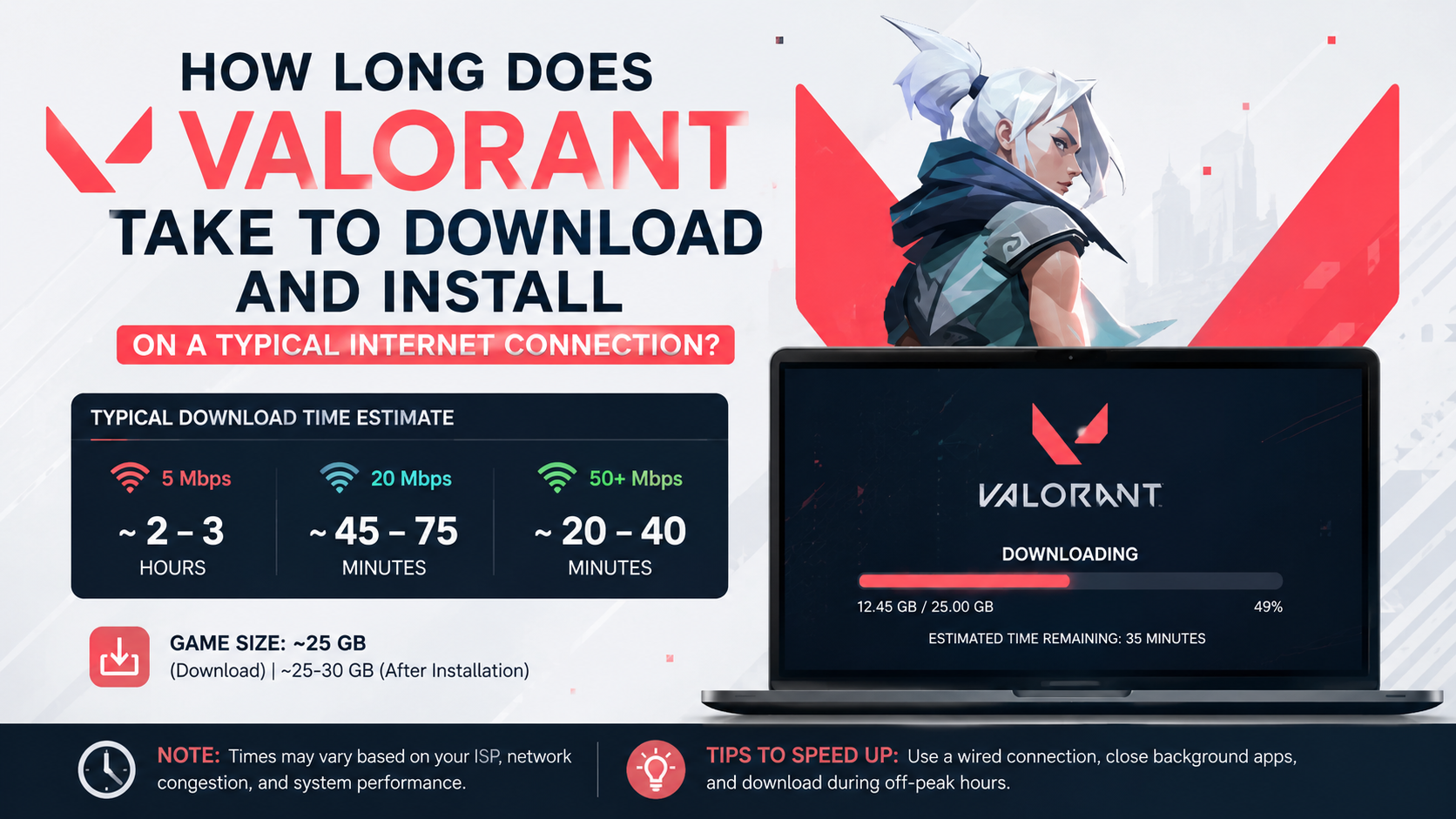
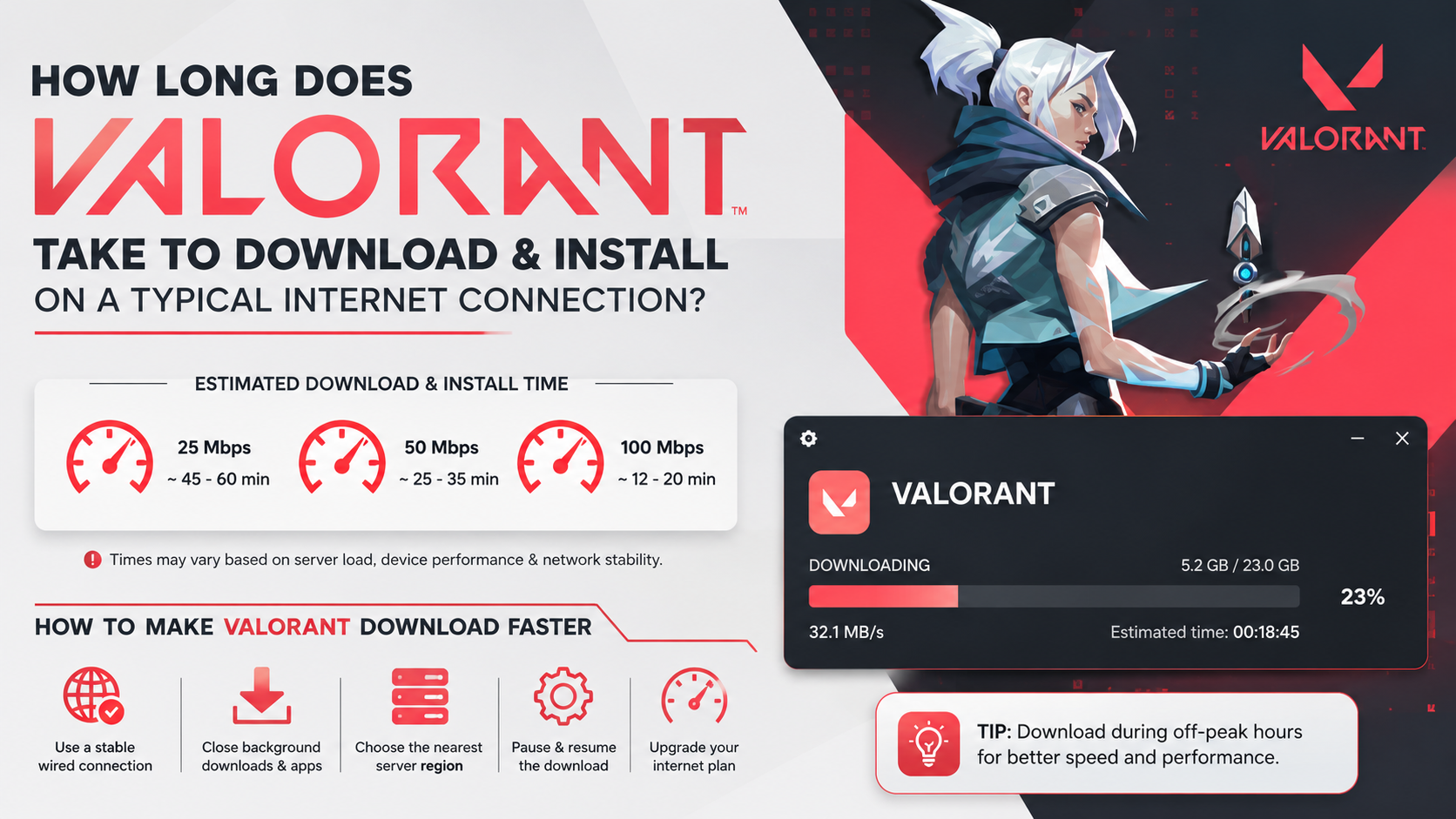
If you are asking how long does Valorant take to download, plan for roughly 30 minutes to 6 hours, depending on your connection speed and the amount of data shown by the Riot Client. On a stable 100 Mbps broadband connection, a fresh PC installation often takes about 30–45 minutes to download, plus another 5–20 minutes to install and configure Riot Vanguard.
Slower connections can take much longer. A 10 Mbps connection may need around five to six hours, while an unstable mobile-data connection can take even longer because the Riot Client may pause during file verification and extraction.
Key Takeaways
- A fresh Valorant PC download is commonly around 23–25 GB, but Riot does not guarantee one permanent file size.
- At 50 Mbps, allow approximately one hour for downloading and installation.
- At 100 Mbps, the complete process commonly takes 35–60 minutes.
- Download speed is measured in megabits per second (Mbps); file sizes are shown in gigabytes (GB).
- Riot’s official client is the safest way to download Valorant. Avoid cracked installers and unofficial file mirrors.
- Windows 11 requires TPM 2.0 and UEFI Secure Boot for Valorant, according to Riot’s current specifications.
How Long Does Valorant Take to Download at Different Speeds?
The table below uses a planning size of approximately 24 GB. Actual time varies with server load, Wi-Fi quality, background traffic, and file verification.
| Advertised internet speed | Approximate download time | Realistic total time |
|---|---|---|
| 5 Mbps | 10 hours 40 minutes | 11–13 hours |
| 10 Mbps | 5 hours 20 minutes | 5.5–6.5 hours |
| 20 Mbps | 2 hours 40 minutes | 3–3.5 hours |
| 25 Mbps | 2 hours 10 minutes | 2.25–3 hours |
| 50 Mbps | 1 hour 4 minutes | 1–1.5 hours |
| 100 Mbps | 32 minutes | 35–60 minutes |
| 200 Mbps | 16 minutes | 20–35 minutes |
| 500 Mbps | 6–7 minutes | 10–20 minutes |
These are theoretical download times. The Riot Client does more than transfer data: it verifies files, decompresses content, installs Vanguard, and may download a current patch. Therefore, the time shown in Windows or a speed-test app will not always match the time remaining in the game client.
A simple calculation
Use this formula for a rough estimate:
Time in seconds = file size in megabits ÷ download speed in Mbps
To convert a 24 GB file:
- 24 GB × 8,000 = approximately 192,000 megabits
- 192,000 ÷ 100 Mbps = 1,920 seconds
- 1,920 seconds = about 32 minutes
Internet providers in India usually advertise speeds in Mbps, while Windows and Riot display storage in GB. Confusing Mbps with MB/s is one of the most common reasons people underestimate the download time. 100 Mbps is approximately 12.5 MB/s, before normal network overhead.
How Big Is Valorant on PC?
Valorant’s size changes with major patches, engine updates, language files, and temporary installation data. Riot’s official patch notes explain that the Unreal Engine 5.3 update temporarily increased the download size, while reducing the installed footprint afterward. Riot also states that download sizes return to normal after such major updates. Riot’s Patch 11.02 notes
For practical planning, use these figures:
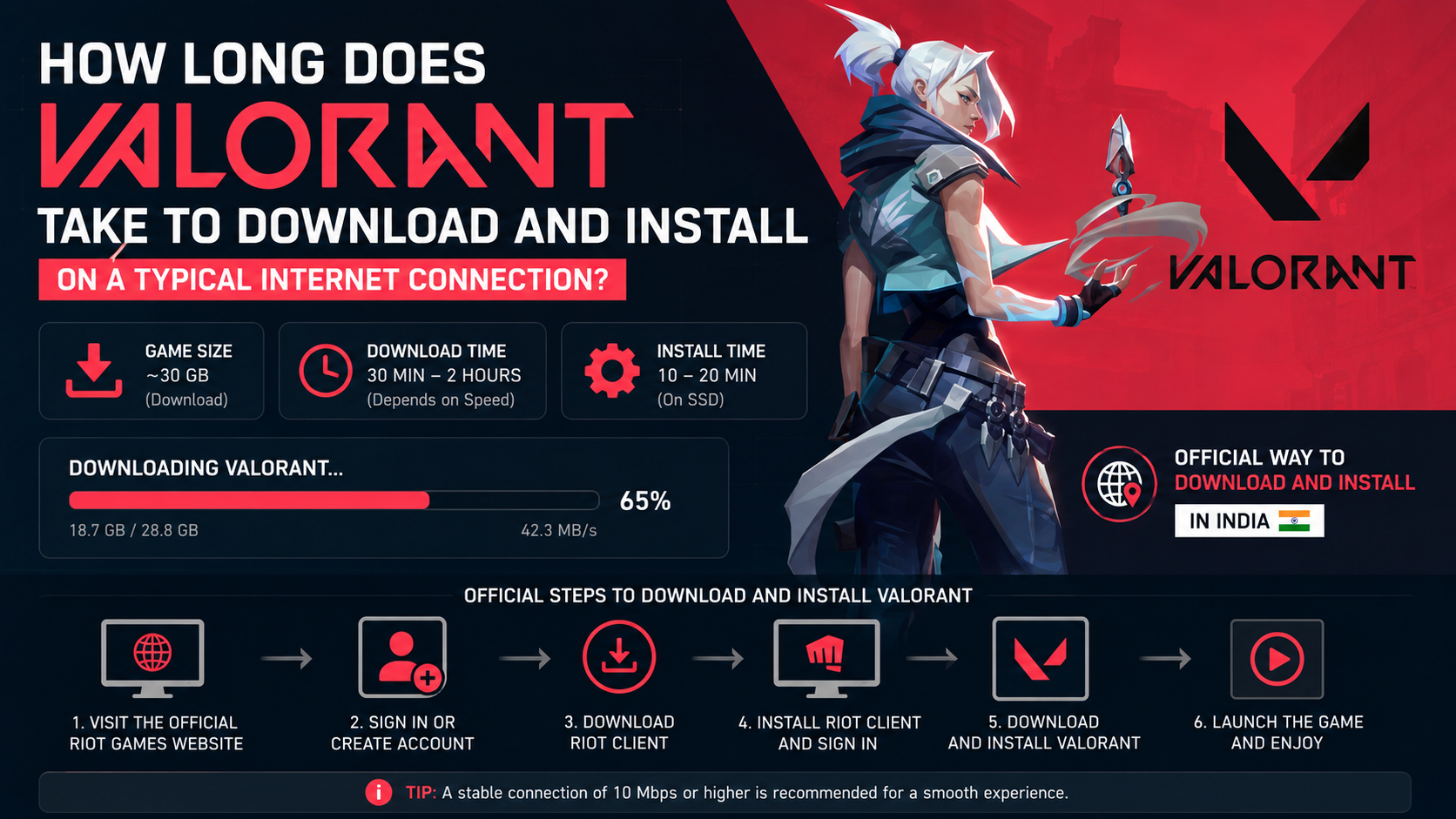
- Initial download: approximately 23–25 GB on many current PC installations
- Free disk space: keep at least 30 GB available; 40 GB or more gives safer room for temporary files and updates
- Additional components: Riot Client and Riot Vanguard are installed as part of the process
A third-party file-size check reported approximately 24.6 GB after installation, but this should be treated as an estimate rather than a permanent official figure. Dot Esports’ file-size explanation
The exact number that matters is the size displayed by your Riot Client when you click Install. Patch-day downloads can be larger than a normal first installation.
Official Way to Download and Install Valorant in India
Valorant is free to play and is distributed through Riot’s official website and Riot Client. Riot’s platform page lists PC, Xbox Series X|S and PlayStation 5 availability; the steps below focus on Windows PC. Riot’s official platform-selection page
- Open the official Valorant download page in your browser.
- Select Download for the PC version.
- Run the downloaded Riot installer.
- Sign in with a Riot Account, or create one.
- Choose the installation location and check the required free space.
- Start the download and leave the Riot Client open.
- Allow Riot Vanguard to install when prompted.
- Restart Windows if the client requests it.
- Open Valorant again and allow any remaining update to finish.
- Sign in and test the game before changing advanced settings.
Do not download “pre-installed” Valorant folders, modified launchers, cracked versions or random APK files. They may contain malware, outdated files or account-stealing software, and they cannot be treated as official game installations.
Valorant PC Requirements That Affect Installation
Riot’s current PC specifications list Windows 10 build 19041 or newer, or Windows 11 64-bit, along with 4 GB of RAM and at least 1 GB of VRAM. Riot lists separate hardware levels for 30 FPS, 60 FPS and 144-plus FPS play. Riot’s Valorant PC specifications
| Component | Minimum information published by Riot |
|---|---|
| Operating system | Windows 10 (Build 19041+) or Windows 11 64-bit |
| Memory | 4 GB RAM |
| Graphics memory | 1 GB VRAM |
| Minimum graphics examples | Intel HD 4000 or AMD Radeon R5 220 |
| Recommended CPU examples | Intel i3-4150 or AMD Ryzen 3 1200 |
| Windows 11 security | TPM 2.0 and UEFI Secure Boot |
These requirements affect whether the game can run, not just how quickly it downloads. A fast fibre connection cannot compensate for an unsupported operating system, insufficient storage or a Windows 11 security configuration that blocks Vanguard.
Why the Riot Client Can Take Longer Than the Download Estimate
The download percentage is not the only part of installation. You may see the speed fall or the progress bar pause while the client:
- Verifies downloaded chunks
- Decompresses files onto the drive
- Installs or updates Riot Vanguard
- Applies a game patch
- Writes files to a slower hard-disk drive
- Waits for Windows security or restart permissions
A pause does not automatically mean the download has failed. Check whether disk usage or the progress indicator is still changing. On a mechanical hard drive, installation can take noticeably longer than on an SSD even with the same internet plan.
How to Make Valorant Download Faster
For Indian broadband and mobile connections, these steps usually provide the biggest improvement:
- Use a wired Ethernet connection where possible.
- If using Wi-Fi, stay near the router and prefer the 5 GHz band.
- Pause Steam, Epic Games, Windows Update, cloud backup and video streaming.
- Stop other phones or TVs from using the same hotspot.
- Download outside peak household hours if your connection is congested.
- Do not repeatedly pause and restart the Riot Client.
- Keep the laptop plugged in and disable sleep while downloading.
- Use a stable home broadband connection instead of switching between Jio, Airtel or another mobile hotspot during the installation.
A speed test measures the connection to a test server, not necessarily the sustained speed available from Riot’s content servers. Short speed fluctuations are normal.
Troubleshooting a Slow, Stuck or Failed Download
The speed drops to zero
Wait several minutes and check disk activity. The client may be verifying or extracting files. If there is no progress for an extended period, close other downloads, restart the Riot Client and reboot Windows.
The download keeps increasing in size
This can happen when the client discovers a patch or recalculates required temporary space. Canceling repeatedly can make the process appear to restart. Let the client complete one uninterrupted installation where possible.
Vanguard will not install
Install pending Windows updates, restart the computer and launch the installer again. Riot’s support guidance also recommends removing both Riot Client and Valorant before a clean reinstall when dependency errors continue. Riot support guidance
Windows 11 shows a VAN or security error
Check that TPM 2.0 and UEFI Secure Boot are enabled in your firmware settings. These changes are motherboard-specific, so consult your PC or laptop manufacturer’s instructions rather than changing unrelated BIOS options.
There is not enough storage
Free space on the drive selected in the Riot Client. Emptying the Recycle Bin, removing old installers and moving large personal videos can help. Do not delete unknown Riot or Windows folders while the client is running.
How Much Internet Data Does Valorant Use?
The initial installation may consume around 24–25 GB, so users with limited mobile data should plan carefully. Future patches vary widely and may be much smaller or larger than a normal update.
Gameplay itself uses far less data than downloading the game, but voice chat, updates and other devices sharing the connection add to monthly usage. If you use a prepaid hotspot, check your remaining data before beginning the installation and disable automatic updates for unrelated applications temporarily.
Frequently Asked Questions
How long does Valorant take to download on 50 Mbps?
For an approximately 24 GB download, the theoretical time is about 64 minutes. In practice, allow one to one and a half hours for network overhead, verification, Vanguard and installation.
How long does Valorant take to download on 100 Mbps?
The download alone can take about 32 minutes under ideal conditions. A realistic complete installation is usually 35–60 minutes, depending on the PC and current patch.
Can I install Valorant on a laptop with 4 GB RAM?
Riot lists 4 GB RAM as the minimum. However, Windows and background applications also need memory, so 8 GB generally provides a more comfortable experience.
Does Valorant work on Windows 11?
Yes, provided the PC meets Riot’s requirements. Windows 11 additionally requires TPM 2.0 and UEFI Secure Boot for Vanguard.
Can I download Valorant on Android or iPhone in India?
The official PC download is for Windows. Do not install APKs or mobile versions from unofficial websites. Use Riot’s platform page for current, region-specific availability.
Why is my Valorant download slower than a speed test?
Speed tests use different servers. Riot’s server load, Wi-Fi interference, congestion, packet loss and file verification can all reduce the sustained rate shown by the client.
How much free space should I keep before installing?
Keep at least 30 GB free, with 40 GB or more preferred for temporary files and future updates. Always follow the exact space requirement displayed by the Riot Client.
Can I play immediately after the download finishes?
Usually you must wait for installation, Vanguard setup, a Windows restart and any pending patch to complete. The Play button becomes available only after all required components finish installing.