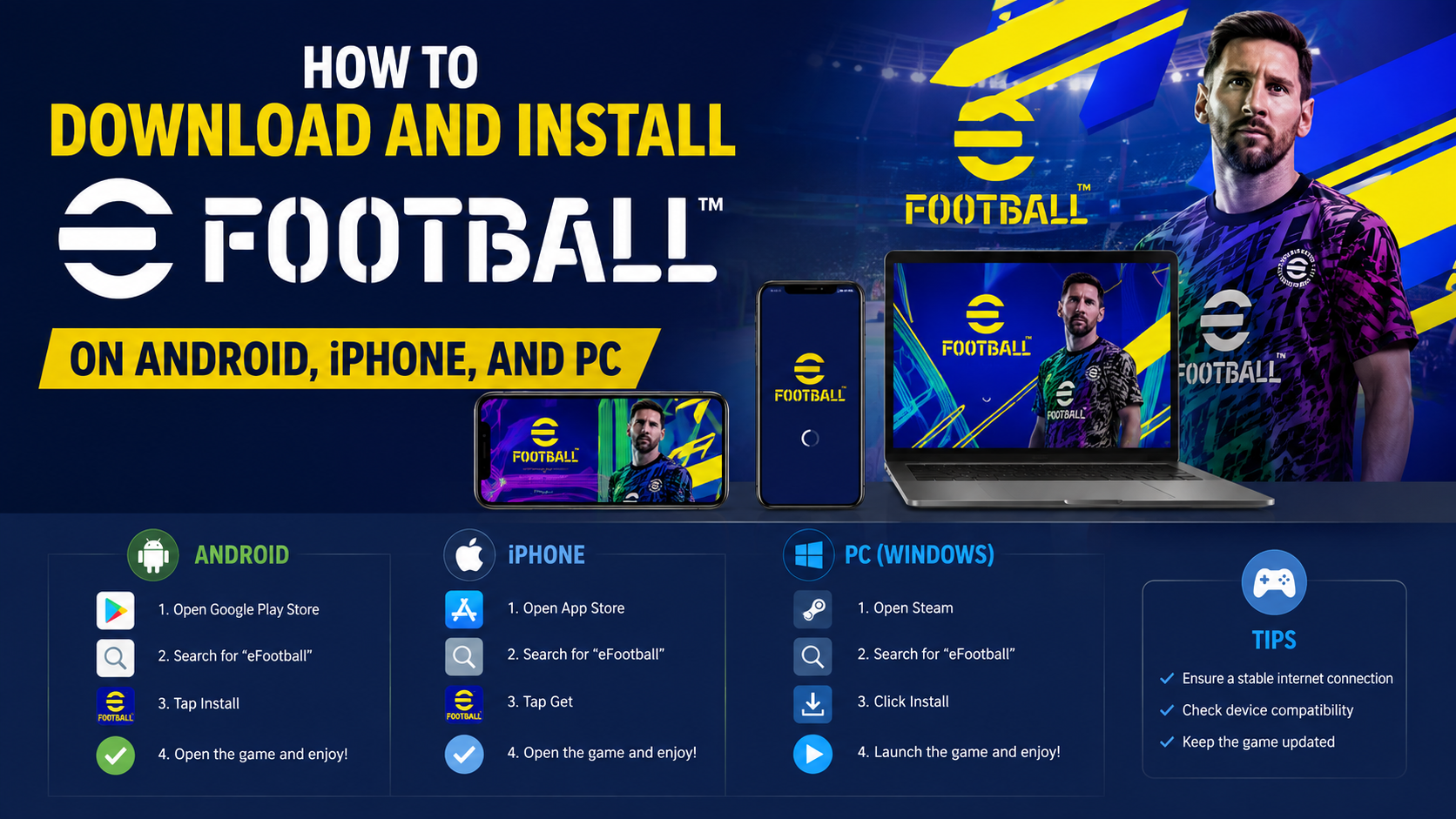
How to Download Games When Your Device Has Limited Storage Space
If you are searching for how to download games when your phone, tablet, or computer has very little free space, the safest solution is to create enough working space before installing. Game downloads often need room for the download file, temporary installation files, updates, and additional assets.
Start by checking your device’s storage, remove or move unnecessary files, and install the game only from its official store. If the game is still too large, use an SD card where supported, move PC games to another drive, choose a smaller version, or use cloud gaming instead of storing the full game locally.
Key Takeaways
- Check the game’s required storage and your device’s available space before downloading.
- Free internal storage first; deleting cached files, offline videos, and unused apps is usually effective.
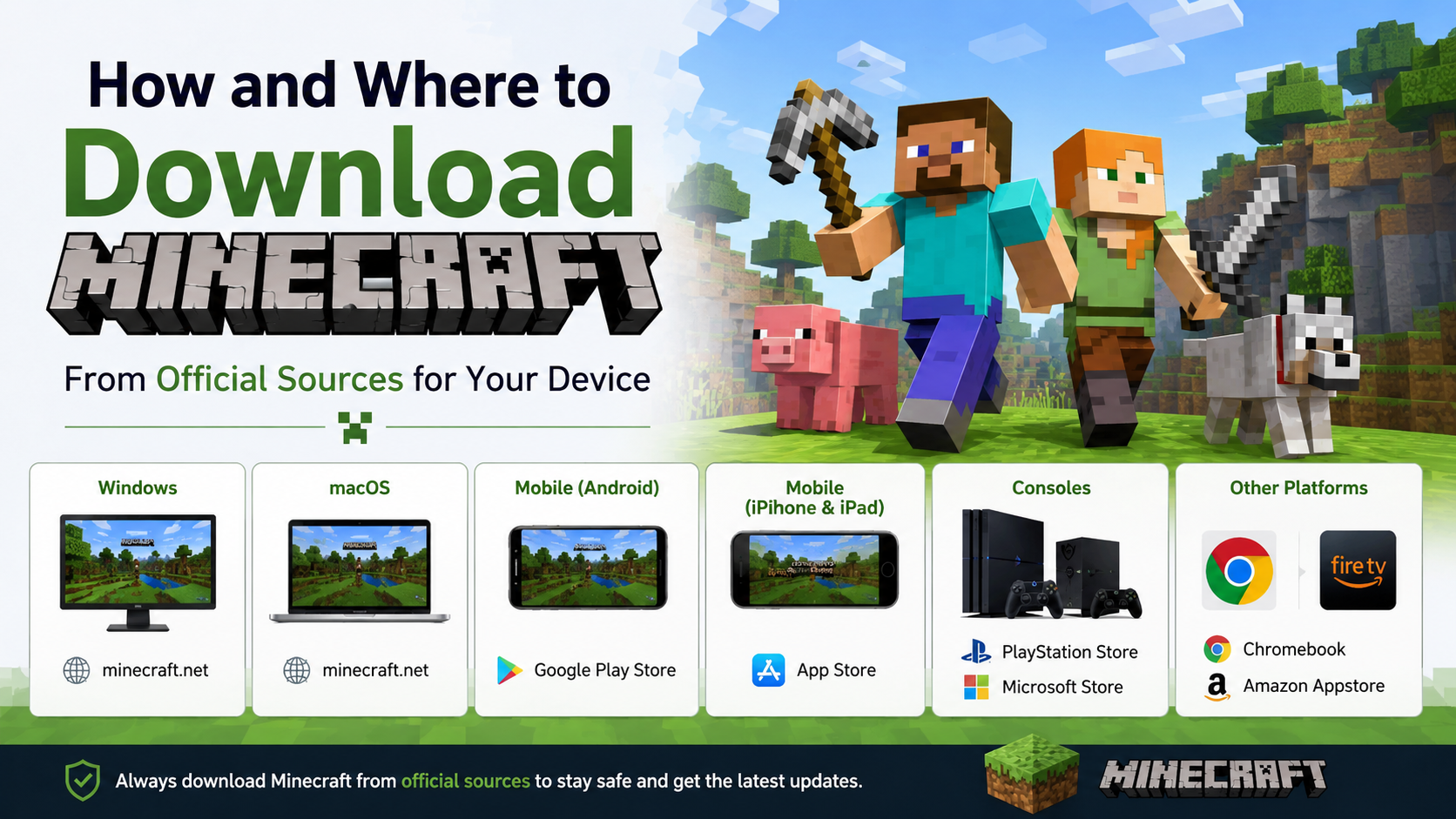
- Use Google Play, the Apple App Store, Microsoft Store, Steam, Epic Games Store, or the game publisher’s official launcher.
- Android phones may support SD cards, but portable SD cards generally cannot install apps; adoptable storage has limitations.
- iPhone users can offload unused apps while preserving their documents and data.
- Avoid “compressed,” modified, or unofficial APK and game files because they may contain malware or violate copyright.
- If local storage is not enough, consider cloud gaming or a device with expandable storage.
Why Games Need More Space Than Their Listed Download Size

A game’s store listing may show a download size, but that is not always the same as the final space required on your device.
During installation, your device may temporarily need space for:
- The downloaded package.
- Temporary files used to unpack and install the game.
- The installed game files.
- Additional maps, textures, voice packs, or updates downloaded after installation.
- Saved data, screenshots, replays, and cache files created during play.
For example, a game listed as a 2 GB download may require considerably more free space during installation. The exact amount depends on the platform, game and update process, so use the storage requirement displayed by the official store as your primary reference.
Google says low device storage can prevent apps and games from downloading or installing, and recommends checking Settings > Storage before trying again. (Google Play Help)
First Step: Check Storage and the Game Requirement
Before deleting anything, find out what is consuming your space.
Android

Open Settings > Storage. The menu name may differ slightly on Samsung Galaxy, Xiaomi, Motorola, Vivo, Oppo, or Realme phones. Review categories such as apps, images, videos, downloads, and system files.
Then open the game’s Google Play listing and check its displayed size and compatibility. Google Play provides the official installation route for supported Android devices. (Google Play Help)
iPhone and iPad
Go to Settings > General > iPhone Storage or iPad Storage. Apple displays available capacity, recommendations, and the amount used by each app. (Apple Support)
Check the game in the App Store and read its listed size, iOS or iPadOS requirement, and device compatibility.
Windows PC
Open Settings > System > Storage to see which drive is full. Check the game’s official store page or launcher for the download and installation requirement. Make sure you examine the correct drive—usually C:—because a different drive may have more free space but not be selected for installation.
Free Up Space Safely Before Downloading
The quickest method is to remove files you no longer need, beginning with items that can be downloaded again.
On Android
Use Settings > Storage to review large files and unused applications. You can also use Files by Google to identify duplicate files, temporary files, screenshots, and unused apps. Files by Google supports Android 8.0 and later and can move files to an SD card. (Files by Google Help)
Useful actions include:
- Delete completed downloads from the Downloads folder.
- Remove offline videos and music from streaming apps.
- Back up photos and videos to Google Photos or a computer, then delete local copies.
- Uninstall games you no longer play.
- Clear an app’s cache where appropriate.
Be careful with Clear storage or Clear data. This can remove login information, downloaded content, and local game progress. Back up your account or save data first.
Google Play can also automatically archive infrequently used apps. Archiving removes the app itself while keeping personal data, allowing you to reinstall it later if it remains available on Google Play. Enable it through Play Store > profile picture > Settings > General > Automatically archive apps. (Google Play Help)
On iPhone and iPad
From Settings > General > iPhone Storage, select an app and choose Offload App. Offloading removes the app but keeps its documents and data; tapping its icon later downloads it again. Apple also offers Offload Unused Apps under Settings > Apps > App Store. (Apple Support)
Delete large videos, message attachments, podcasts, and files you have already backed up. Do not delete a game before confirming that its progress is synced to an account or cloud service.
On Windows
Use Settings > System > Storage > Temporary files to remove safe temporary data. Empty the Recycle Bin, move videos and installation files to another drive, and uninstall unused programs.
Avoid deleting folders inside Windows, Program Files, or a game’s installation directory manually. Use the relevant launcher or Windows’ installed-app settings instead.
Use an SD Card on Android—With Important Limitations
An SD card can help, but it does not automatically make every game installable.
Google distinguishes between two formats:
| SD card format | Can store photos and videos? | Can install apps? | Can move between devices? |
|---|---|---|---|
| Portable storage | Yes | Generally no | Yes |
| Adoptable/internal storage | Yes | Yes, where supported | No |
A portable card is useful for moving photos, videos, and documents away from internal storage. An adoptable card is formatted and tied to the phone, so formatting erases existing data and the card may not work in another device. (Android Help)
If your phone supports adoptable storage:
- Back up everything on the SD card.
- Insert the card and open Settings > Storage.
- Select the SD card and choose the option to format it as internal or adoptable storage.
- Follow the on-screen instructions.
- Check Settings > Apps > [game] > Storage for a Change or Move option.
Not every phone, Android version, or game supports moving apps. If no move option appears, do not force it with an unofficial tool. A slow or failing card can also cause long loading times, crashes, or corrupted data.
Install Games to Another Drive on Windows
A desktop or laptop with a nearly full system drive may still have enough capacity on another internal or external drive.
For Microsoft Store games, Windows may allow you to select another drive as the installation location. Open Settings > System > Storage > Advanced storage settings > Where new content is saved, then choose the preferred drive for new apps when the option is available.
Some launchers also let you add a second library location or move an installed game. The exact menu depends on the launcher and game. Keep an external drive connected while playing if the game is installed there, and use a reliable USB 3 or faster connection.
Do not disconnect the drive during installation, updates, or gameplay. If the drive is formatted or removed, the launcher may no longer find the game.
Choose a Smaller or Storage-Friendly Option
When freeing space is not enough, consider alternatives:
Select optional game content
Some games let you install only the base game, a single-language audio pack, or selected campaign and multiplayer files. Look for Manage content, Download options, or Resource packs in the game’s launcher.
Try a smaller edition
A “lite” edition, older version, 2D edition, or browser version may use less storage. Download it only from the developer’s official website or a recognised store.
Use cloud gaming
Cloud gaming streams game video from a remote server, so the complete game is not stored on your device. You still need a compatible service, an account or subscription where required, and a stable internet connection. On mobile networks in India, monitor data usage carefully because extended play can consume substantial data.
Use a streaming or remote-play setup
If you already own a gaming PC or console, remote-play features can stream that system to your phone. The game remains installed on the host device, while the phone acts as the display and controller.
The Safest Way to Download a Game
Use this order of preference:
- Google Play Store for Android.
- Apple App Store for iPhone and iPad.
- Microsoft Store, Steam, Epic Games Store, or the publisher’s official launcher for Windows.
- The game developer’s official download page for supported platforms.
Avoid websites offering “free paid games,” modified APKs, cracked installers, unlimited coins, or pre-installed game data. Such files may be altered, bundled with unwanted software, or used to steal accounts. They may also breach the game’s licence or copyright.
Never disable Play Protect, Windows security, or macOS security checks simply to install a game. If a download asks you to install an unknown certificate, grant unnecessary accessibility permissions, or enter banking credentials outside the official store, cancel it.
Troubleshooting: The Game Still Will Not Install
“Not enough storage” despite apparently free space
Restart the device, check internal rather than removable storage, and leave additional working space beyond the download figure. Delete an incomplete download and start again if the installation previously failed.
Download stuck at zero or pending
Confirm a stable Wi-Fi or mobile-data connection. Google recommends checking connectivity, storage, date and time settings, and restarting the device when Play Store downloads fail. (Google Play Help)
The game installs but immediately downloads more files
This is normal for games that deliver maps, textures, or other assets after the initial installation. Open the game on Wi-Fi and check its in-game download manager before starting play.
SD card is not detected
Remove and reinsert the card, then check Settings > Storage. Files by Google notes that a card formatted as internal storage may not appear as a normal portable card. (Files by Google Help)
Installation fails after clearing data
Clearing a game’s data may remove local saves. Reinstall only after confirming that progress is linked to Google Play Games, Apple, Facebook, or the game publisher’s account.
Frequently Asked Questions
How much free space do I need to download a game?
Use the requirement shown by the official store or launcher, then allow extra room for temporary installation files and updates. Large games may need substantially more working space than their initial download size.
Can I download a game directly to an SD card?
On Android, a portable SD card usually stores files but cannot install apps. Some devices support adoptable storage, which formats the card as internal storage and may permit app installation. Support varies by device and game.
Can I install iPhone games on an external drive?
iPhone and iPad games are normally installed on the device’s internal storage. You can free space by deleting files or offloading unused apps, but standard App Store games cannot generally be installed directly to an external USB drive.
Why does Google Play ask me to delete more space than the game size?
The device may need room for temporary download, unpacking, installation, and update files. The store’s displayed size is not always the total peak space required.
Is downloading an APK a good way to save storage?
Usually not. An APK from an unofficial source may be modified, outdated, incompatible, or unsafe. Use Google Play or the developer’s official distribution channel whenever possible.
Can cloud gaming solve a storage problem?
Yes, because the full game is hosted remotely rather than stored locally. However, cloud gaming requires a supported service, a suitable connection, and potentially a paid plan. Mobile-data costs and network reliability matter.
What should I delete first to make room for a game?
Start with completed downloads, offline videos, duplicate photos, large recordings, and unused apps. Avoid deleting app data or game folders until you have confirmed that important saves are backed up.